
Payment reminders and who to chase
See every overdue invoice in one list, remind those clients in one go, and switch on automatic reminders so new invoices are chased for you.
- 11 steps
- About 2 min
- Checked against NextiaInvoices on October 27, 2026
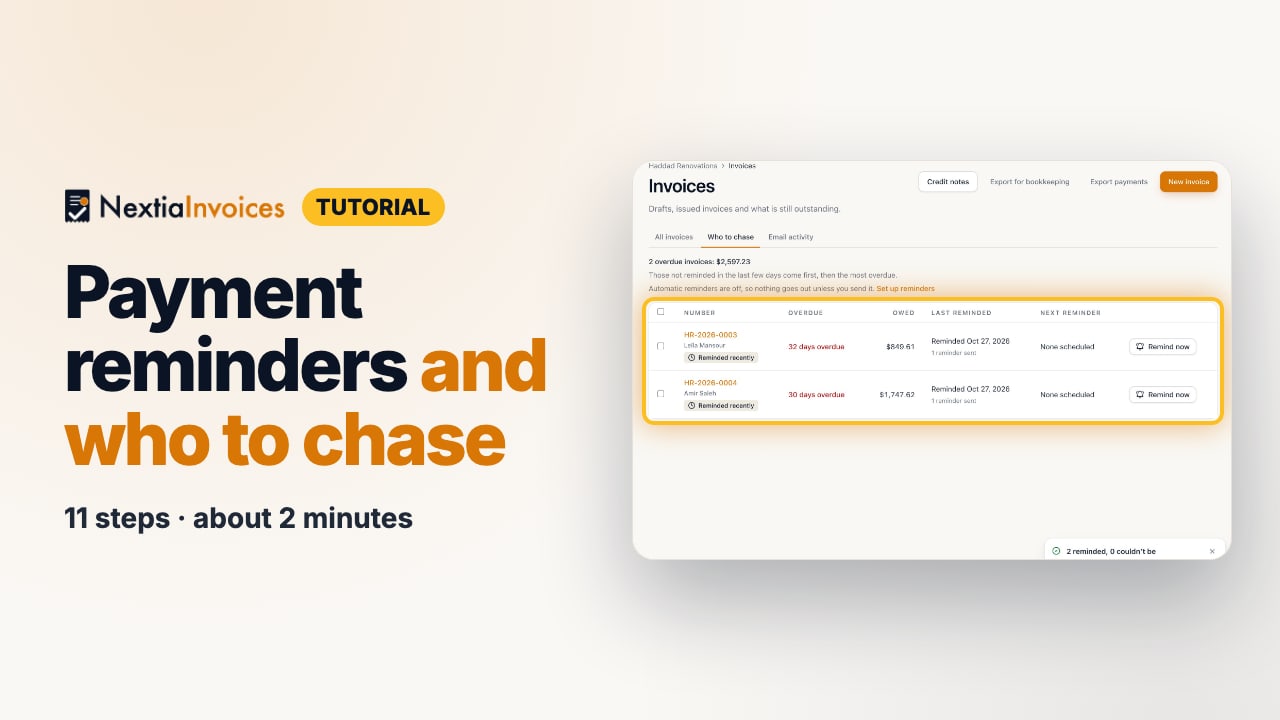
The video is on its way. The step-by-step and written versions are ready now.
- 1
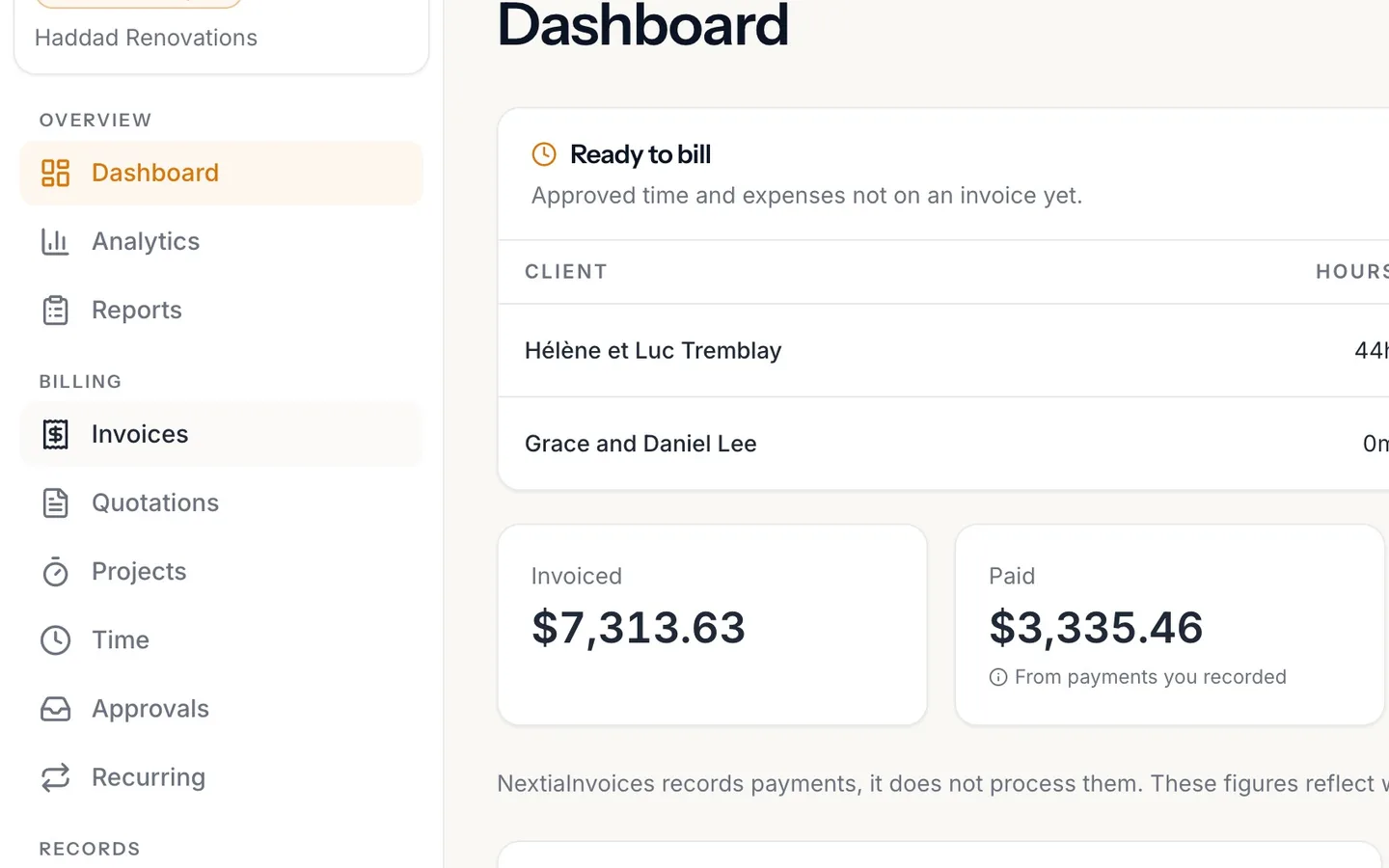
Select Invoices in the sidebar.
- 2
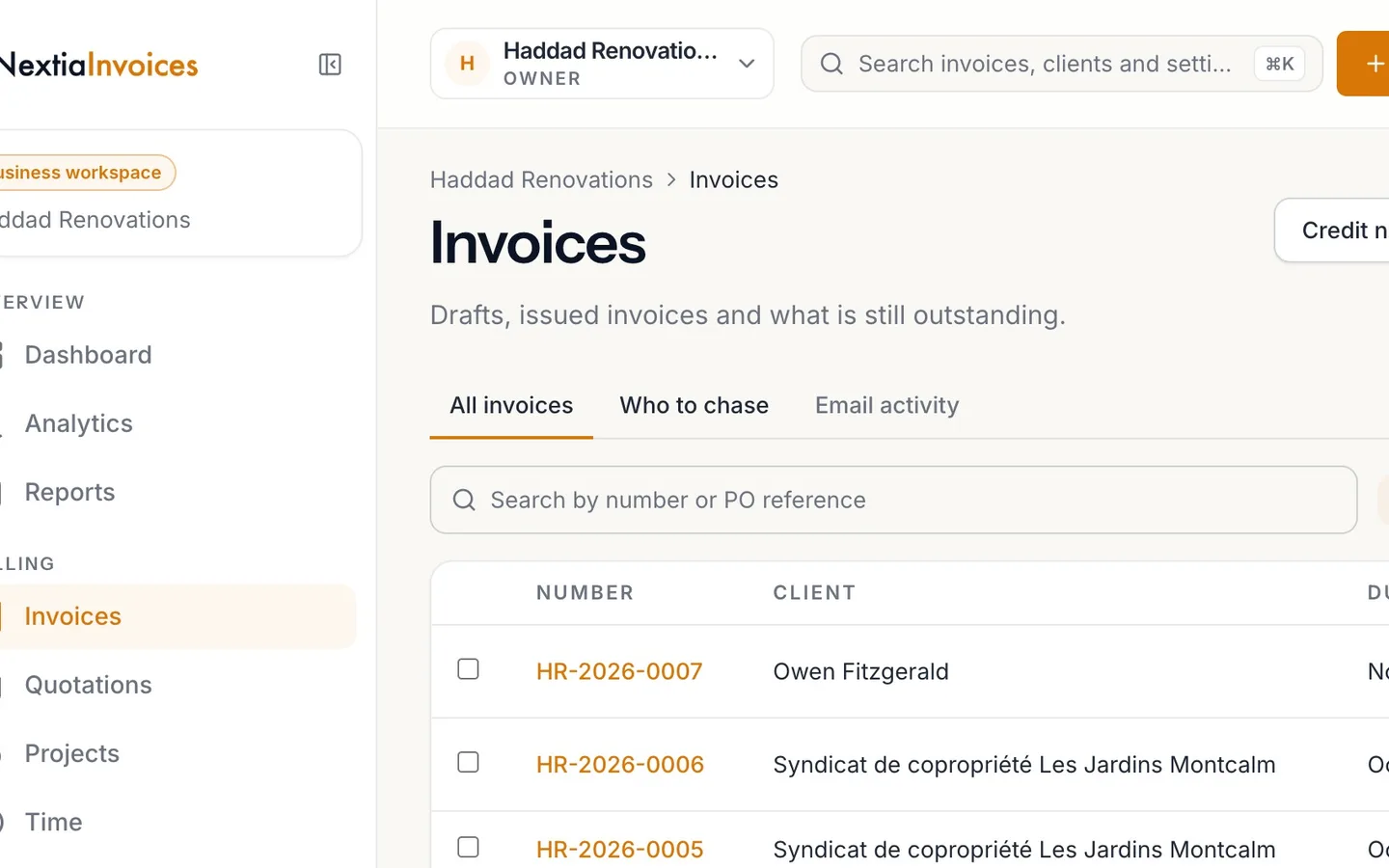
Select the Who to chase tab.
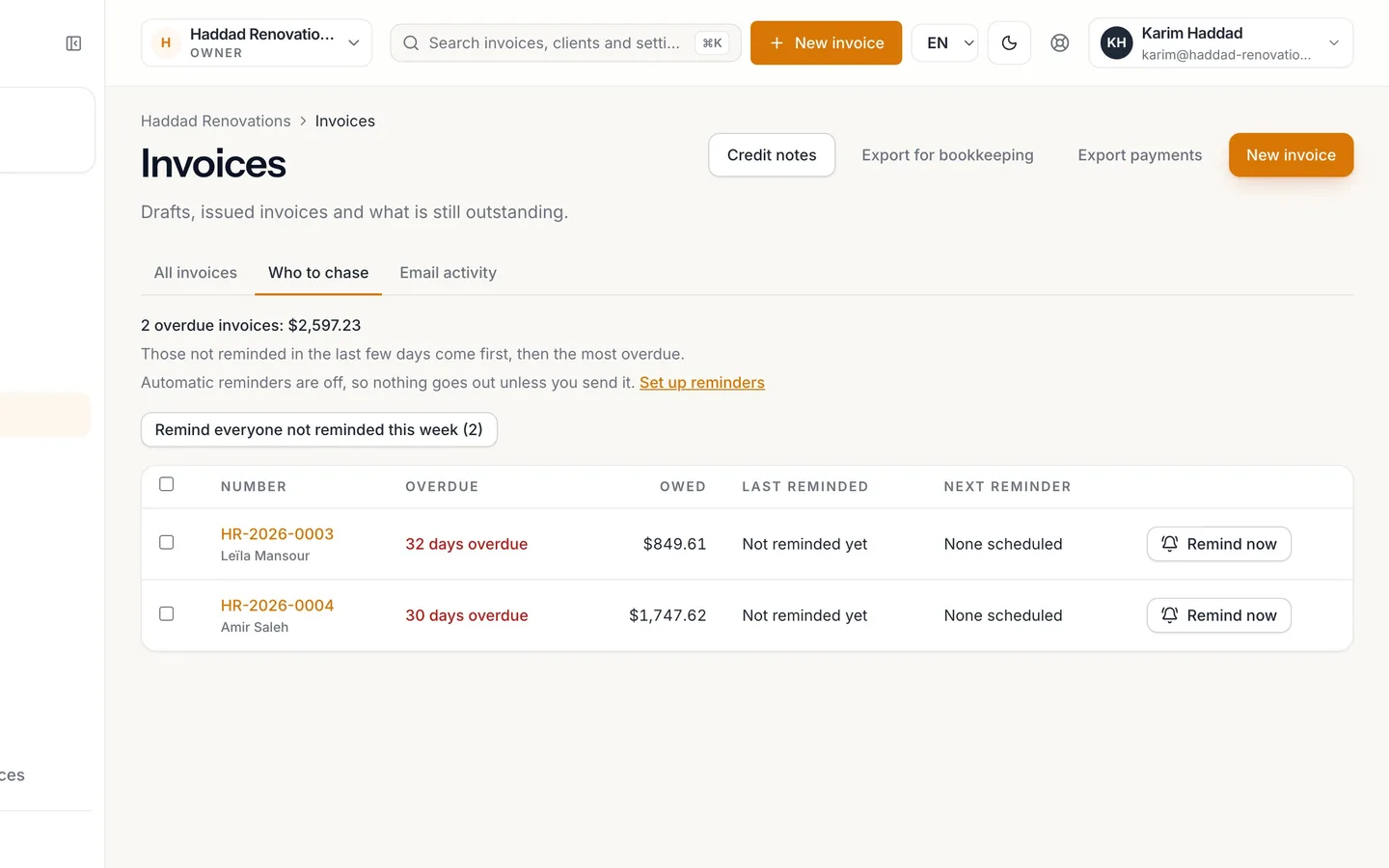
Every overdue invoice, and what's owed in all.
- 3
Check each invoice.
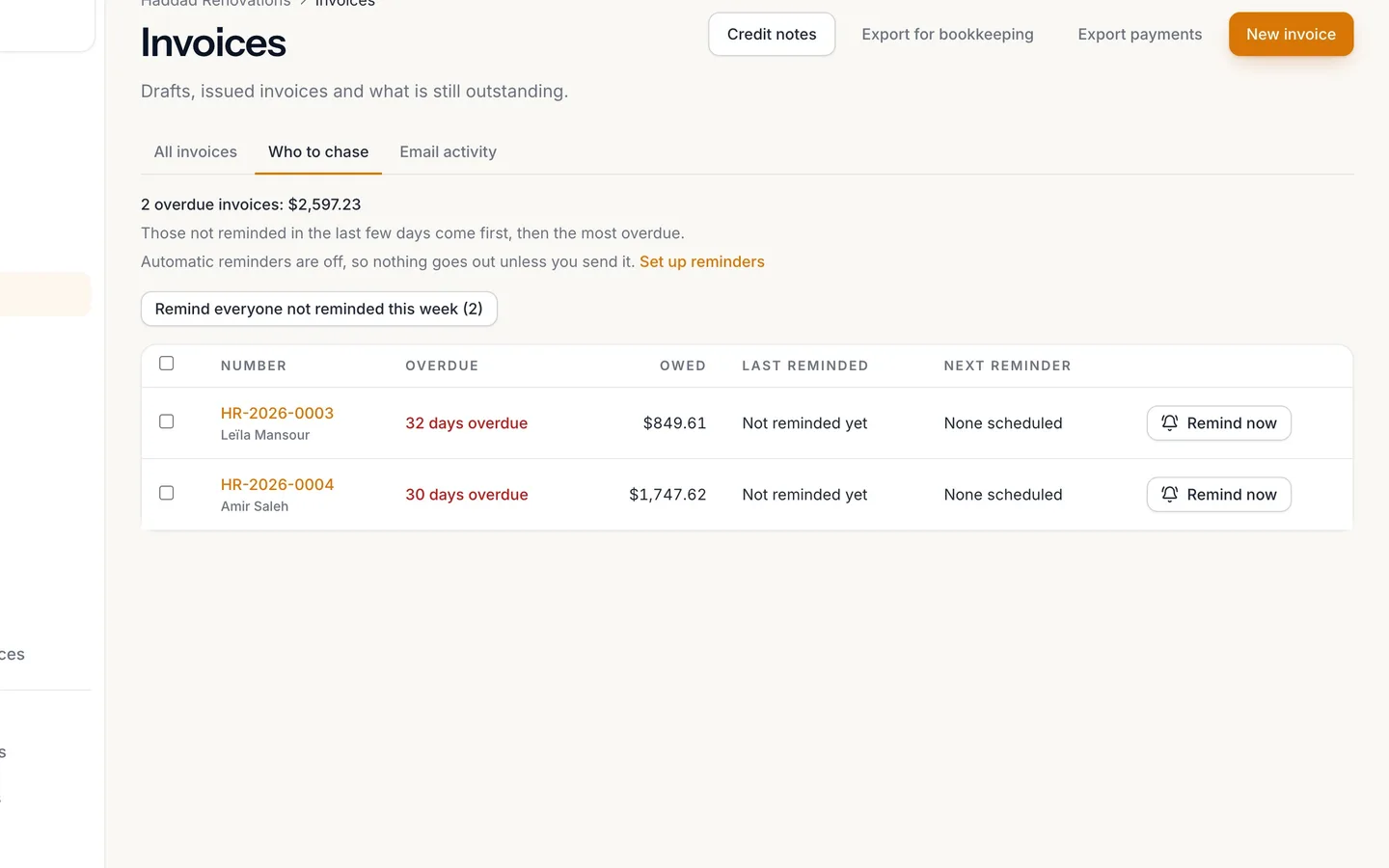
How late it is, what's owed, when the client was last reminded, and the next reminder.
- 4
Automatic reminders are off until you switch them on.
Until then, nothing goes out unless you send it.
- 5
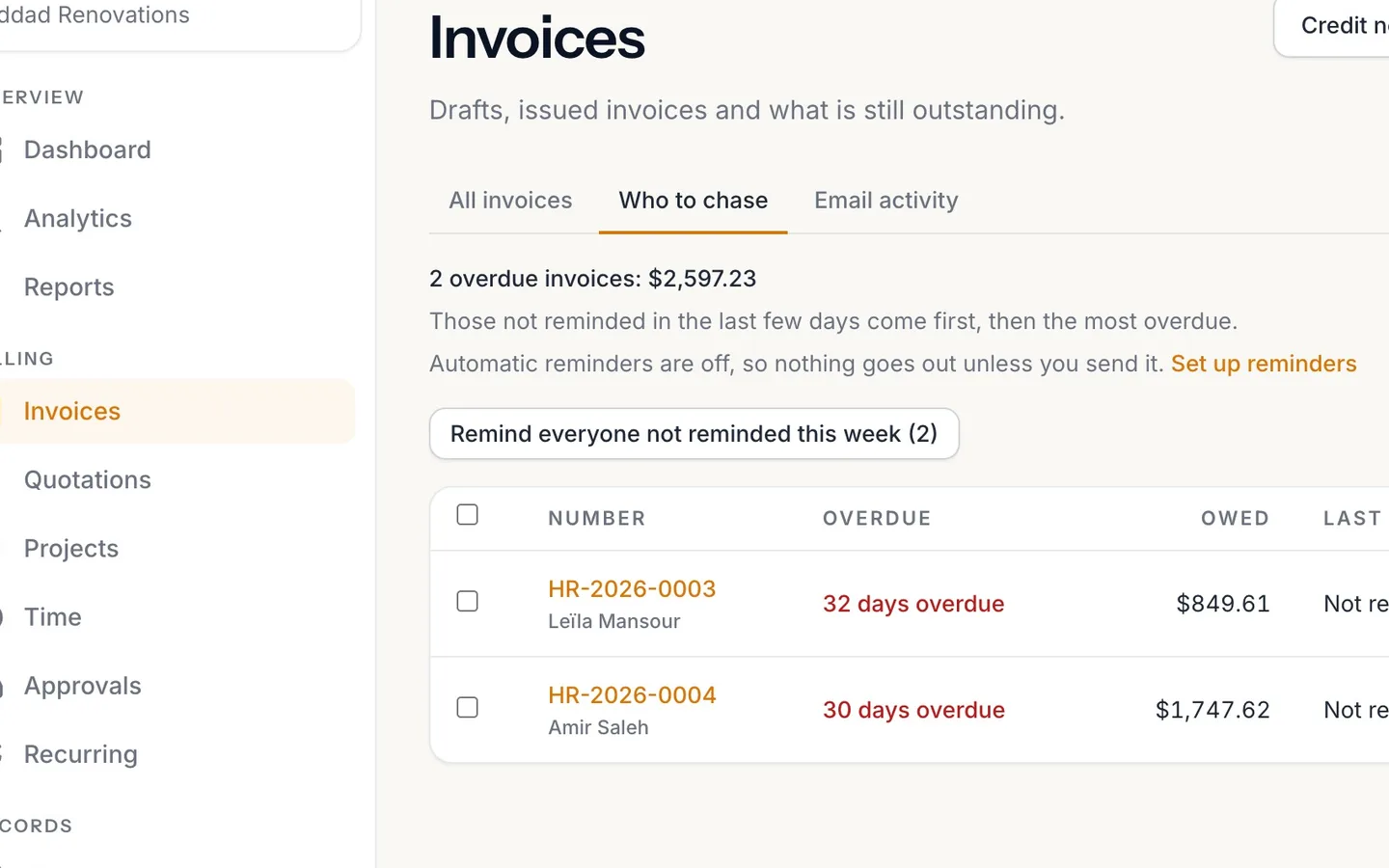
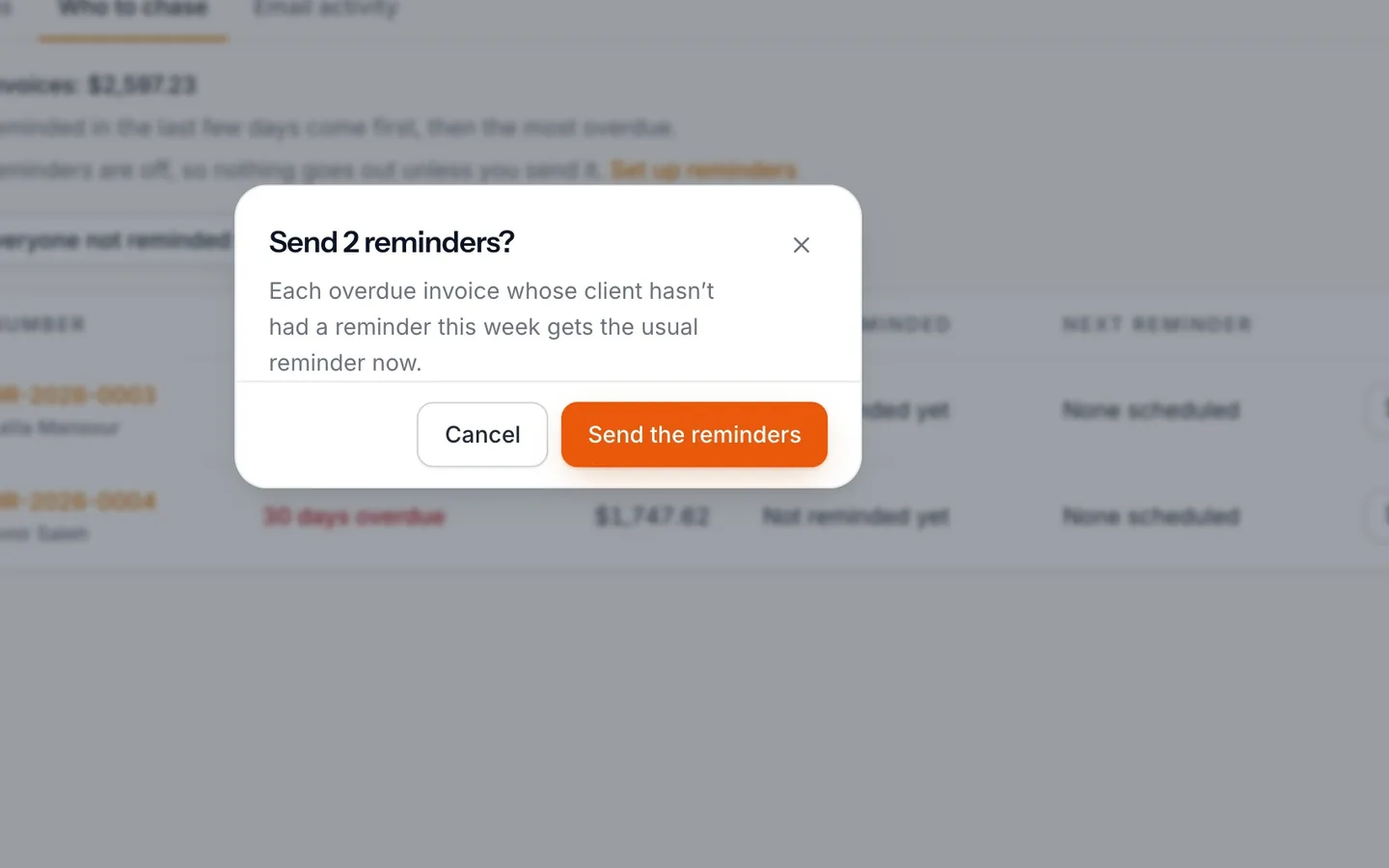
Select Remind everyone not reminded this week, then Send the reminders.
Or select Remind now on one invoice.
- 6
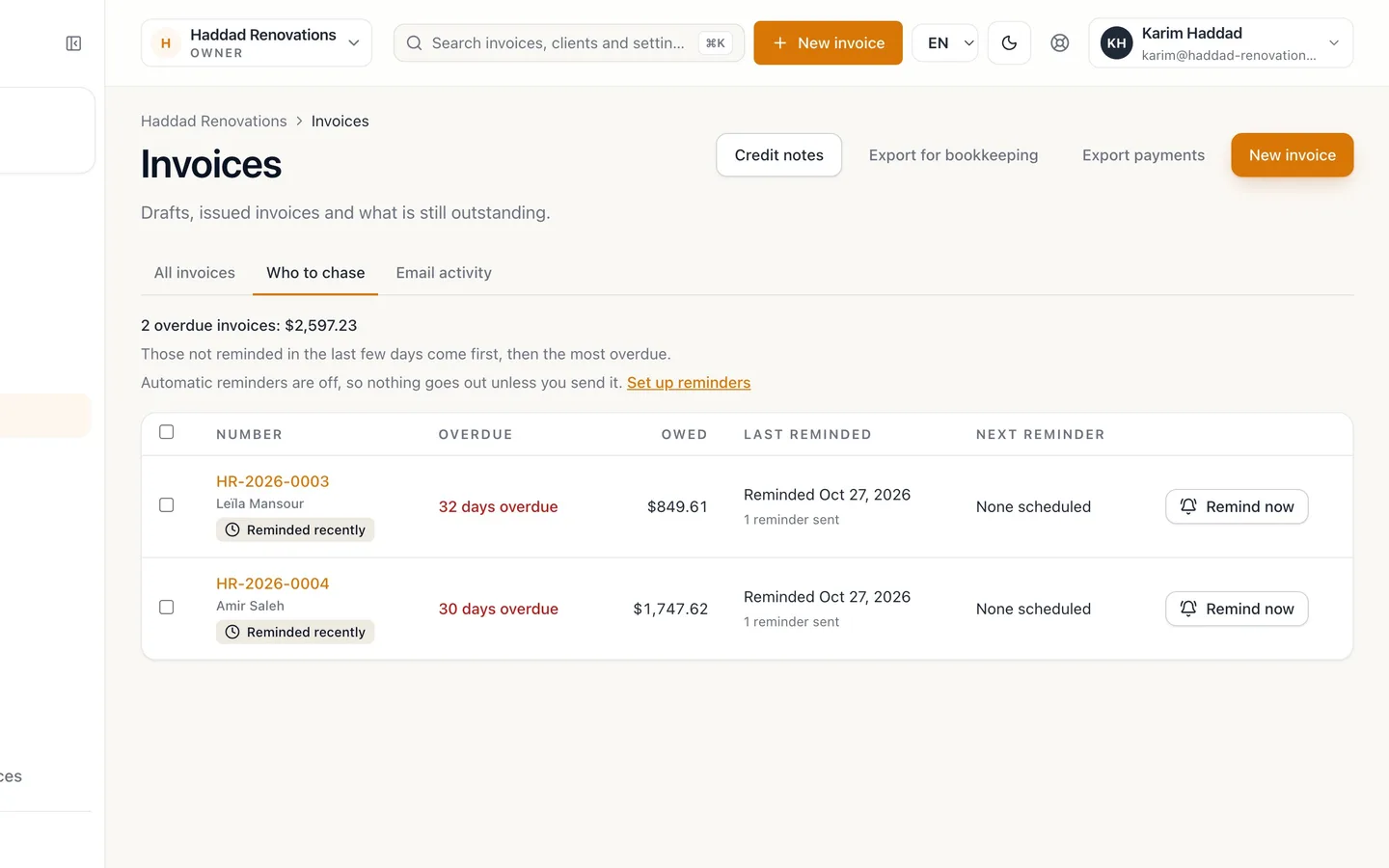
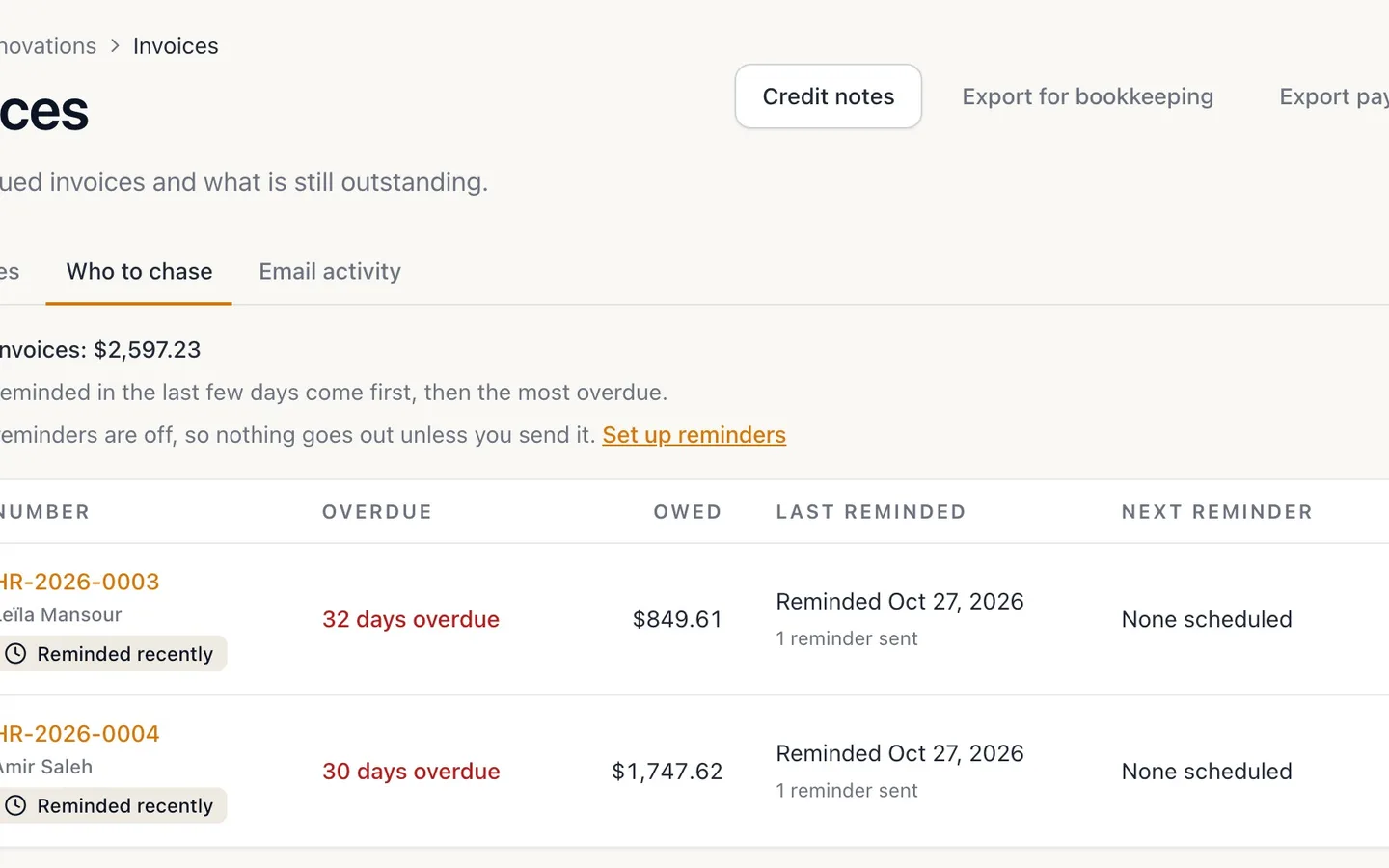
Last reminded now shows today.
Invoices reminded in the last week are marked Reminded recently and listed after the rest.
- 7
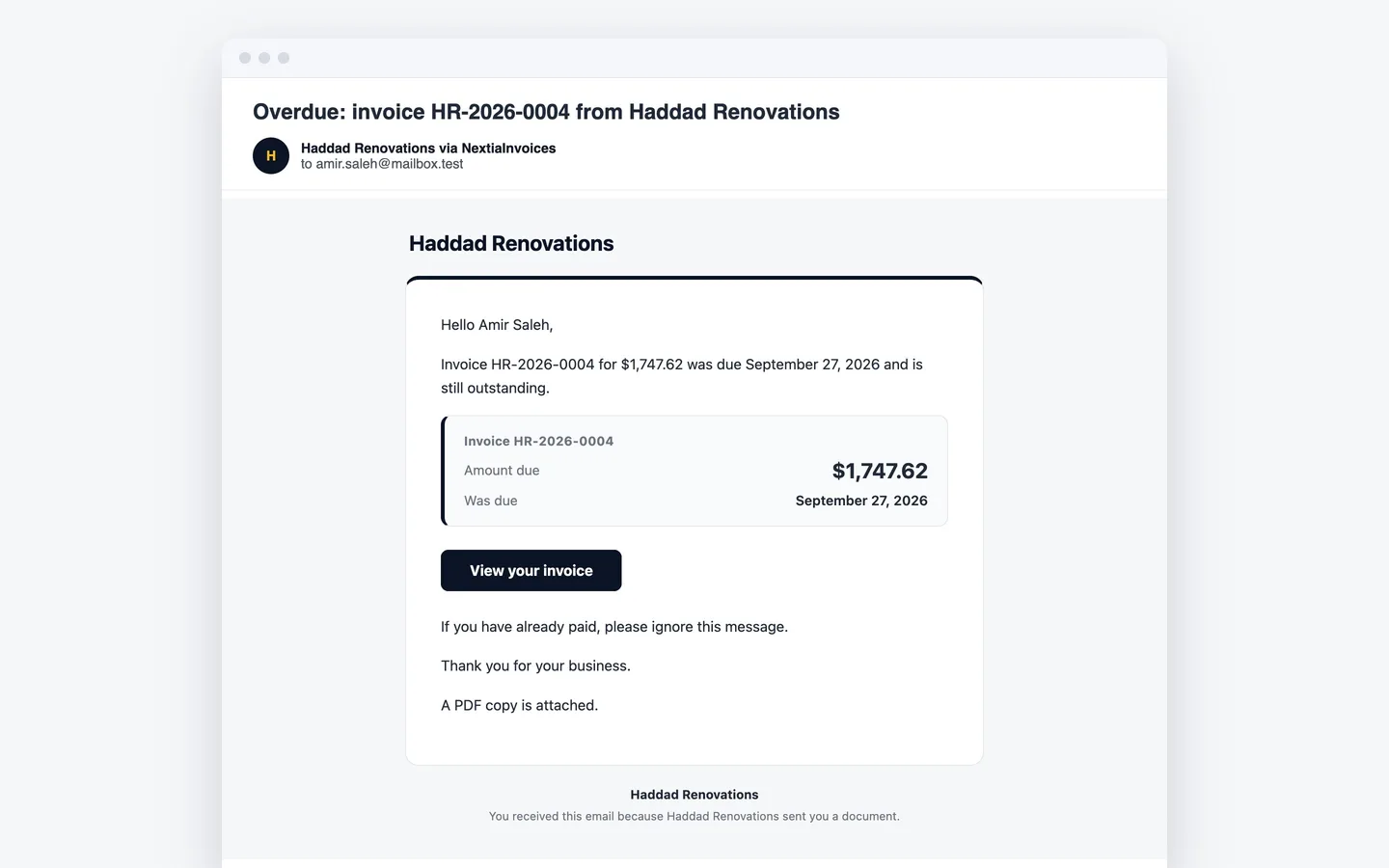
Your client gets a polite reminder.
In the invoice's language, with what's owed, the due date, a link to the invoice and the PDF.
- 8
To chase new invoices automatically, select Set up reminders.
It's also under Business settings → Payment reminders.
- 9
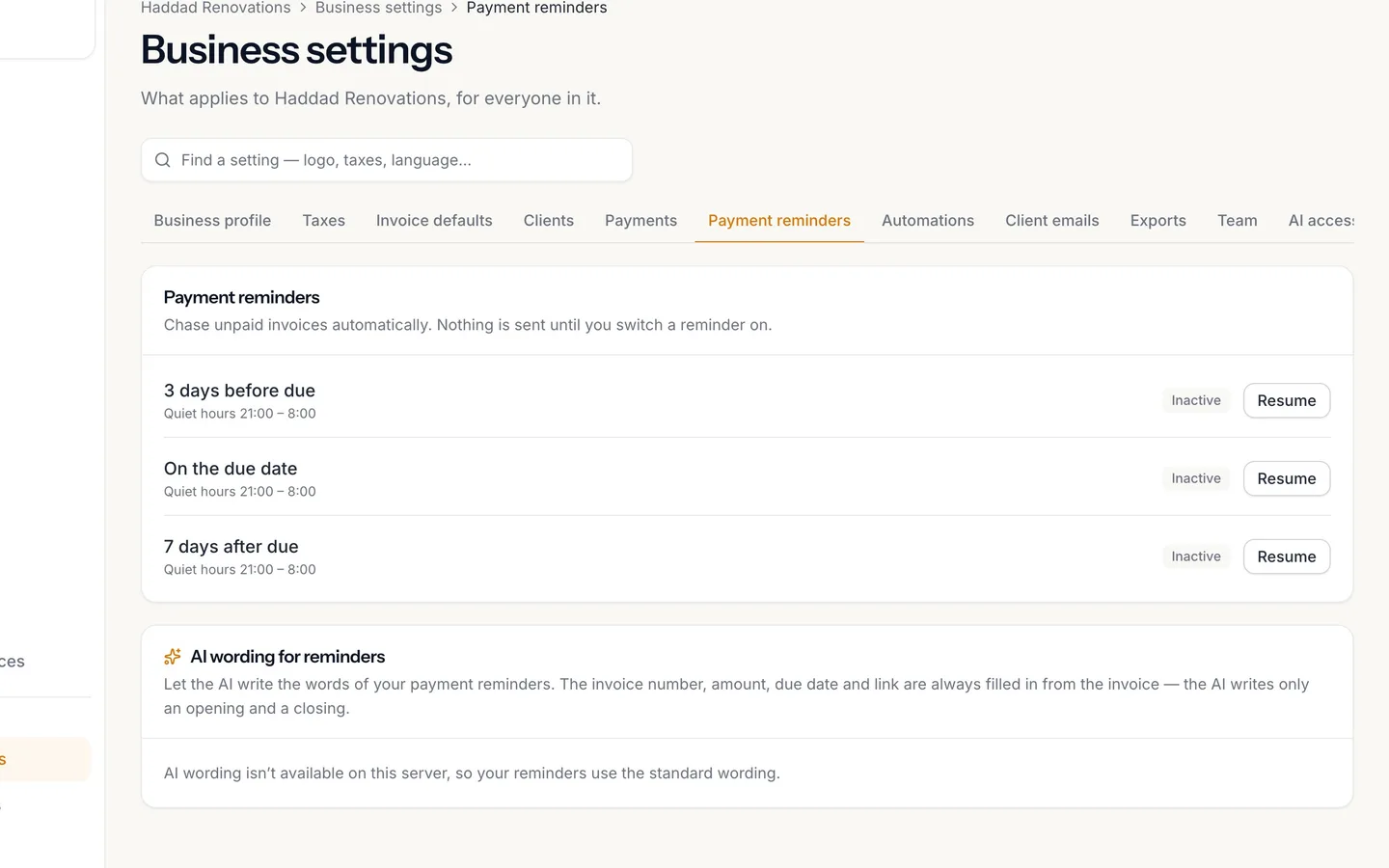
Choose your reminders.
Three days before the due date, on the day, and a week after. Each is sent once per invoice, on its day.
- 10
Nothing goes out during Quiet hours.
9 p.m. to 8 a.m., in your business's time zone. A reminder due then waits for the morning.
- 11
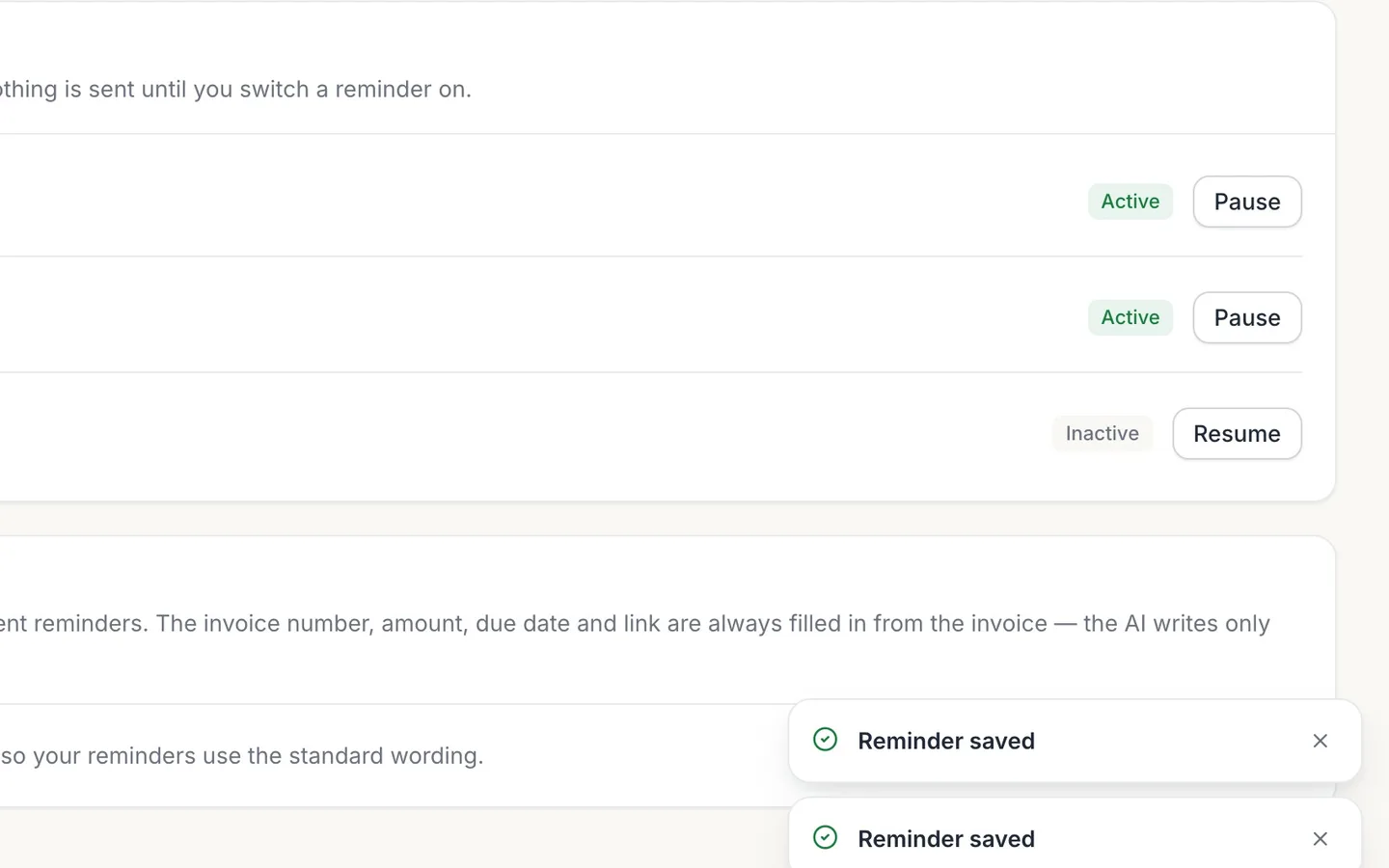
Select Resume on each reminder you want.
It reads Active. Invoices already past every reminder day are reminded by hand, from Who to chase.
Payment reminders and who to chase
See every overdue invoice in NextiaInvoices, remind those clients in one go, and switch on automatic reminders before and after each invoice's due date.
Before you start
This guide is for when invoices are going unpaid. Who to chase puts every overdue invoice in one list, with how late it is, what's owed and when the client was last reminded. From there you can remind everyone at once. Then you can switch on automatic reminders, so new invoices are chased for you without you having to think about it.
What you need to know first:
- Only issued invoices past their due date, with money still owed, are listed. Drafts and written-off invoices aren't.
- A client needs an email address to be reminded.
- Automatic reminders are off until you switch them on. Until then, nothing goes out unless you send it.
- Switching reminders on is done in Business settings, so it needs a role that can manage settings.
In the video, two of Karim's invoices are about a month late: Leïla Mansour's bathroom fan and Amir Saleh's basement door. Nobody has reminded them yet.
Step by step
-
Open Invoices
Select Invoices in the sidebar.
-
Open Who to chase
Select the Who to chase tab, beside All invoices. At the top, a summary gives the number of overdue invoices and what's owed in all, for example "2 overdue invoices" with the total.
-
Read each row
Each overdue invoice has a row with:
- Overdue: how late it is, such as "30 days overdue".
- Owed: the balance still due.
- Last reminded: the date of the last reminder, or Not reminded yet.
- Next reminder: the next automatic reminder still to come, or None scheduled.
Invoices not reminded in the last few days come first, then the most overdue. A client without an email address shows No email address on the row.
-
Reminders are off
When no automatic reminder is switched on, the page says so: "Automatic reminders are off, so nothing goes out unless you send it." That's the case for a new business, which is why Leïla's and Amir's invoices were never reminded.
-
Remind everyone at once
Select Remind everyone not reminded this week; the button shows how many invoices that is. NextiaInvoices asks you to confirm before anything goes out: select Send the reminders. A message then says how many were sent and how many couldn't be.
To remind just one client, select Remind now on their row. You can also tick several rows and select Remind selected.
-
See them marked as reminded
Last reminded now shows today's date on both invoices, and each is marked Reminded recently. Invoices reminded in the last week are listed after the rest, so the top of the list is always who you haven't chased yet.
A reminder you send by hand doesn't use up the automatic ones: if automatic reminders are on, they still go out on their days.
-
What your client receives
Each client gets a polite reminder by email, written in the invoice's own language, with what's owed, the due date, a link to view the invoice online and the invoice PDF attached. Amir gets his in English; Leïla gets hers in French.
-
Open Set up reminders
To chase future invoices automatically, select Set up reminders on the Who to chase tab. It opens Business settings → Payment reminders, where you can also go directly.
-
Choose your reminders
Payment reminders has three reminders, one per row:
- 3 days before due
- On the due date
- 7 days after due
Each is sent once per invoice, on its day. An invoice that's already been paid is skipped, and an invoice with no due date gets no reminders. Each row shows whether that reminder is Active or Inactive.
-
Quiet hours
Each row also shows its Quiet hours: 21:00 to 8:00, in your business's time zone. No reminder goes out during them. A reminder that falls due then waits for the next run after 8:00, so it's sent that morning instead of being skipped. The time zone is the one set in Business settings → Profile.
-
Switch on the reminders you want
Select Resume on each reminder you want. It then reads Active, and Pause switches it off again. From now on, every issued invoice with a due date gets that reminder on its day.
An invoice already past every reminder day, like Leïla's and Amir's, won't get an automatic one: remind it by hand from Who to chase.
What happens next
With reminders on, NextiaInvoices regularly checks your invoices and sends the reminders that fall due, outside quiet hours. Each invoice's page shows its Reminders: what's scheduled, what was sent, and any that were skipped because the invoice was paid. When a client pays, record the payment: the invoice leaves Who to chase and no more reminders go out for it.
If something goes wrong
An invoice says No email address
The client has no email address on their record. Add one in Clients, then remind them from Who to chase.
An overdue invoice shows no next reminder
Either its reminder days have all passed, or reminders are off. Remind it by hand with Remind now.
A reminder didn't go out when I expected
Reminders wait outside quiet hours, 21:00 to 8:00 in your business's time zone. Check that the time zone in Business settings → Profile is where your business actually is.
An automatic reminder was not sent because of the email allowance
Each plan includes a number of client emails a month, and automatic reminders count toward it. When it's used up, the invoice's Delivery history says an automatic reminder wasn't sent because of it. The count starts again next month.
A client is missing from Who to chase
Only issued invoices past their due date with a balance owing are listed. A draft, an invoice that isn't due yet, a paid invoice or one that was written off isn't there.
Questions
How do I send a payment reminder in NextiaInvoices?
Open Invoices, select Who to chase, and select Remind now on the invoice's row. Or select Send a reminder now on the invoice itself. Your client gets an email with what's owed, the due date and a link to the invoice.
How do I turn on automatic payment reminders?
Go to Business settings → Payment reminders and select Resume on each reminder you want: 3 days before the due date, on the due date, and 7 days after. Each one then reads Active.
When are automatic reminders sent?
On each reminder's day: 3 days before the due date, on the due date, or 7 days after, once per invoice. None go out between 21:00 and 8:00 in your business's time zone; those wait for the morning.
Are reminders sent in French?
Reminders go out in each invoice's own language. A client whose invoices are in French gets French reminders.
Will a client be reminded after they pay?
No. A paid invoice is skipped, and it leaves Who to chase. Record the payment as soon as it arrives.
Does a reminder I send by hand cancel the automatic ones?
No. A reminder sent by hand doesn't use up the automatic ones, so scheduled reminders still go out on their days.
Can I remind several clients at once?
Yes. Remind everyone not reminded this week reminds every listed invoice not reminded in the last seven days, after you confirm. You can also tick rows and select Remind selected.