
Record a payment, part or full
Record money your client paid you outside NextiaInvoices, such as an e-Transfer, a cheque or cash, in part or in full, and send them a receipt.
- 13 steps
- About 2 min
- Checked against NextiaInvoices on October 25, 2026
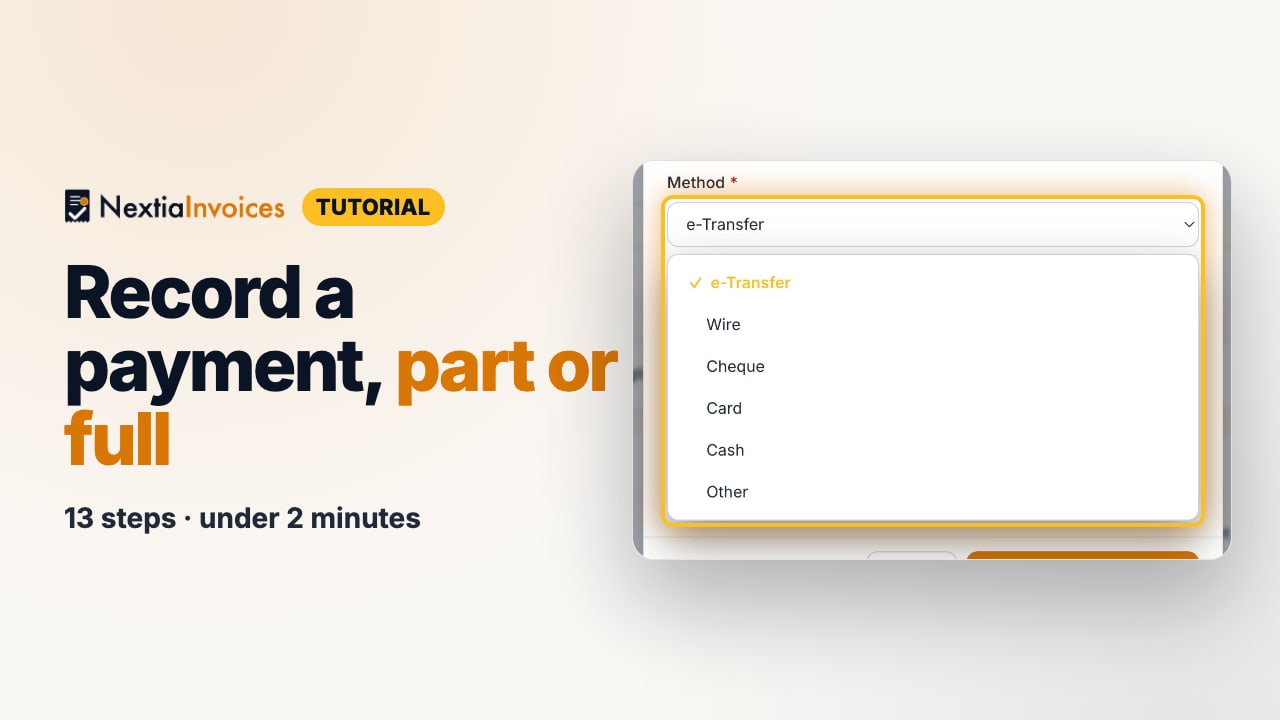
The video is on its way. The step-by-step and written versions are ready now.
- 1
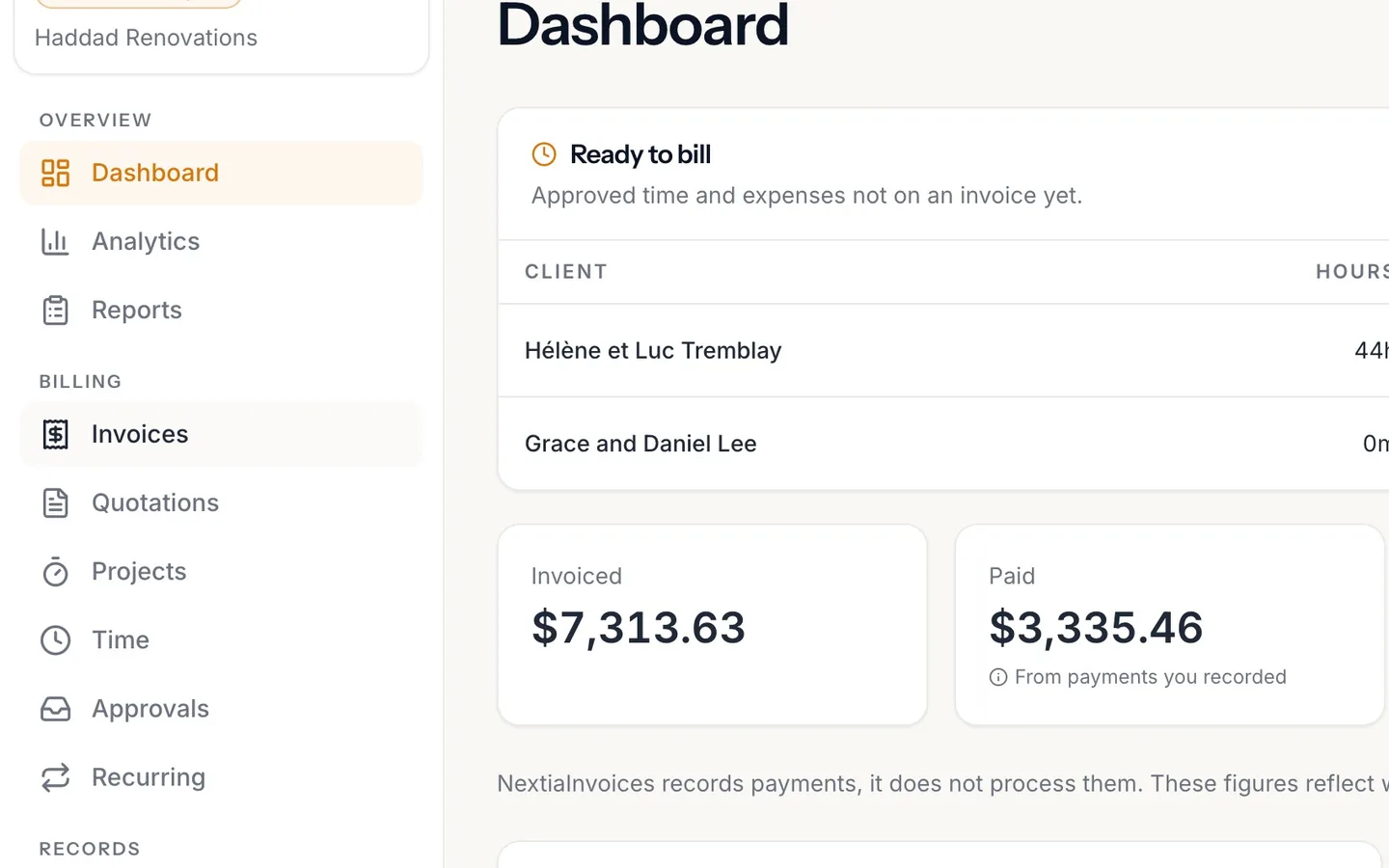
Select Invoices in the sidebar.
- 2
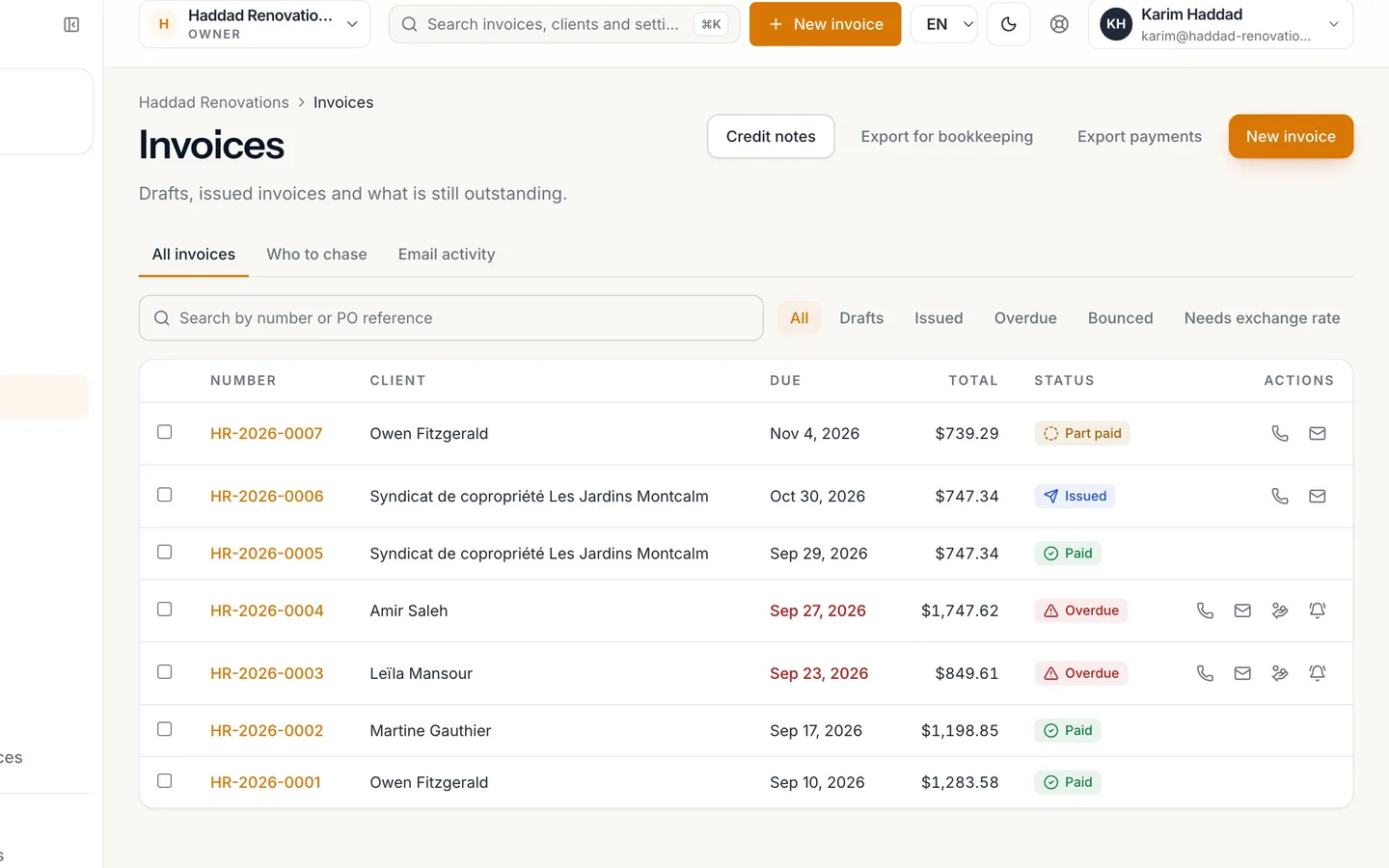
Find the invoice.
Part paid means some of it has come in, not all.
- 3
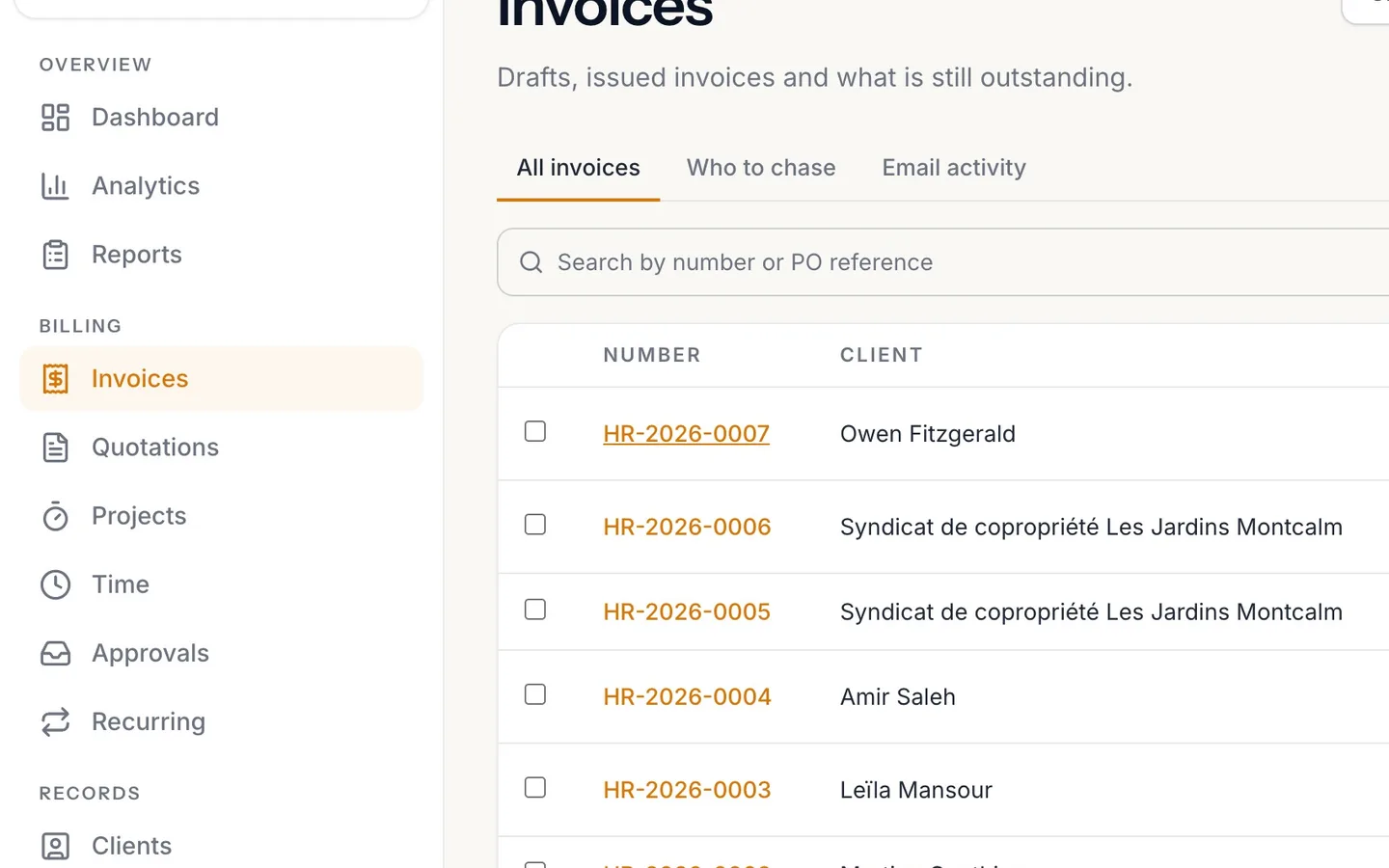
Open it by its number.
The Total card shows what's been paid and the Balance due.
- 4
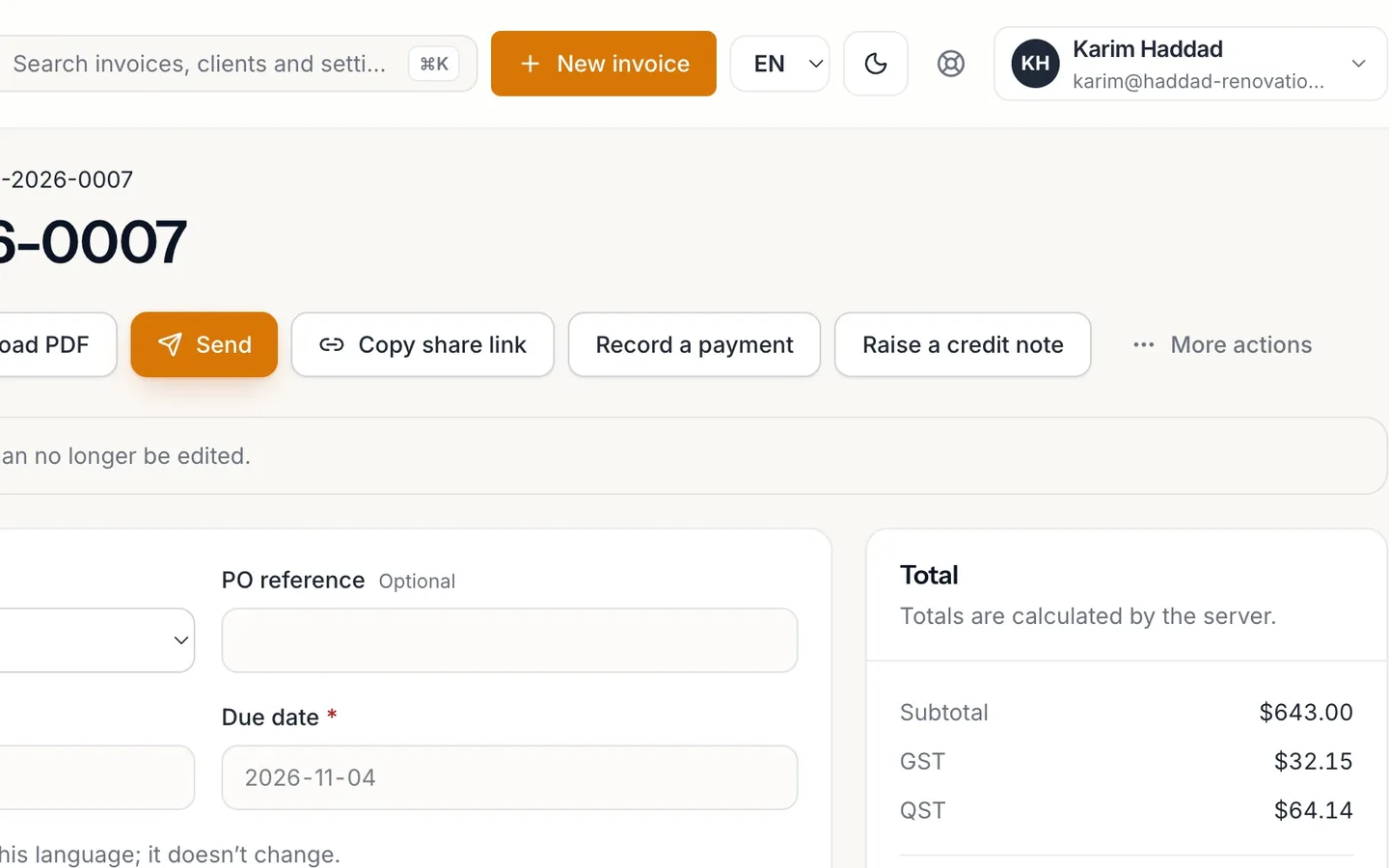
Select Record a payment.
The balance due is shown at the top.
- 5
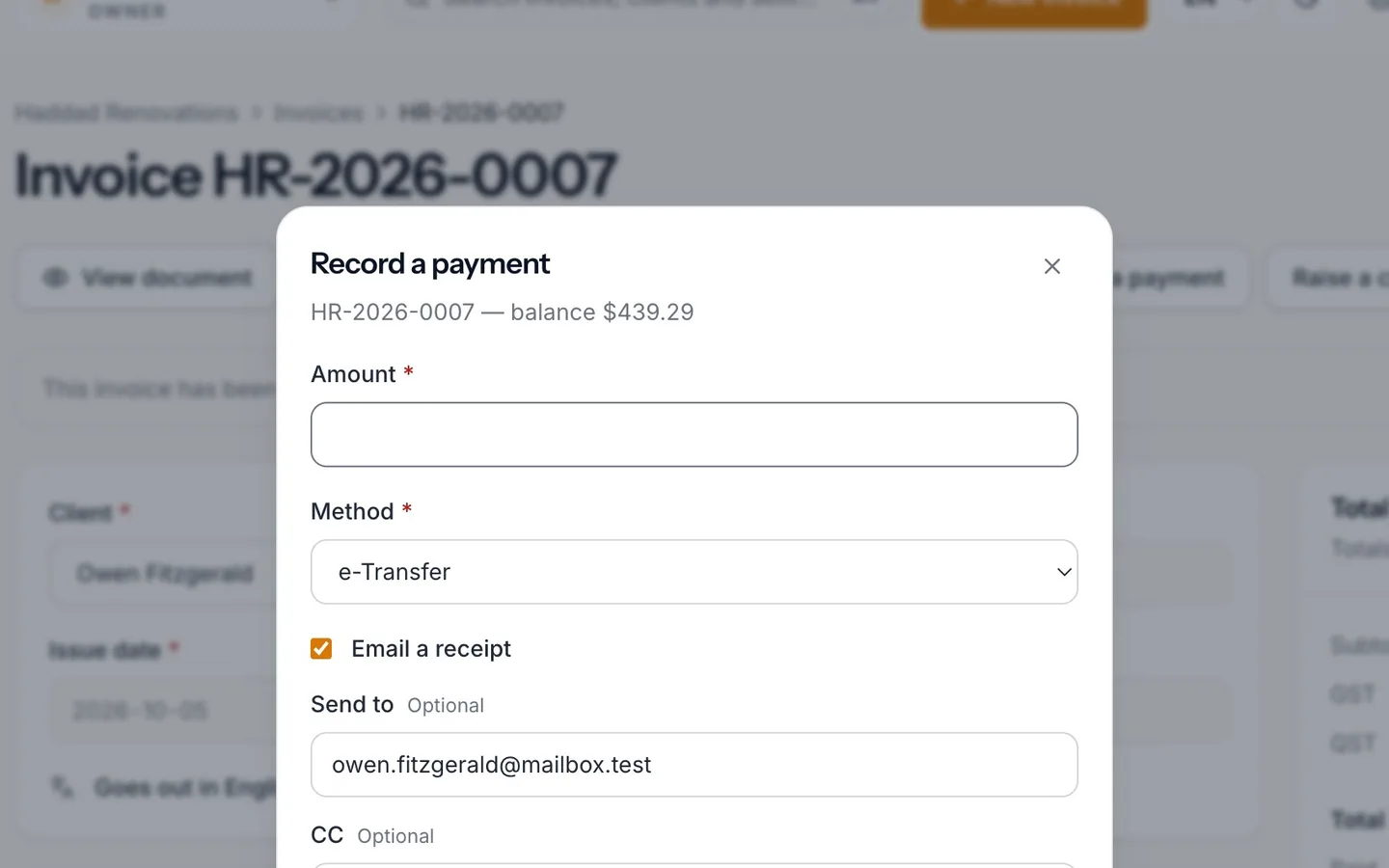
Enter the Amount that arrived.
Part of the balance is fine.
- 6
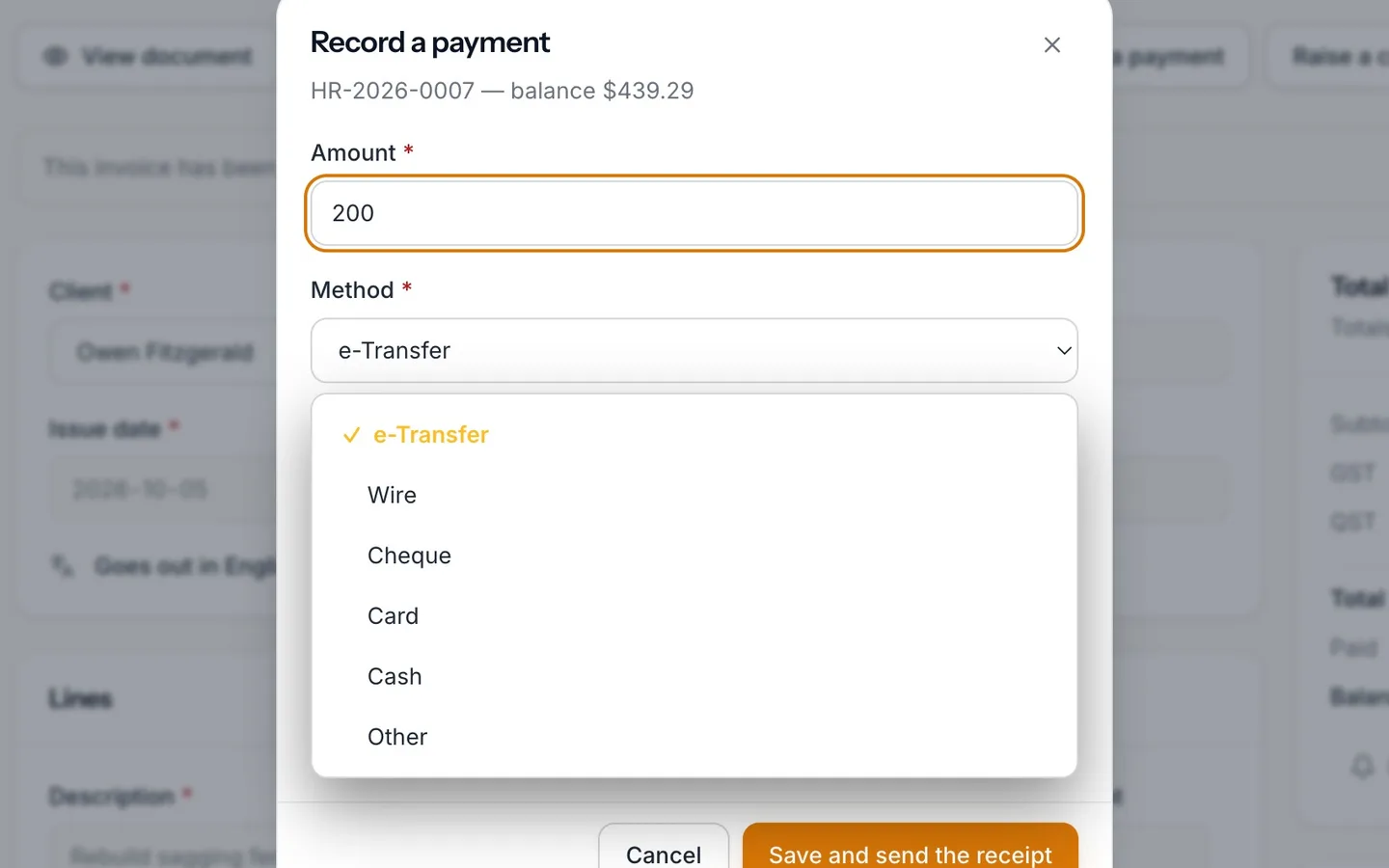
Choose the Method.
e-Transfer, wire, cheque, card, cash or other.
- 7
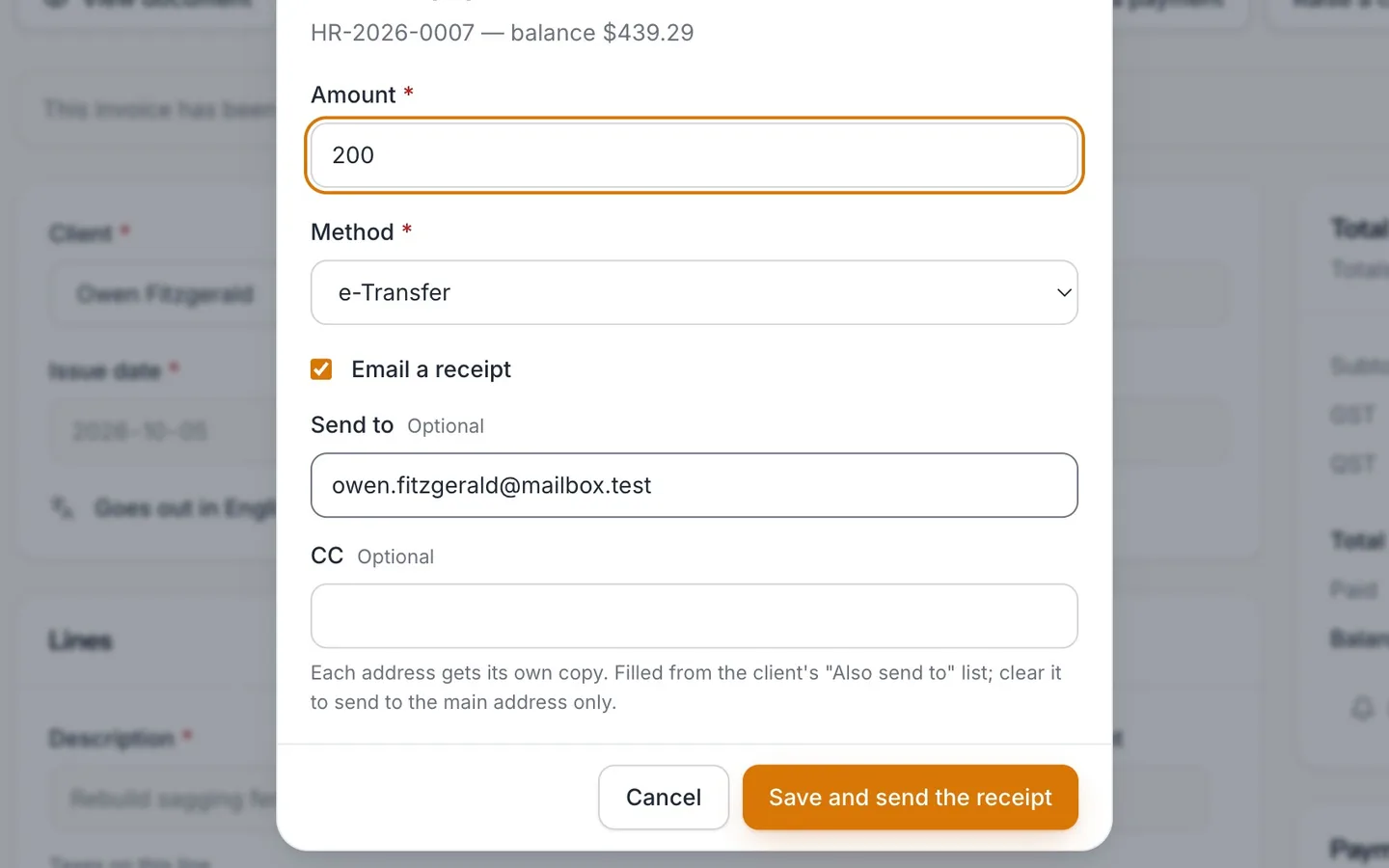
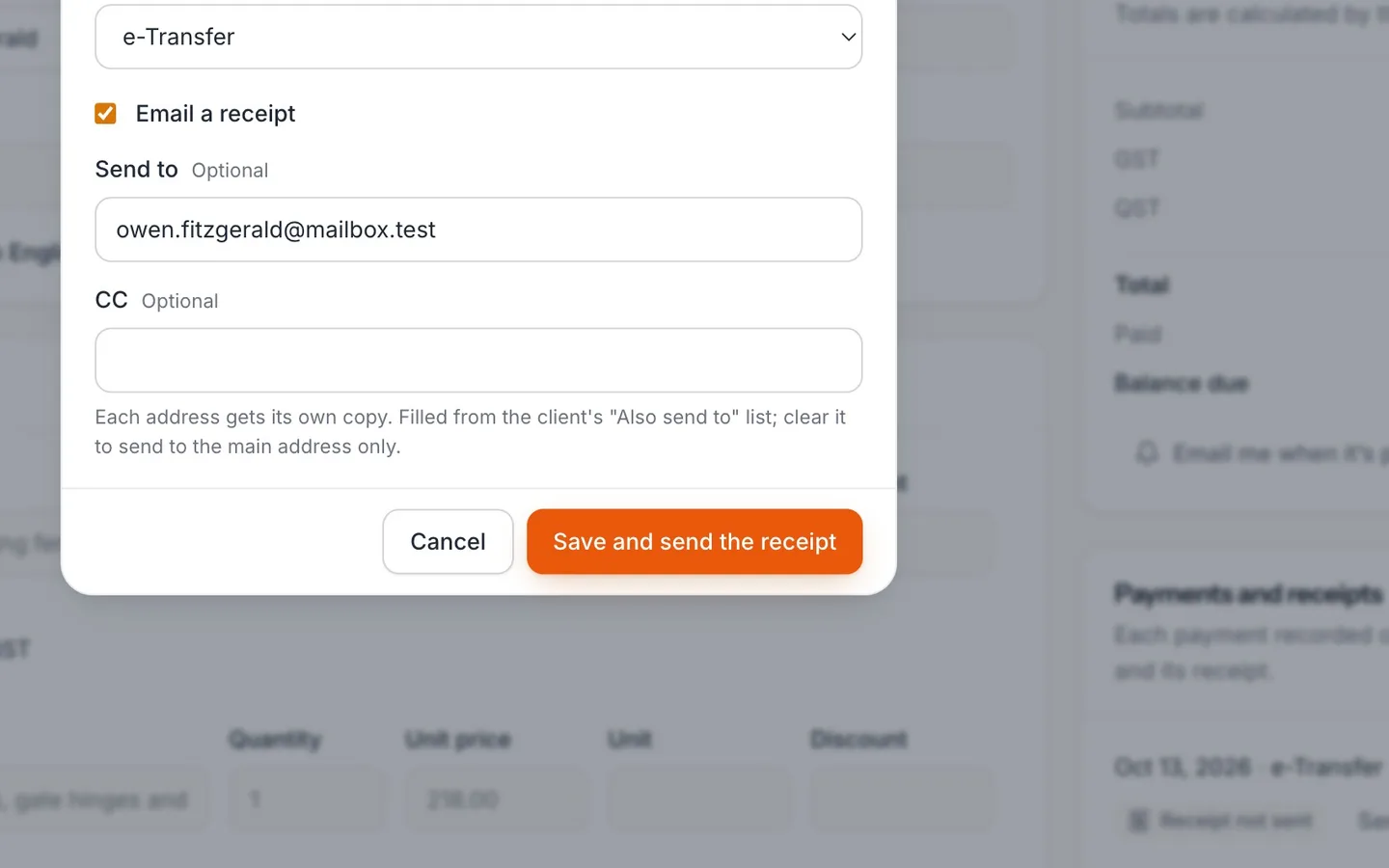
Leave Email a receipt ticked to send your client a receipt.
It goes to the client's address; change Send to if needed.
- 8
Select Save and send the receipt.
- 9
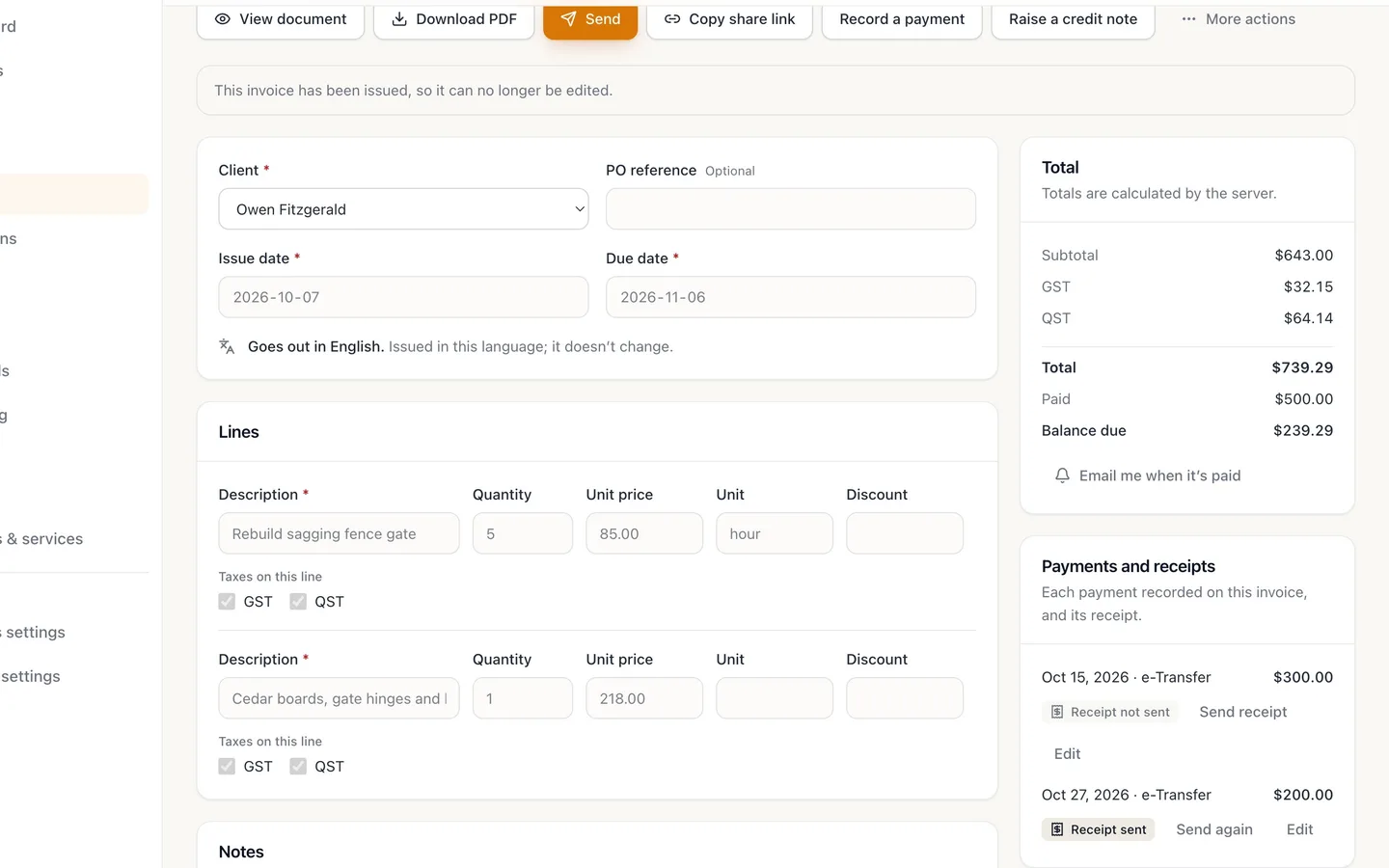
Paid goes up and the Balance due goes down.
The payment is listed under Payments and receipts, with its receipt.
- 10
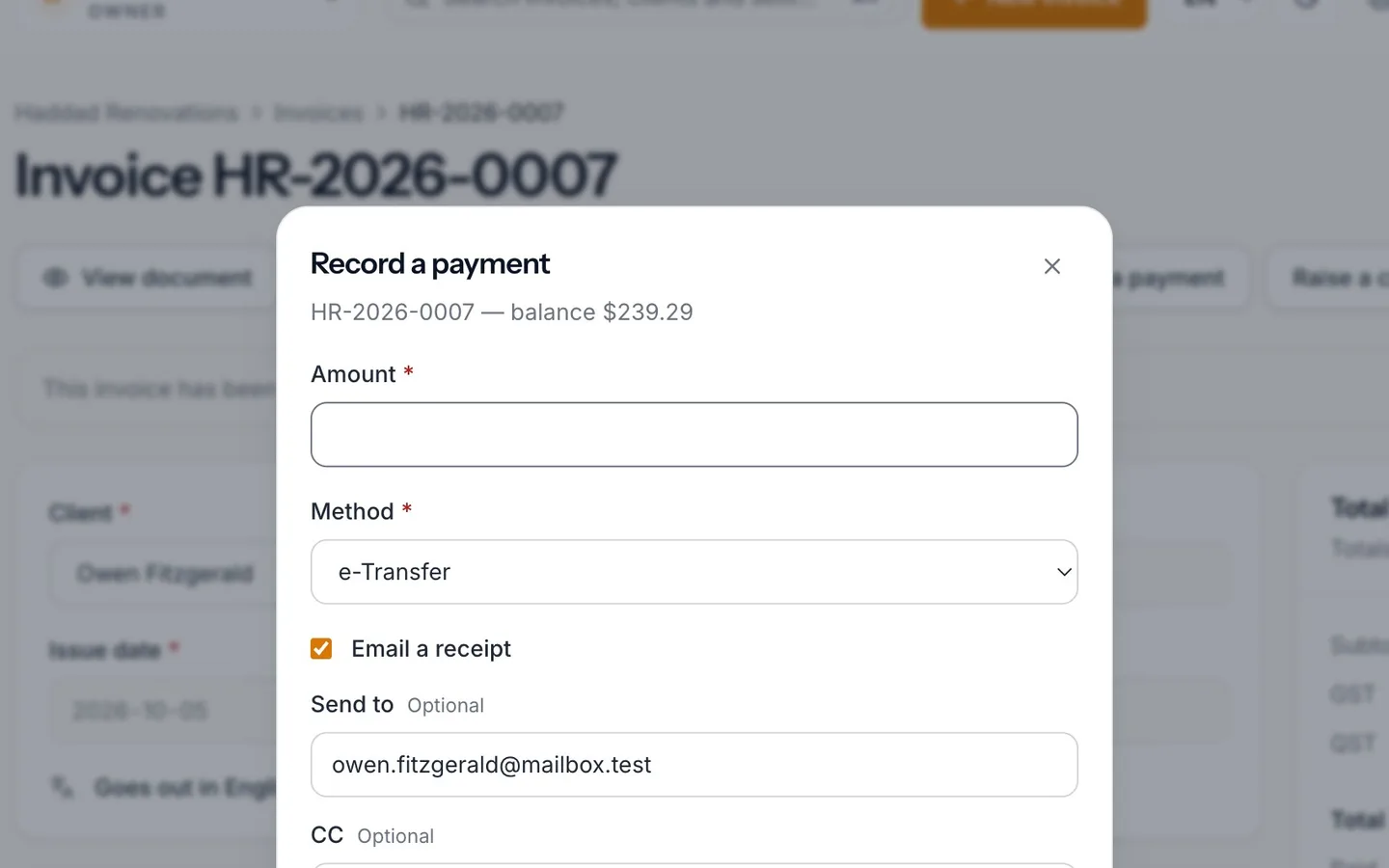
When the rest arrives, select Record a payment again and enter the balance.
- 11
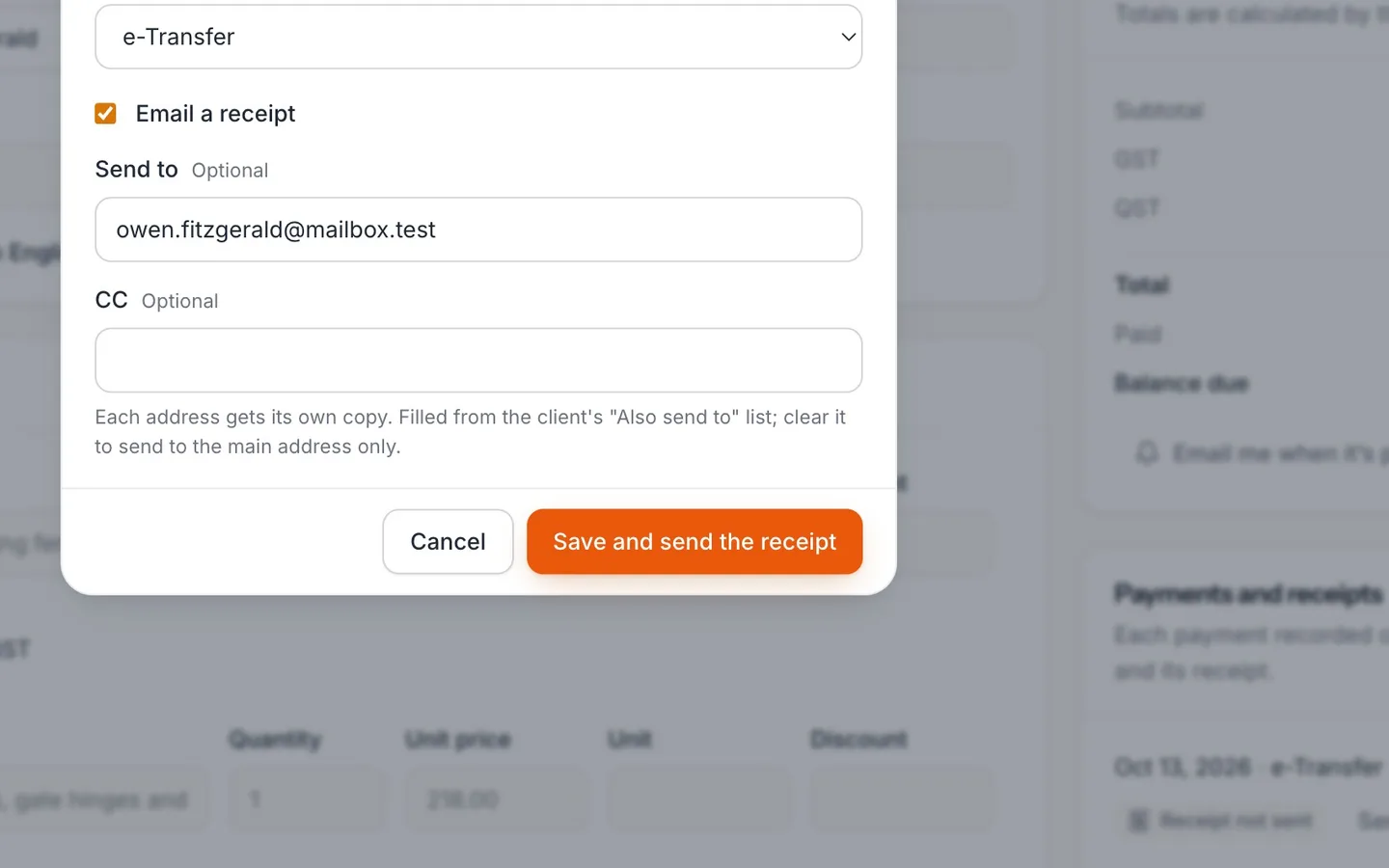
Select Save and send the receipt.
- 12
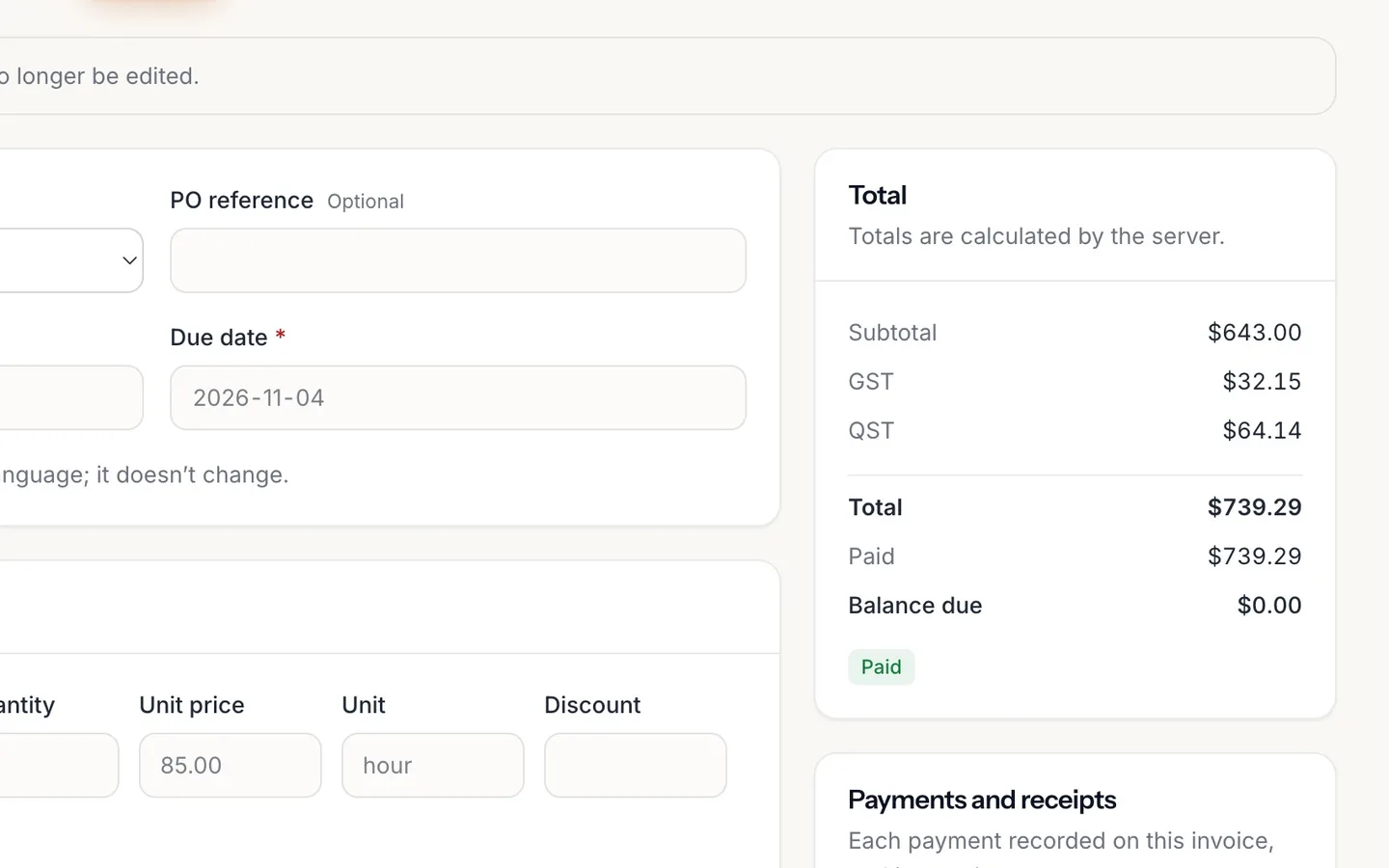
The Balance due is zero and the invoice is marked Paid.
- 13
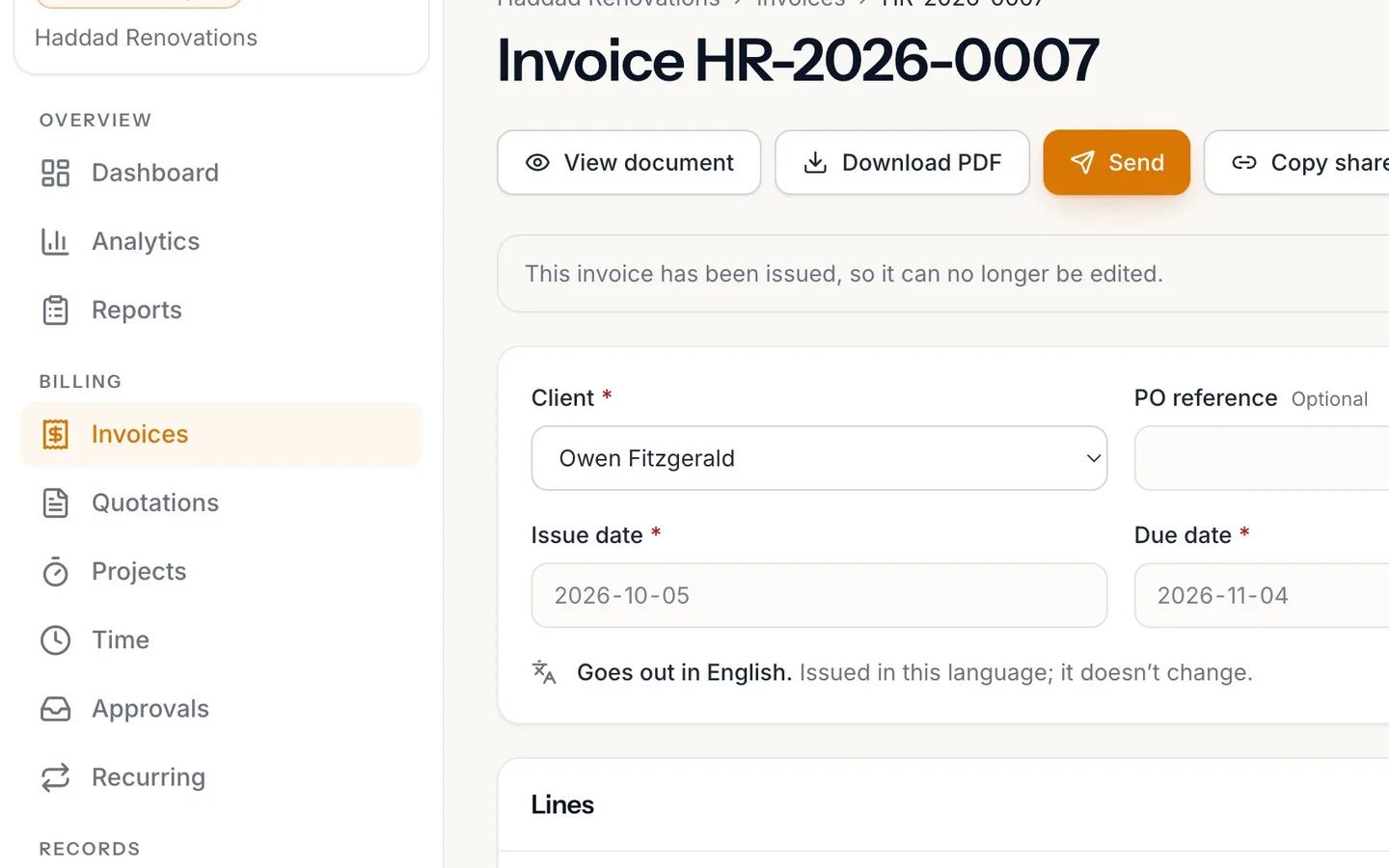
In Invoices, it reads Paid.
Record a payment, part or full
Record an e-Transfer, cheque or cash payment on an invoice in NextiaInvoices, in part or in full, email your client a receipt, and watch the balance due update.
Before you start
When a client pays you outside NextiaInvoices, by e-Transfer, wire, cheque or cash, you record that payment on their invoice. NextiaInvoices then keeps the invoice's balance for you, marks it Part paid or Paid, and can email your client a numbered receipt for each payment.
What you need:
- An issued invoice. A draft can't take payments: select Finalize first.
- The amount that arrived and how it was paid.
- The client's email address on their record, if you want to email them a receipt.
In the video, Owen Fitzgerald's fence-gate invoice comes to $739.29 with GST and QST. He paid $300.00 when the job was done, and now $200.00 more arrives by e-Transfer. Later he pays the rest.
Step by step
-
Open Invoices
Select Invoices in the sidebar.
-
Find the invoice
Find the client's invoice in the list. Its status tells you where it stands: Part paid means some of it has come in, not all; Paid means the balance is zero; Overdue means it's past its due date with money still owed. Owen's reads Part paid.
If you're working through overdue invoices, each one's row in the list has a button to record a payment without opening the invoice, with the amount already set to the balance.
-
Open the invoice
Select the invoice's number to open it. Once a payment has been recorded, the Total card shows the Total, what's been Paid so far and the Balance due: for Owen, $739.29, $300.00 and $439.29.
-
Open Record a payment
Select Record a payment. The window's heading shows the invoice number and its balance, so you can see what's still owed as you type.
-
Enter the amount
Enter the Amount that arrived. Part of the balance is fine: record each payment as it comes in. Karim enters 200.00. The amount must be greater than zero.
-
Choose the method
Open Method and choose how it was paid: e-Transfer, Wire, Cheque, Card, Cash or Other. It starts on e-Transfer. The method is kept with the payment, and shows in your reports.
-
Email a receipt
Email a receipt starts ticked when the client has an email address. Leave it ticked and your client gets a numbered receipt for this payment. It goes to the client's address; change Send to if it should go somewhere else, and CC copies anyone on the client's Also send to list. Untick it if you don't want to send a receipt now.
-
Save and send the receipt
Select Save and send the receipt (or Save, if you unticked the receipt). A message confirms that the payment was recorded and where the receipt went.
The payment is dated today, in your business's time zone. If it actually arrived earlier, correct the date afterwards (see below).
-
See the balance update
On the invoice, Paid goes up and the Balance due goes down. For Owen, Paid is now $500.00 and the Balance due is $239.29. The payment is listed under Payments and receipts, with its receipt and the receipt's delivery status, for example Receipt sent or Receipt delivered. The invoice still reads Part paid.
-
Record the rest when it arrives
When the rest is paid, select Record a payment again and enter the balance due, here $239.29, with its method.
-
Save and send the second receipt
Select Save and send the receipt. Owen gets a second receipt, with its own number.
-
The invoice is paid
The Balance due is zero and the invoice is marked Paid. Both payments are listed under Payments and receipts, each with its receipt.
-
Back in Invoices
Back in Invoices, the invoice reads Paid. It no longer counts in what clients owe you, it drops out of Who to chase, and no further automatic reminders go out for it.
What happens next
Each receipt has its own number, in a receipt sequence separate from your invoices. The email links your client to their receipt, where they can download it as a PDF to keep with their records.
If you want to know the moment an invoice is settled, turn on Email me when it's paid under its total: you'll get an email when it's paid in full.
If something goes wrong
My client didn't get the receipt
Under Payments and receipts, check the receipt's status. Select Send again on that payment to send it once more, after checking the client's email address.
The payment arrived on a different day
Select Edit on the payment. In Correct this payment, you can change the Date received, the method and the Reference.
I recorded the wrong amount
A payment's amount can't be edited, so the record stays true. Select More actions → Record a refund for that payment, then record the right amount.
Record a payment isn't there
Payments can only be recorded on an issued invoice. Open the draft and select Finalize first.
The invoice still shows Part paid
The payments recorded don't yet add up to the total. Check the Balance due and record the rest when it arrives, or raise a credit note if part of it won't be paid.
Questions
How do I mark an invoice as paid in NextiaInvoices?
Open the invoice, select Record a payment, enter the amount received and how it was paid, and select Save and send the receipt. When the payments add up to the total, the invoice is marked Paid.
Can I record a partial payment on an invoice?
Yes. Enter only the amount that arrived. The invoice shows Part paid with the remaining Balance due, and you record the rest the same way when it comes in.
Does my client get a receipt?
Yes, if Email a receipt is ticked when you record the payment. Each payment gets its own numbered receipt, emailed to the client's address. You can send it again later from Payments and receipts.
Can I change the date of a payment?
Yes. Select Edit on the payment to correct the date received, the method or the reference. The amount can't be changed; record a refund and the right amount instead.
Which payment methods can I record?
e-Transfer, wire, cheque, card, cash or other. The method is kept with each payment.
What if my client pays more than one invoice at once?
Record a payment on each invoice, for the part of the money that goes to it. Each invoice keeps its own balance and receipt.