
Recurring invoices
Bill the same work on a schedule: a monthly contract, a weekly service, a yearly fee. NextiaInvoices makes each invoice when it's due, and can issue and email it for you.
- 12 steps
- About 2 min
- Checked against NextiaInvoices on October 28, 2026
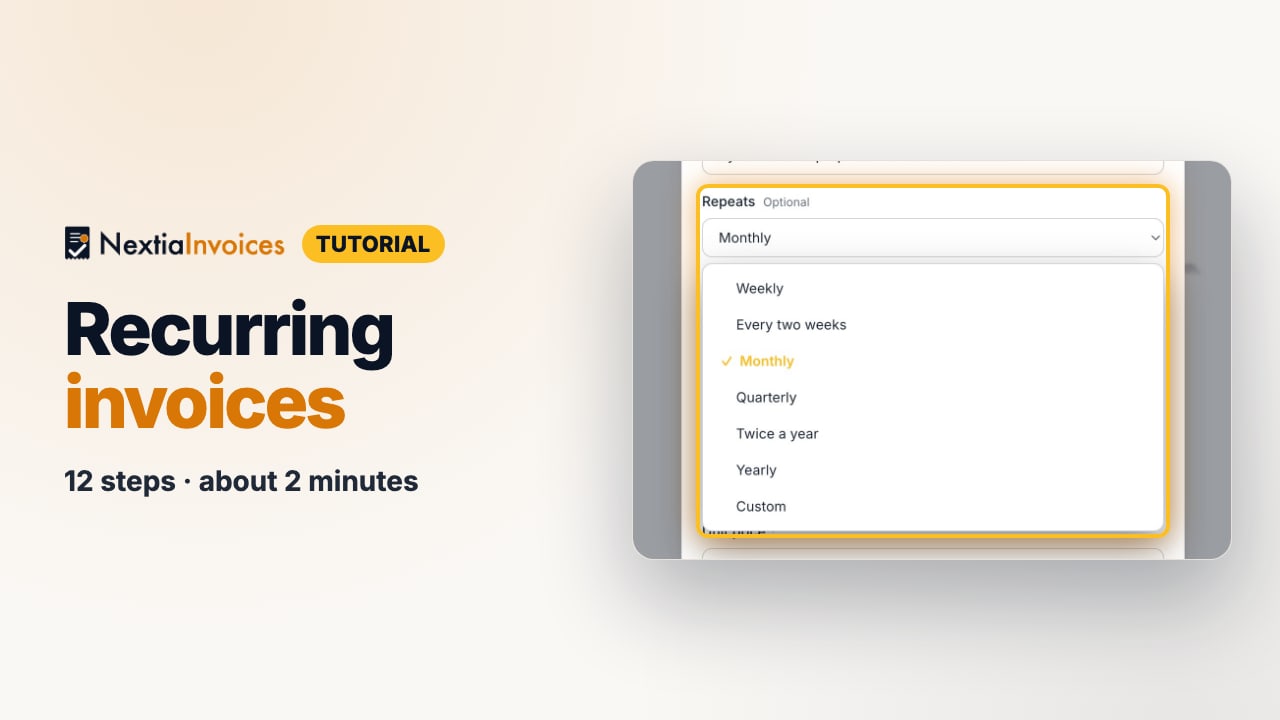
The video is on its way. The step-by-step and written versions are ready now.
- 1
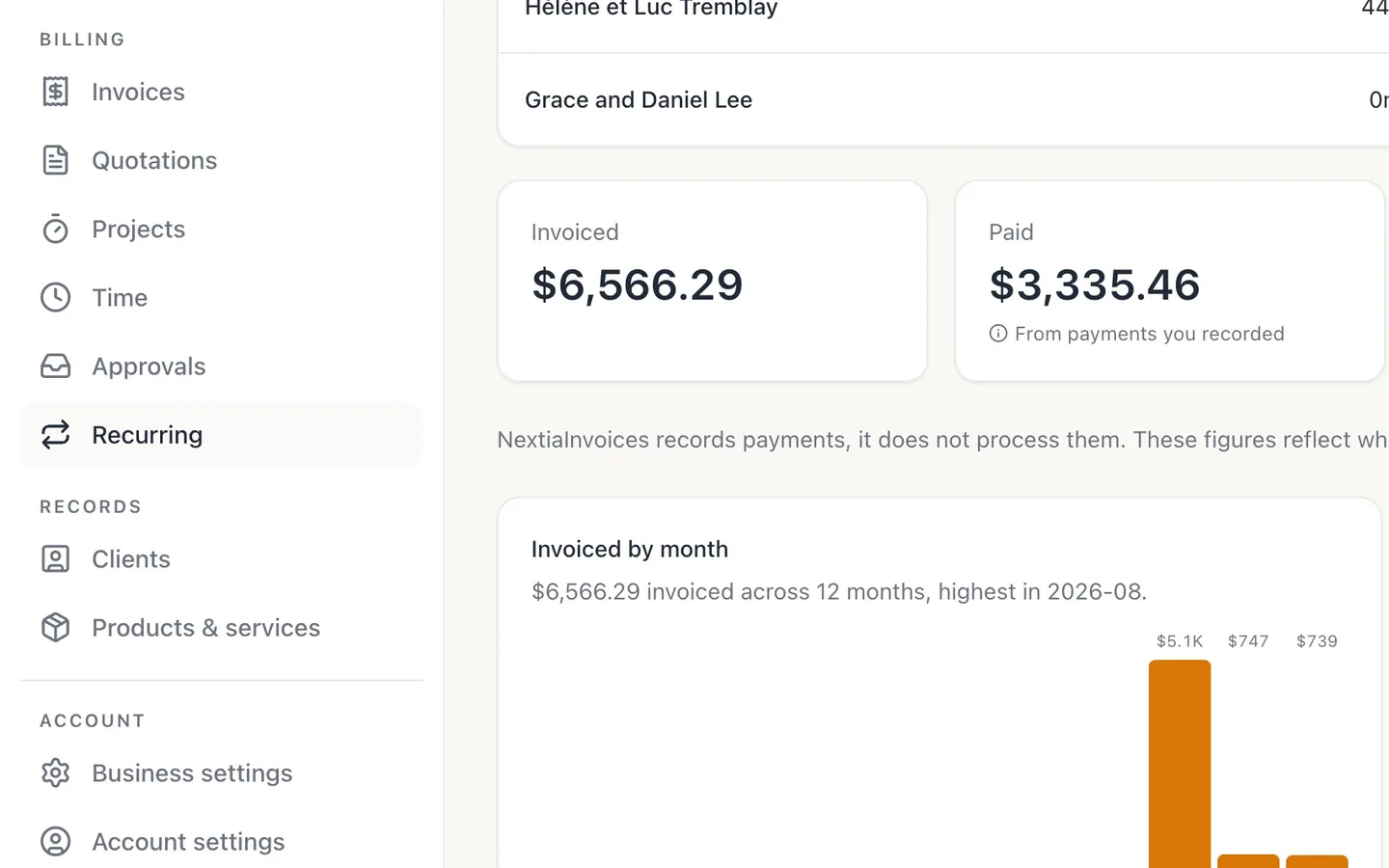
Select Recurring in the sidebar.
- 2
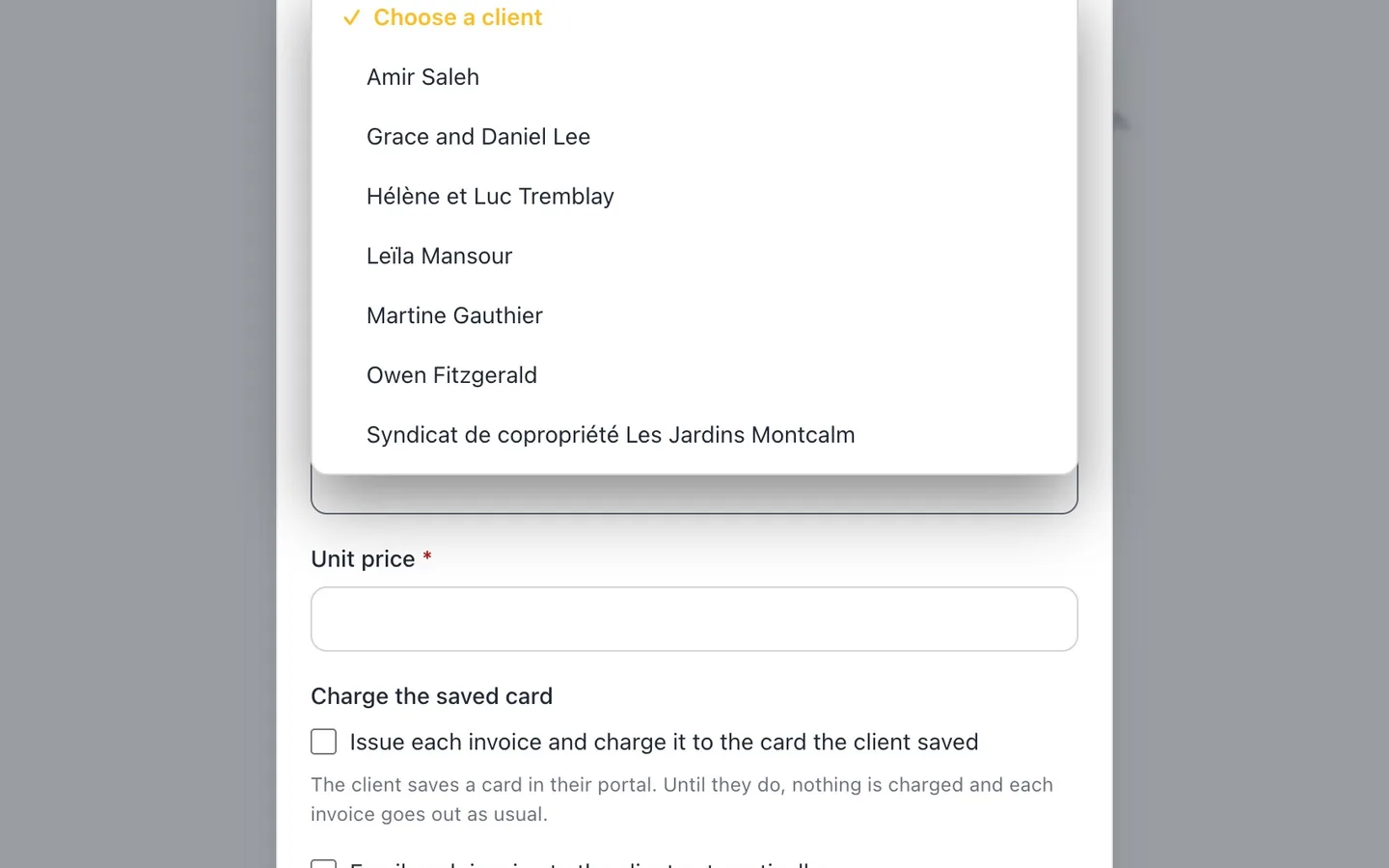
Select New schedule, give it a name, and choose the client.
- 3
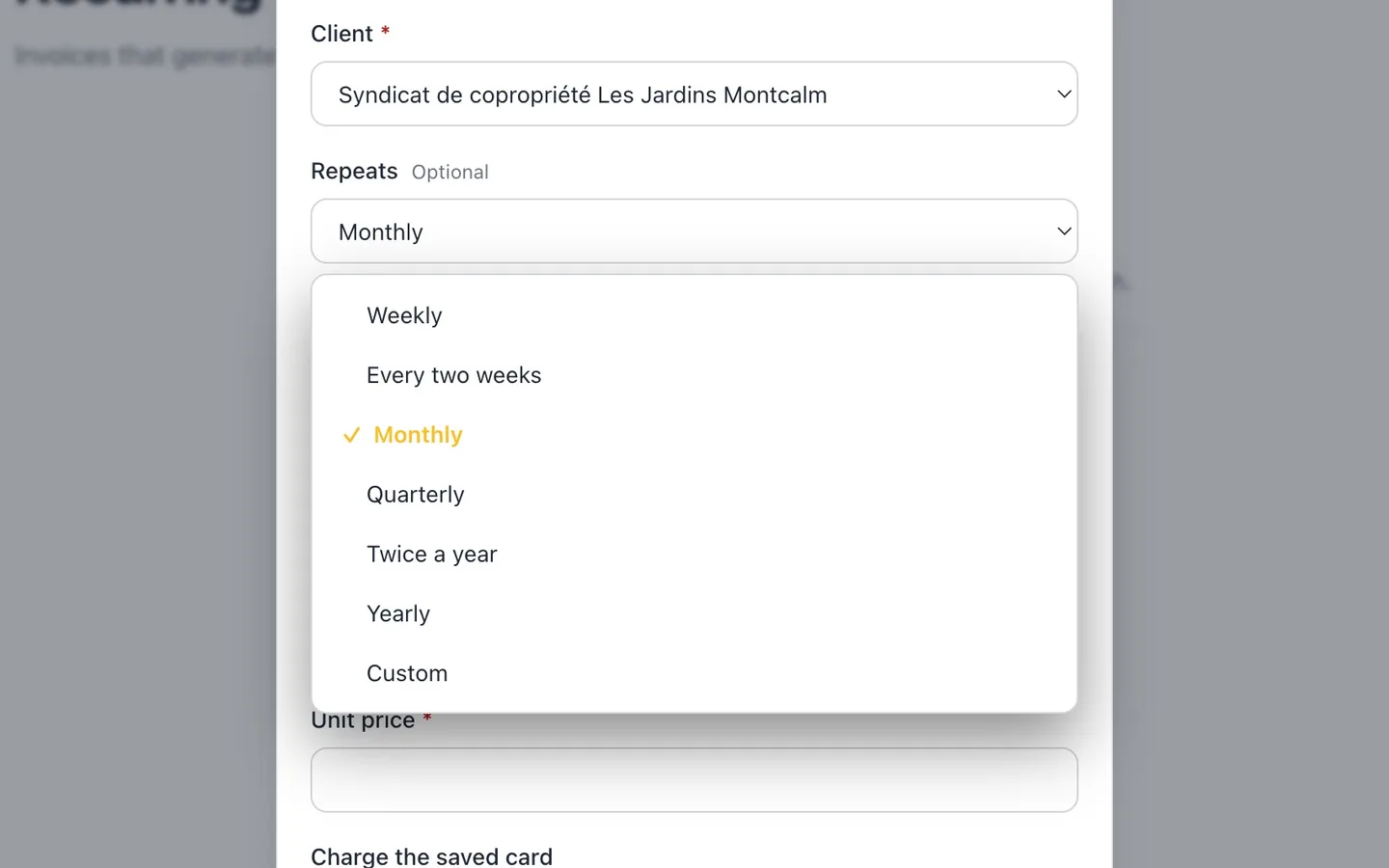
Choose how often it Repeats.
Weekly, every two weeks, monthly, quarterly, twice a year, yearly, or Custom: every so many days.
- 4
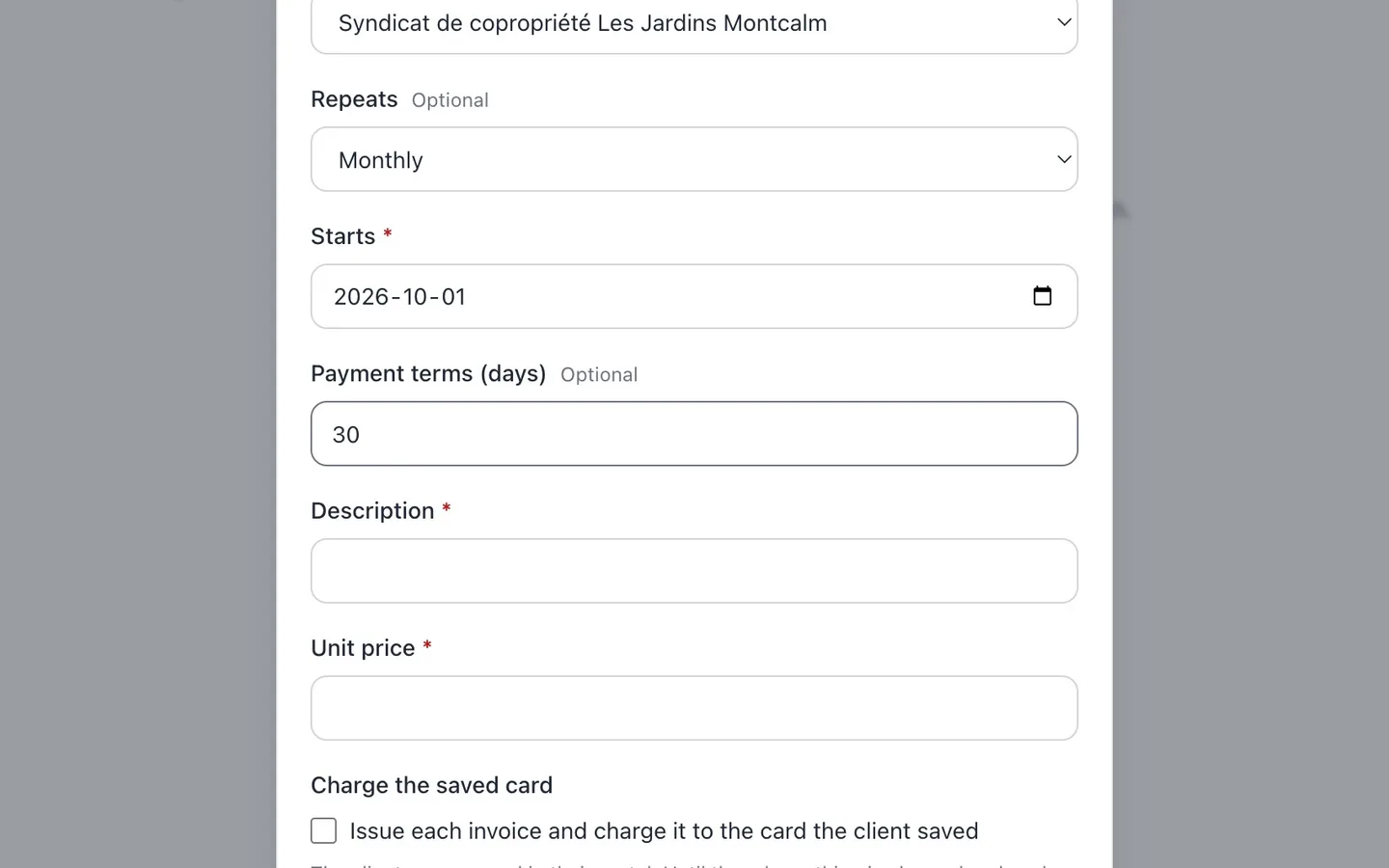
Set when it Starts, and the Payment terms in days.
The first invoice is dated the start date. Each one is due that many days after its date.
- 5
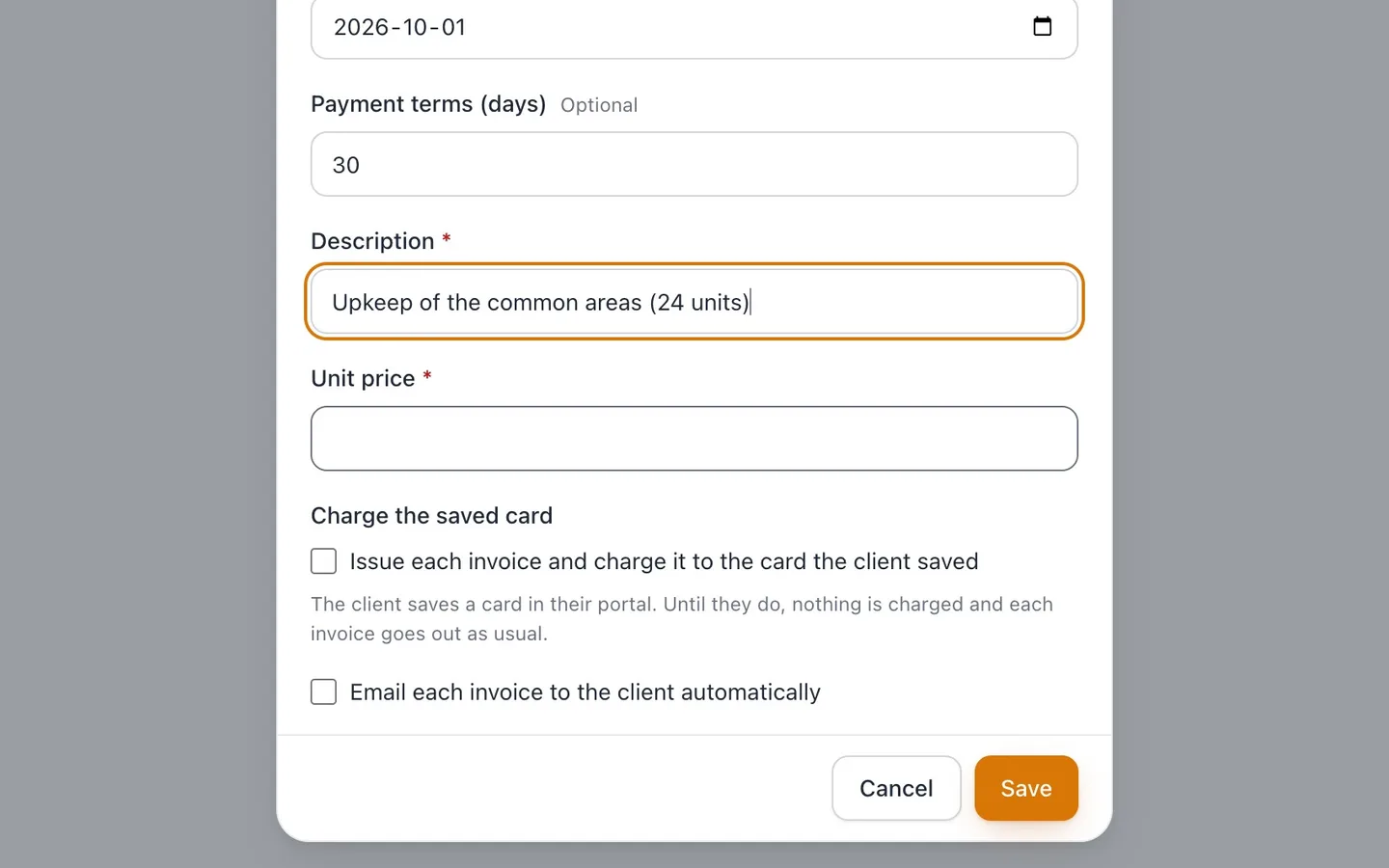
Describe what each invoice bills, and its Unit price.
Your business's taxes are added, as on any new invoice line.
- 6
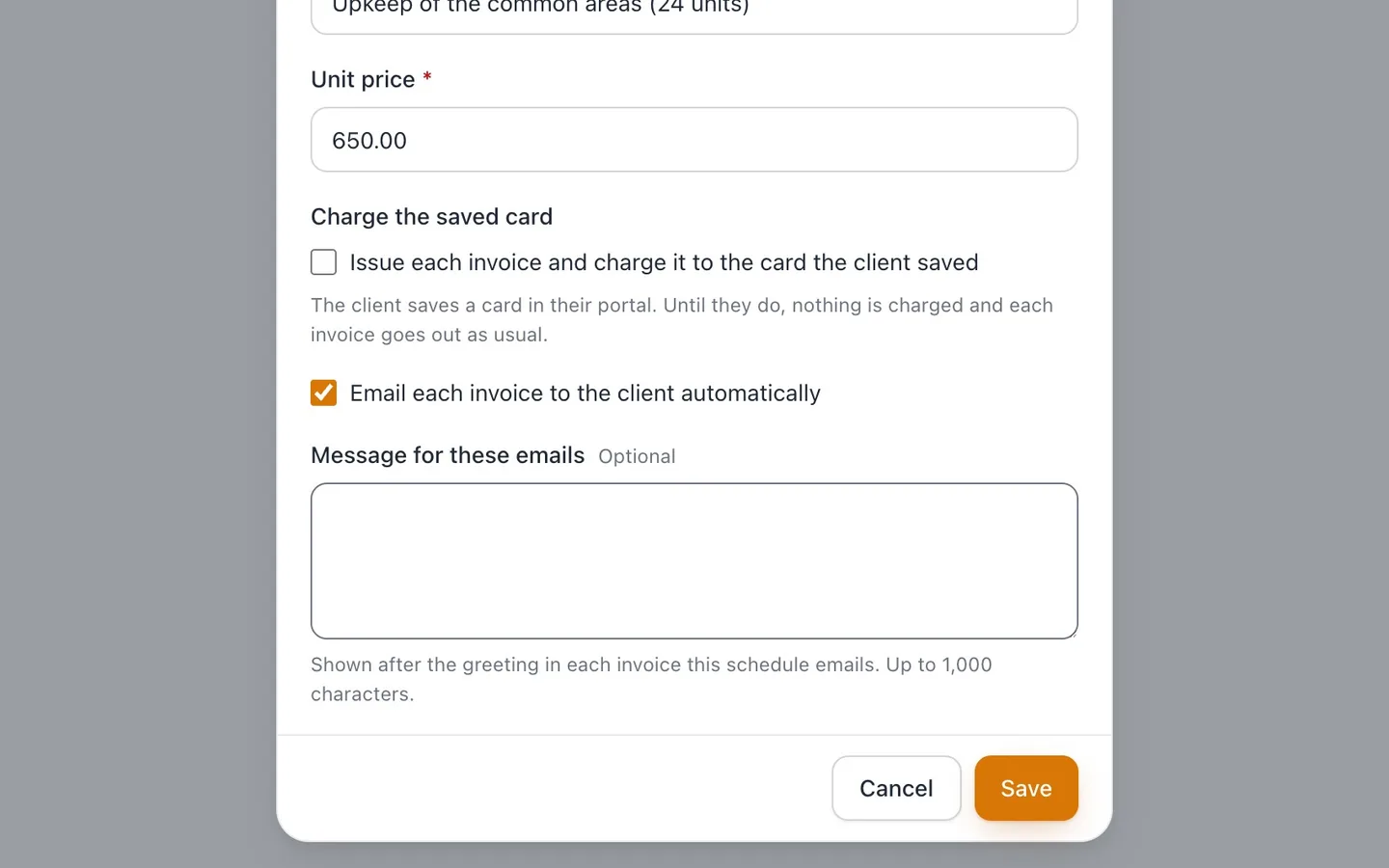
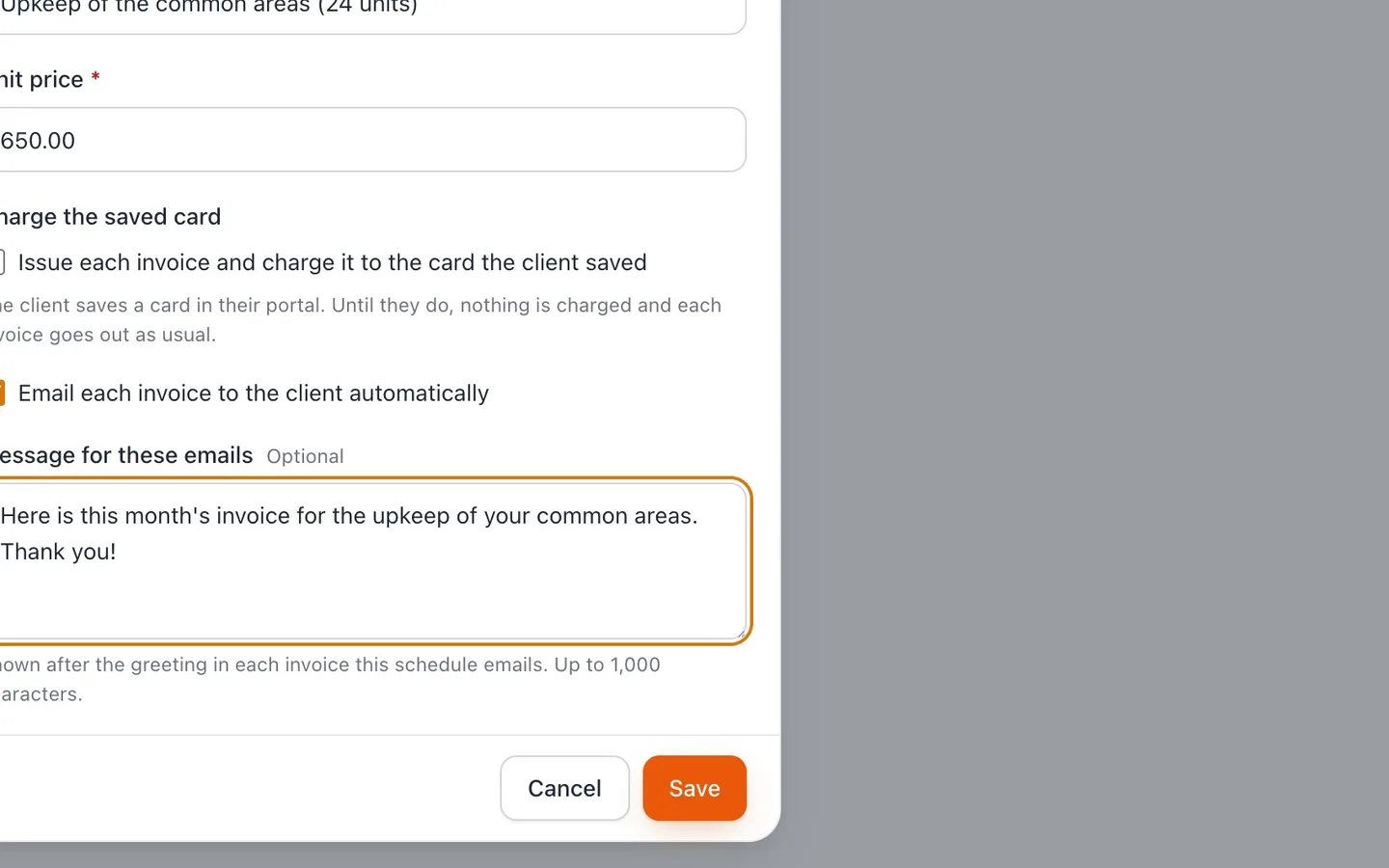
Tick Email each invoice to the client automatically, and add a message if you like.
Each invoice is then issued and emailed as it's made. Without it, each one waits for you as a draft.
- 7
Select Save.
Next invoice shows when the next one is made.
- 8
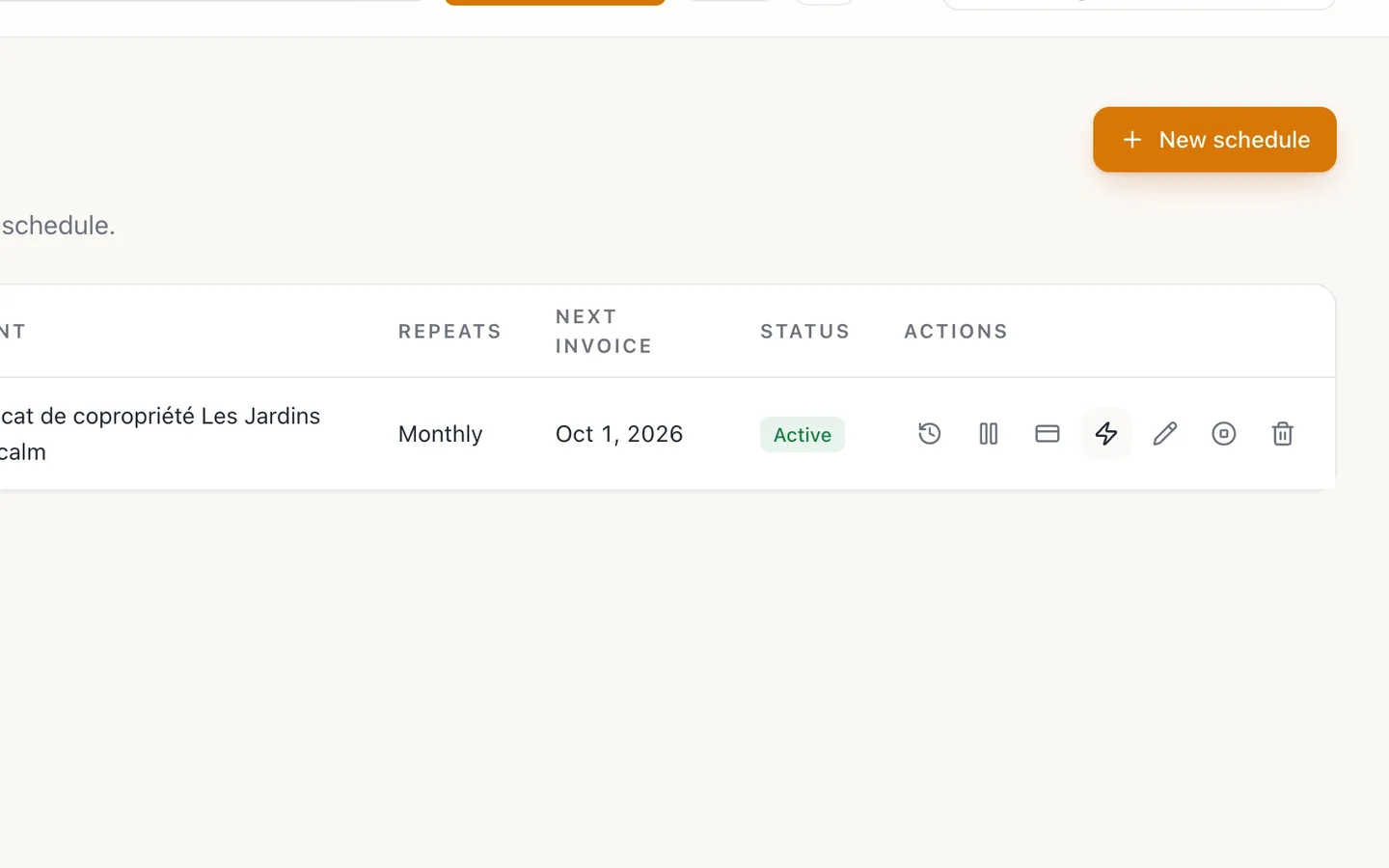
To make the invoice that's due right away, select Generate now.
Otherwise NextiaInvoices makes it on its own, on the day it's due.
- 9
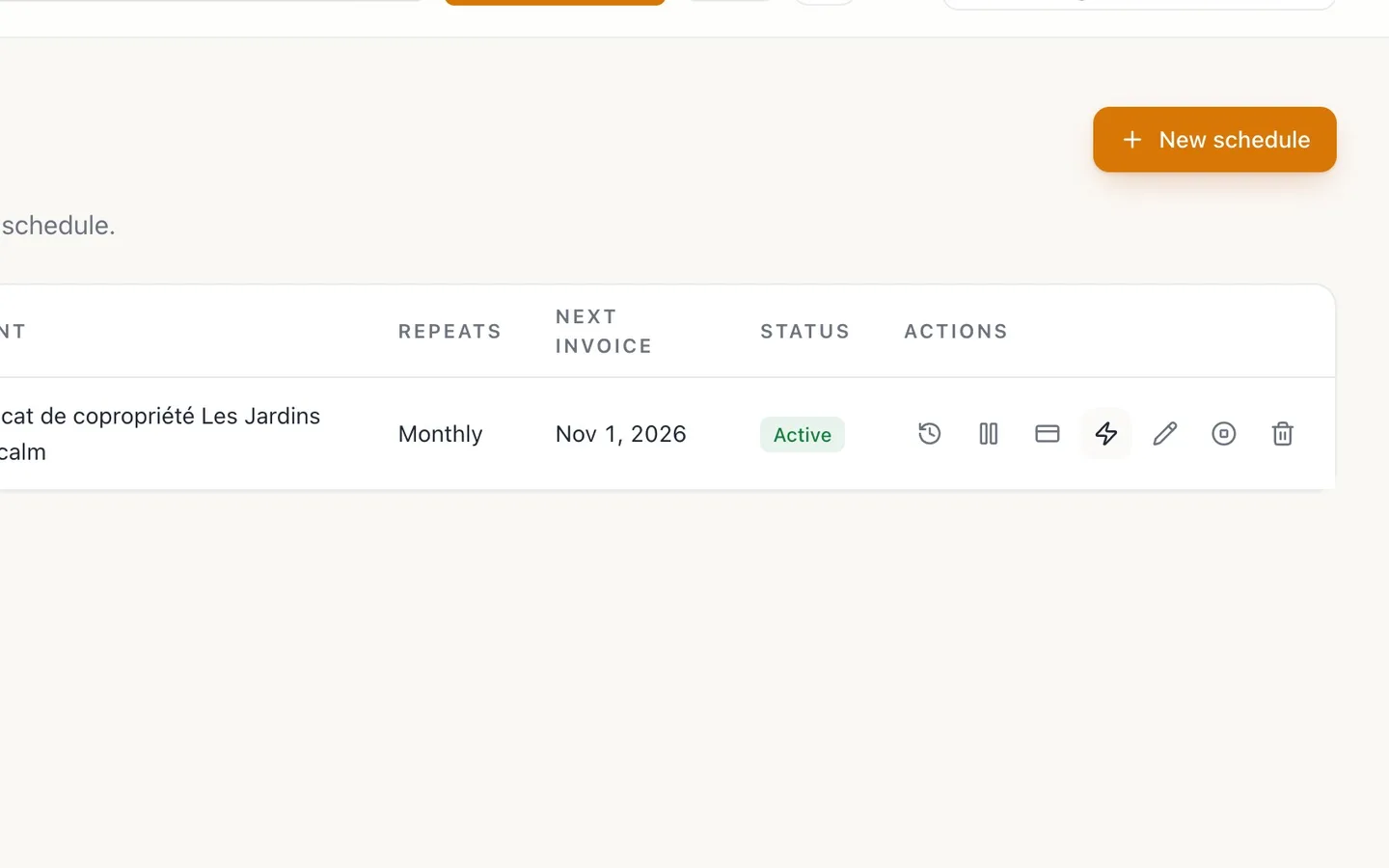
Selecting it again is safe.
It never bills a period early: it says when the next invoice is due.
- 10
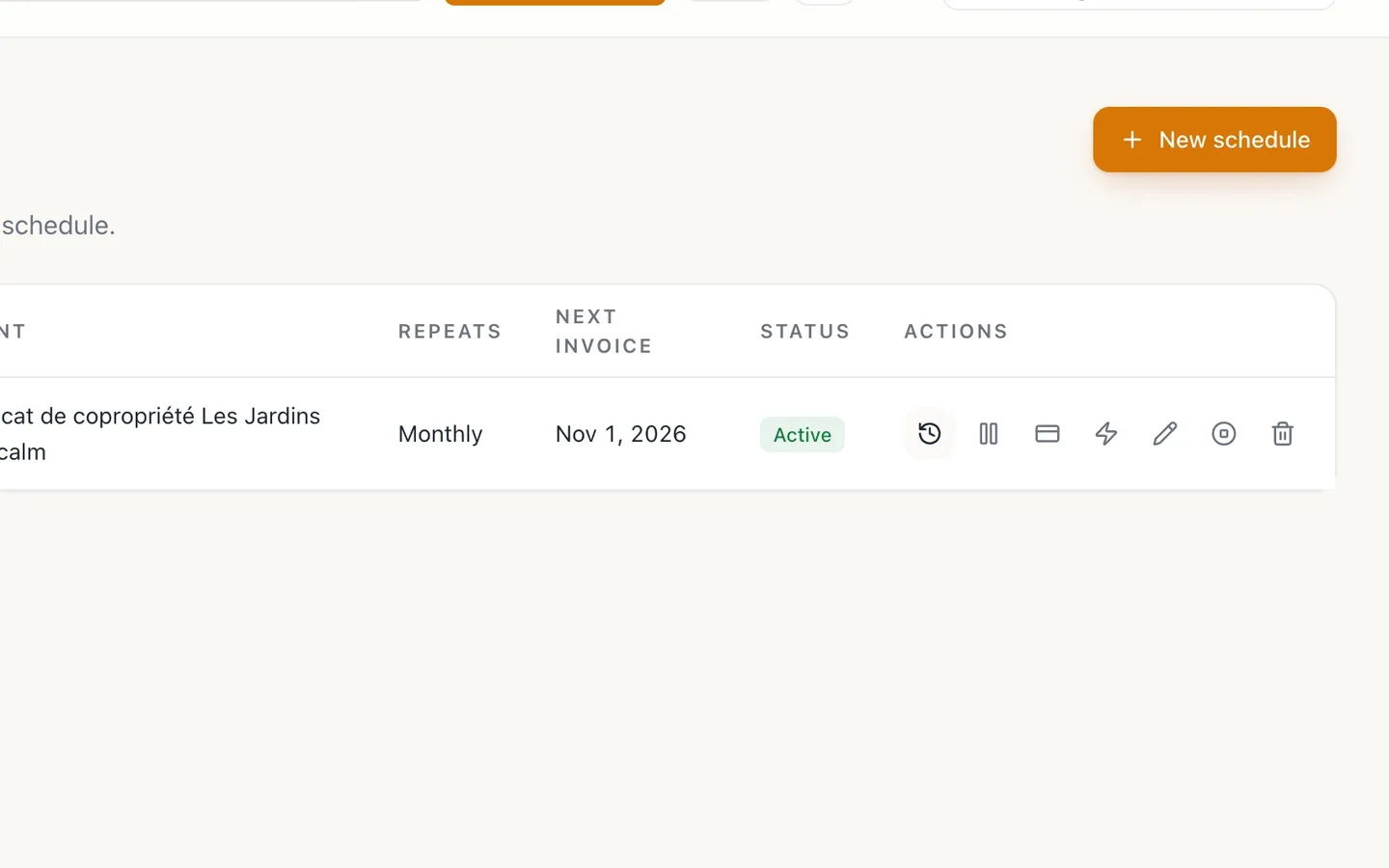
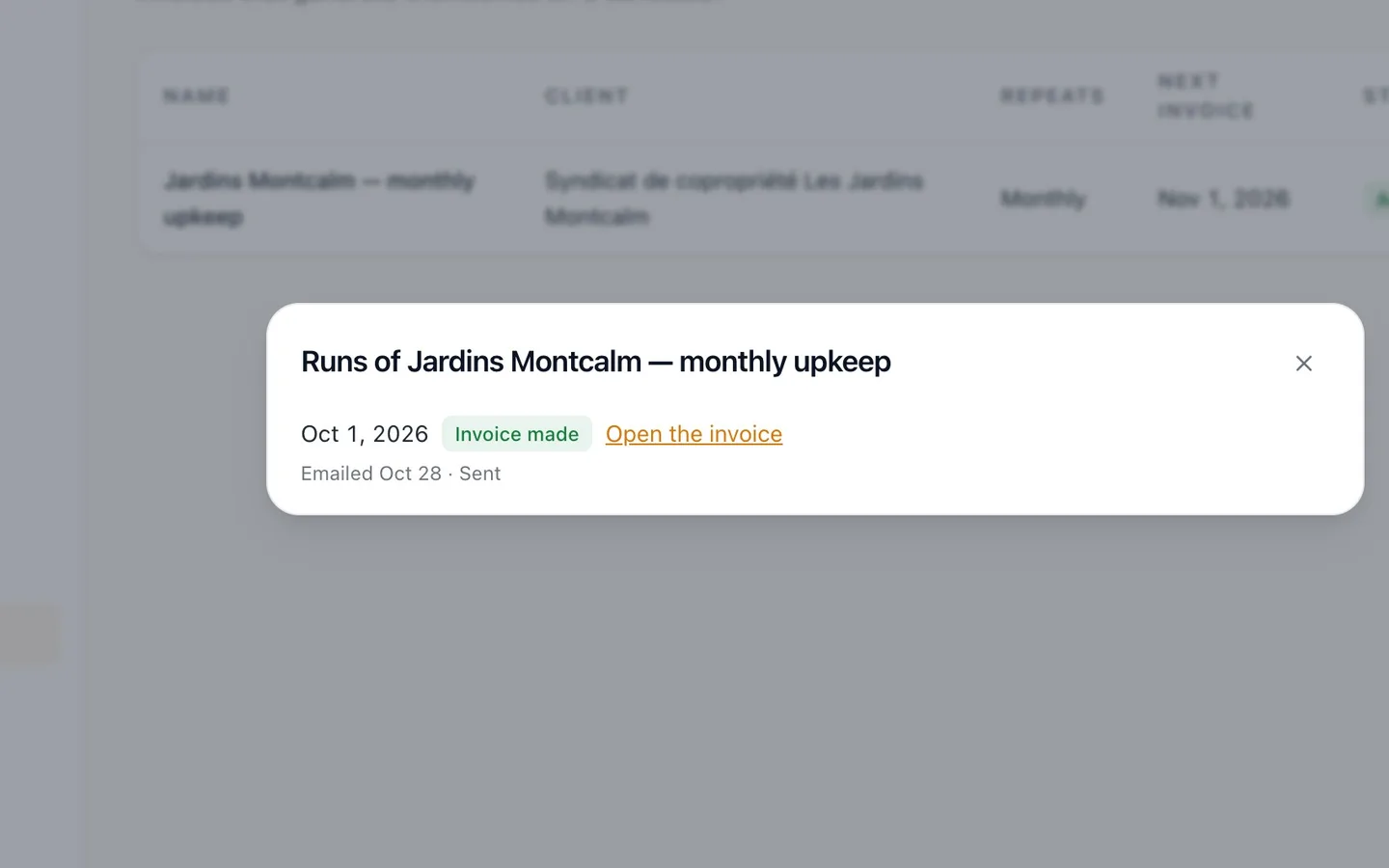
Select Run history to see what the schedule made.
Each invoice, the date it's for, and what happened to its email.
- 11
Select Open the invoice.
It carries your GST and QST like any other invoice.
- 12
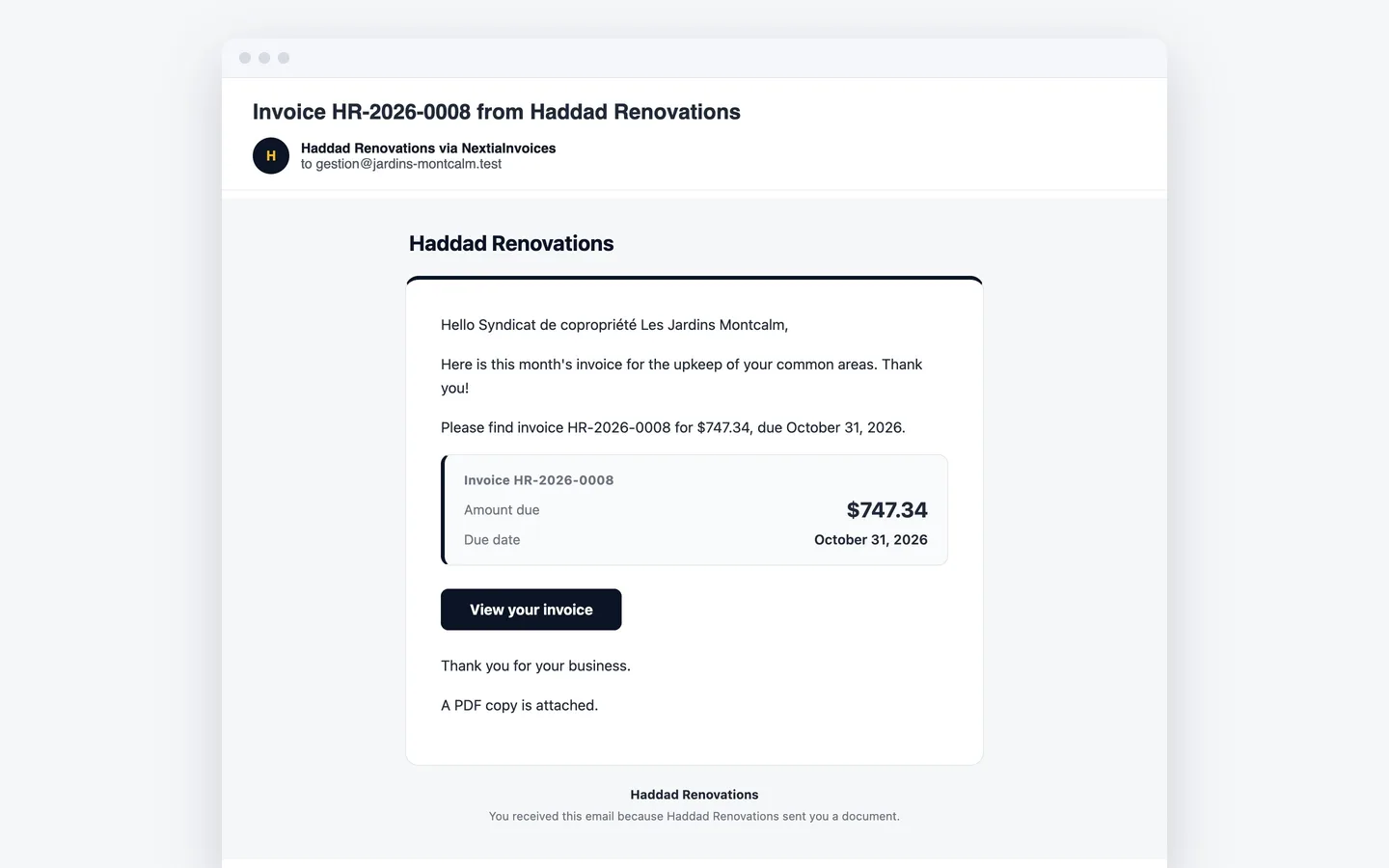
Your client gets the invoice by email, with your message.
Recurring invoices
Bill the same work on a schedule in NextiaInvoices. Each invoice is made on the day it's due, with your taxes, and can be issued and emailed for you.
Before you start
A recurring schedule is for work you bill the same way again and again: a monthly maintenance contract, a weekly service, a yearly fee. You set it up once, with who to bill, what, and how often. On the day each invoice is due, NextiaInvoices makes it, with your sales taxes on it, and can issue it and email it to your client without you touching it.
What you need:
- The client in Clients, with an email address if the invoices are to be emailed.
- Your sales taxes set in Business settings → Taxes. Each schedule's invoices get the taxes your business adds by default.
- The amount each invoice bills, and the date the first one should be for.
In the video, the condo syndicate of Les Jardins Montcalm, in Gatineau, pays Karim $650.00 a month to look after its common areas. He billed September by hand; from October, a schedule does it.
Step by step
-
Open Recurring
Select Recurring in the sidebar. The page lists your schedules, each with its client, the Next invoice date and its status: Active, Paused or Ended.
-
Start a new schedule
Select New schedule. Give it a Name you'll recognize in the list, such as "Common areas upkeep", and choose the Client.
-
Choose how often it repeats
Open Repeats and choose Weekly, Every two weeks, Monthly, Quarterly, Twice a year or Yearly. For anything else, choose Custom and enter the Days between invoices. The syndicate's contract is monthly, so Karim picks Monthly.
-
Set the start date and payment terms
Starts is the date of the first invoice: the first invoice is for that day itself. Later ones count from it, so a monthly schedule starting October 1 makes its next invoice for November 1. Payment terms (days) sets each invoice's due date: that many days after the invoice's own date. Karim starts on October 1, with 30 days.
-
Describe what each invoice bills
Enter the line each invoice carries: its Description and Unit price. Karim enters the upkeep of the common areas at $650.00. A schedule bills one line from this form, and your business's default taxes are added to it as on any new invoice line, so each invoice carries your GST and QST.
-
Choose whether to email each invoice automatically
Tick Email each invoice to the client automatically to have each invoice issued and emailed as soon as it's made. Message for these emails takes a few words shown after the greeting in each email, up to 1,000 characters.
Leave the box unticked if you'd rather check each one first: each invoice then waits in Invoices as a draft, for you to finalize and send.
-
Save the schedule
Select Save. The schedule is listed as Active, and Next invoice shows when the next one is made: October 1.
-
Generate the invoice that's due now
NextiaInvoices makes each invoice on its own, on the day it's due, in your business's time zone. You don't need to do anything on that day. But if one is already due, as October's is here, select Generate now to make it straight away. With automatic email on, it's made, issued and emailed at once, and Next invoice moves to November 1.
-
Selecting Generate now again
Selecting Generate now again is safe. It never bills a period early: when nothing is due, it says "Not due yet: the next invoice is on" and the date. It also never makes the same period twice.
-
Open the run history
Select Run history on the schedule. It lists each invoice the schedule made, the date it's for, Invoice made, and what became of its email, for example "Emailed" with the date, or "Not sent" with the reason.
-
Open the invoice
Select Open the invoice in the run history. It's an ordinary issued invoice, numbered in your usual sequence: $650.00, plus GST $32.50 and QST $64.84, for $747.34, due 30 days after its date.
-
What your client receives
The client gets the invoice by email, with your message after the greeting, the PDF attached and a link to view it online, just like an invoice you send yourself.
What happens next
The schedule keeps going on its own: each month, on the due day, the next invoice is made and, with automatic email on, issued and sent. Every invoice it makes is a normal invoice: record its payment when it arrives, and it shows in Who to chase if it goes unpaid.
You can change the schedule at any time from its row:
- Pause stops it. Resume starts again from today, without billing the periods it was paused.
- Edit schedule changes the invoices to come. Invoices already made stay as they are.
- End schedule stops it for good: no more invoices are made, and an ended schedule can't be restarted.
- Delete removes the schedule but keeps every invoice it already made.
If something goes wrong
Generate now says it isn't due yet
The next invoice isn't due until the date shown. Generate now never bills a period early. Wait for that day, and the invoice is made on its own.
A schedule shows Failed
Open Run history: it says why the invoice couldn't be made. The same date is tried again on the next pass, so no period is skipped.
An invoice was made but not emailed
Run history gives the reason, for example "the client has no email address" or "your plan's monthly email allowance was used up". Fix the cause, then open the invoice and send it from there.
The invoices have no taxes
A schedule's line gets the taxes your business adds by default. Check Business settings → Taxes, and that the taxes there are set as Added by default.
The invoices are waiting as drafts
Email each invoice to the client automatically isn't ticked, so each invoice waits for you. Finalize and send each one, or select Edit schedule and tick the box for the invoices to come.
Questions
How do I set up a recurring invoice in NextiaInvoices?
Select Recurring, then New schedule. Name it, choose the client, how often it Repeats, when it Starts, the Payment terms (days), and the line it bills, then select Save. Tick Email each invoice to the client automatically if you want each invoice issued and sent for you.
When is each recurring invoice created?
On the day it's due, by your business's own date. The first one is for the start date, and the next ones count from it. Generate now makes one that's already due straight away.
Do recurring invoices include GST and QST?
Yes. The schedule's line gets your business's default taxes, as on any new invoice line, so each invoice carries them.
Can I pause a recurring invoice?
Yes. Select Pause on the schedule. Resume starts it again from today, and the periods it was paused aren't billed.
What happens to invoices already sent if I delete the schedule?
They're kept. Delete removes only the schedule. To stop it while keeping it in your list, use End schedule instead.
Can a schedule bill several lines?
A schedule made on this form bills one line. If a schedule bills several lines, the form keeps its lines as they are and lets you change the other details.