
Send a quote, get a signed yes online
Send a quote by email. Your client opens it, signs and accepts it online, and with a deposit it becomes an invoice right away.
- 17 steps
- About 2 min
- Checked against NextiaInvoices on October 25, 2026
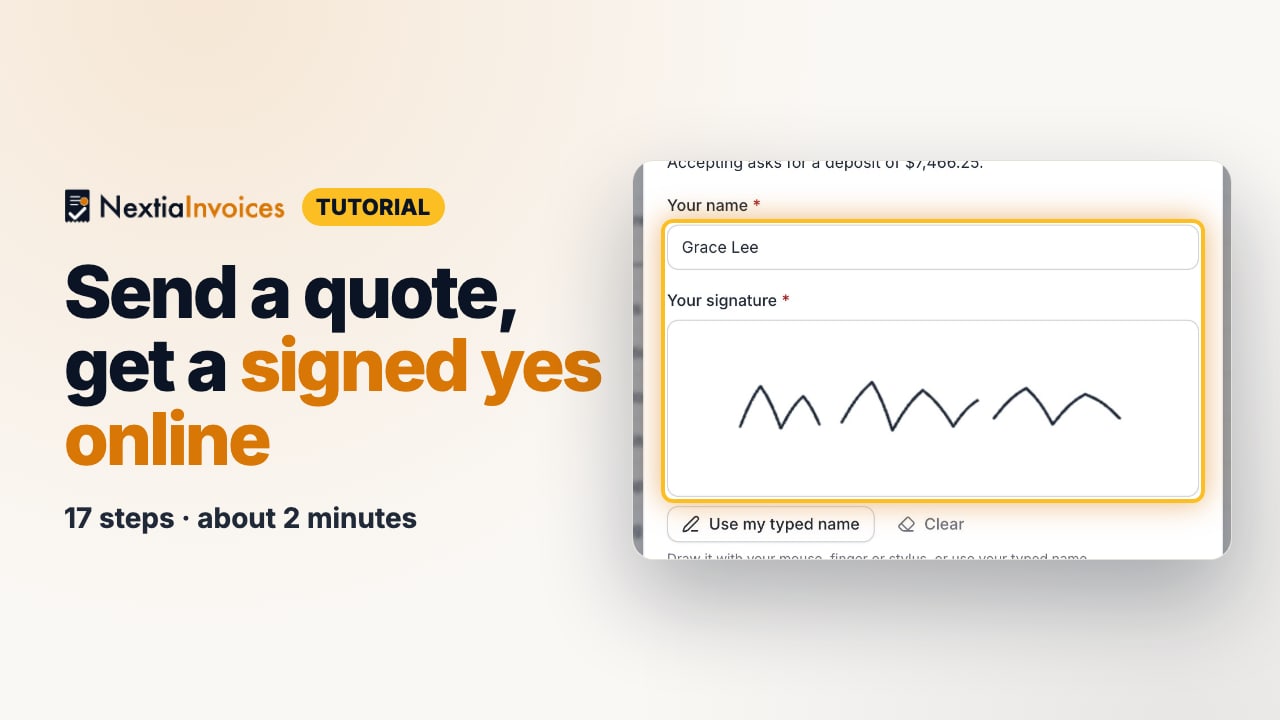
The video is on its way. The step-by-step and written versions are ready now.
- 1
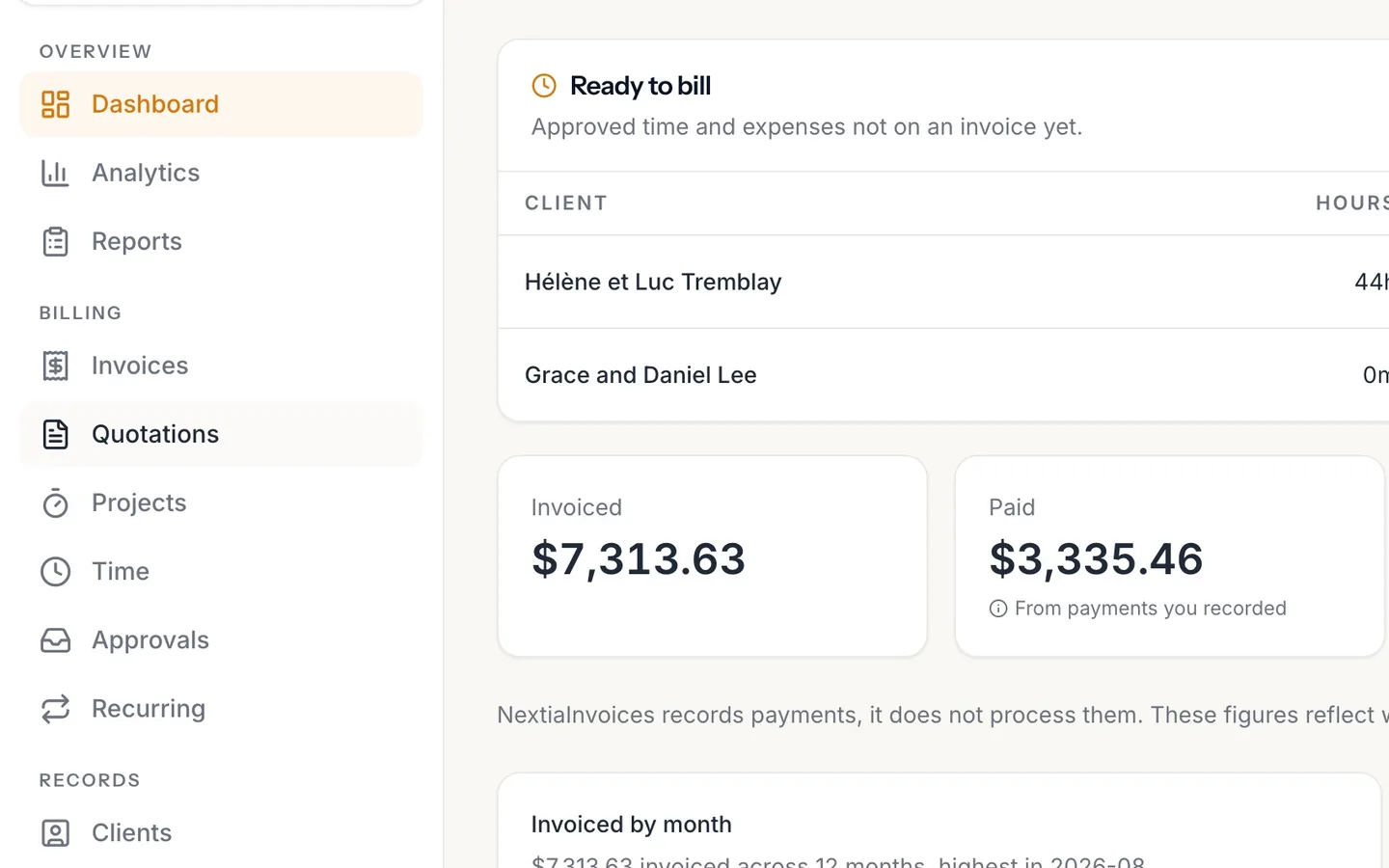
Select Quotations in the sidebar.
- 2
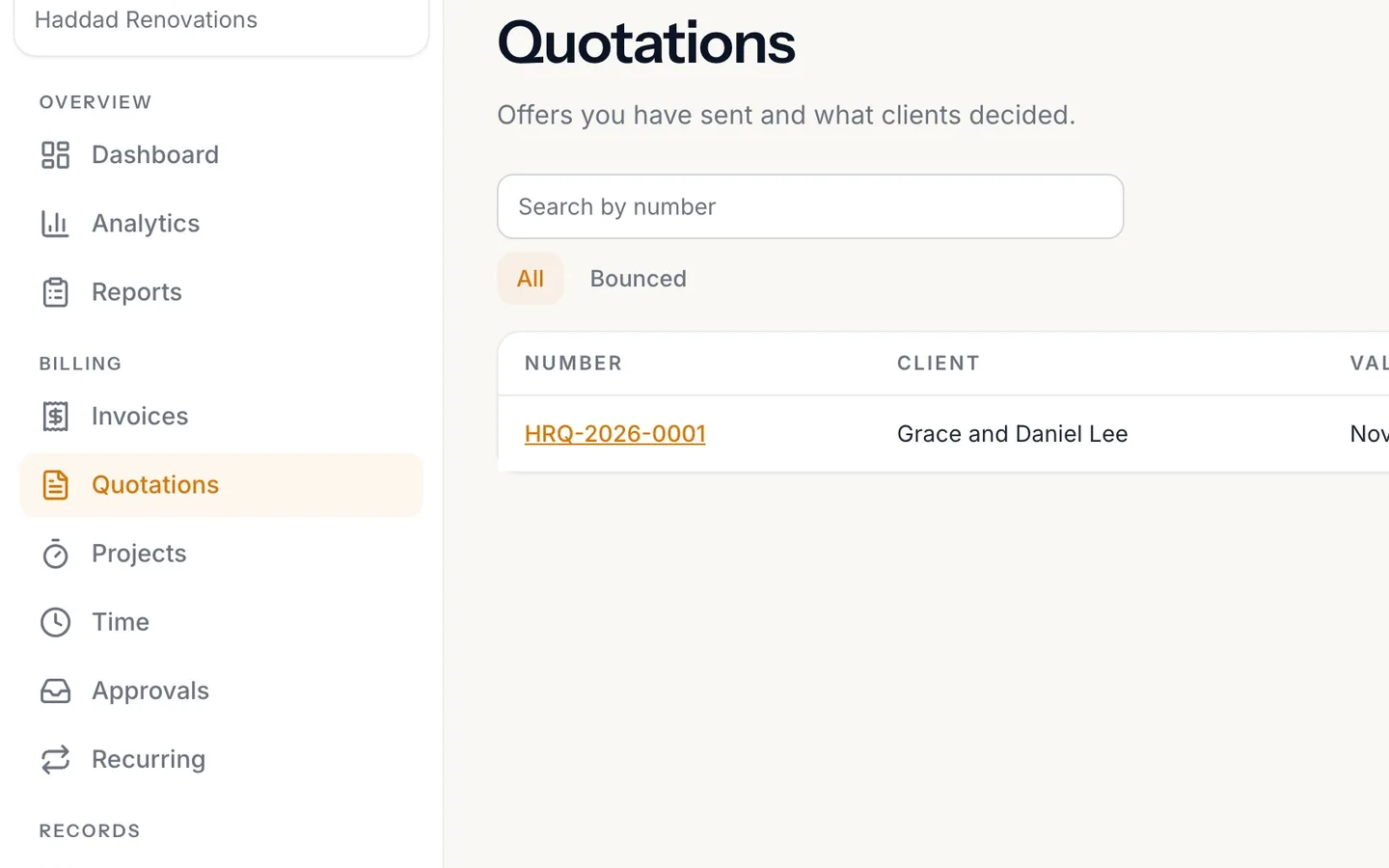
Select the quote's number to open it.
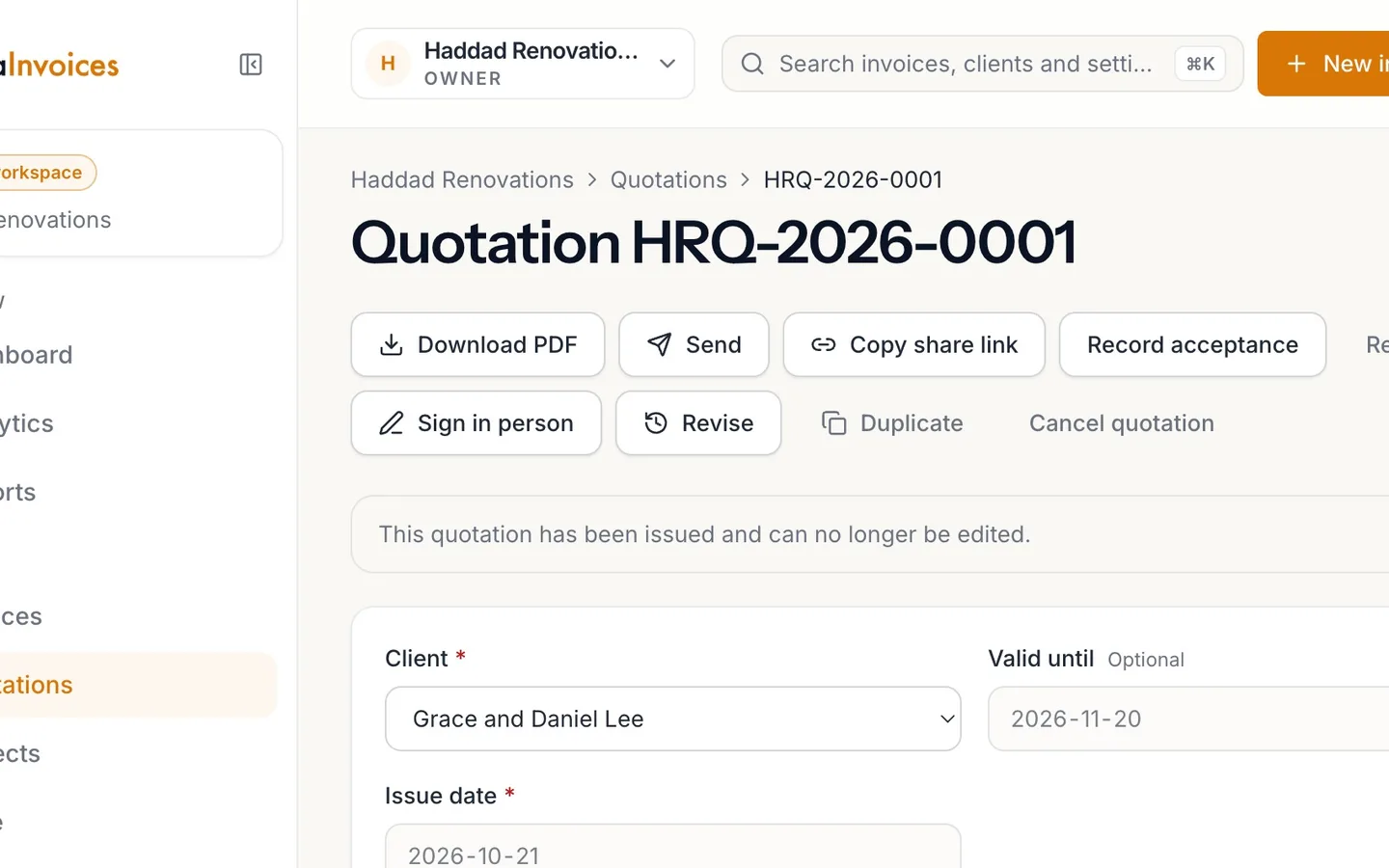
Here, HRQ-2026-0001 for Grace and Daniel Lee.
- 3
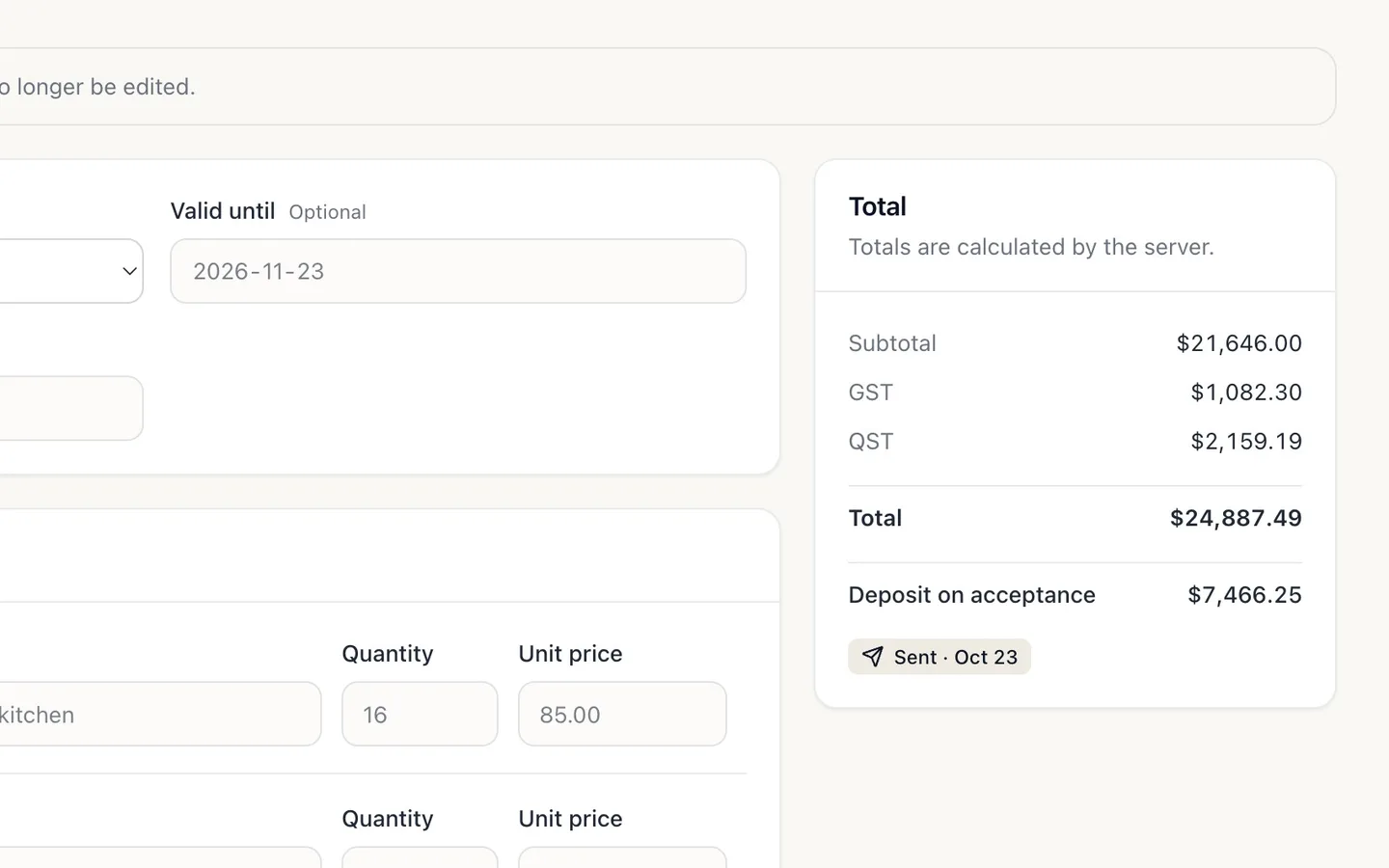
Check the total and the Deposit on acceptance.
Taxes are worked out for you. The deposit is what accepting asks for first.
- 4
Select Send.
Your client gets an email with the PDF attached and a secure link to the quote.
- 5
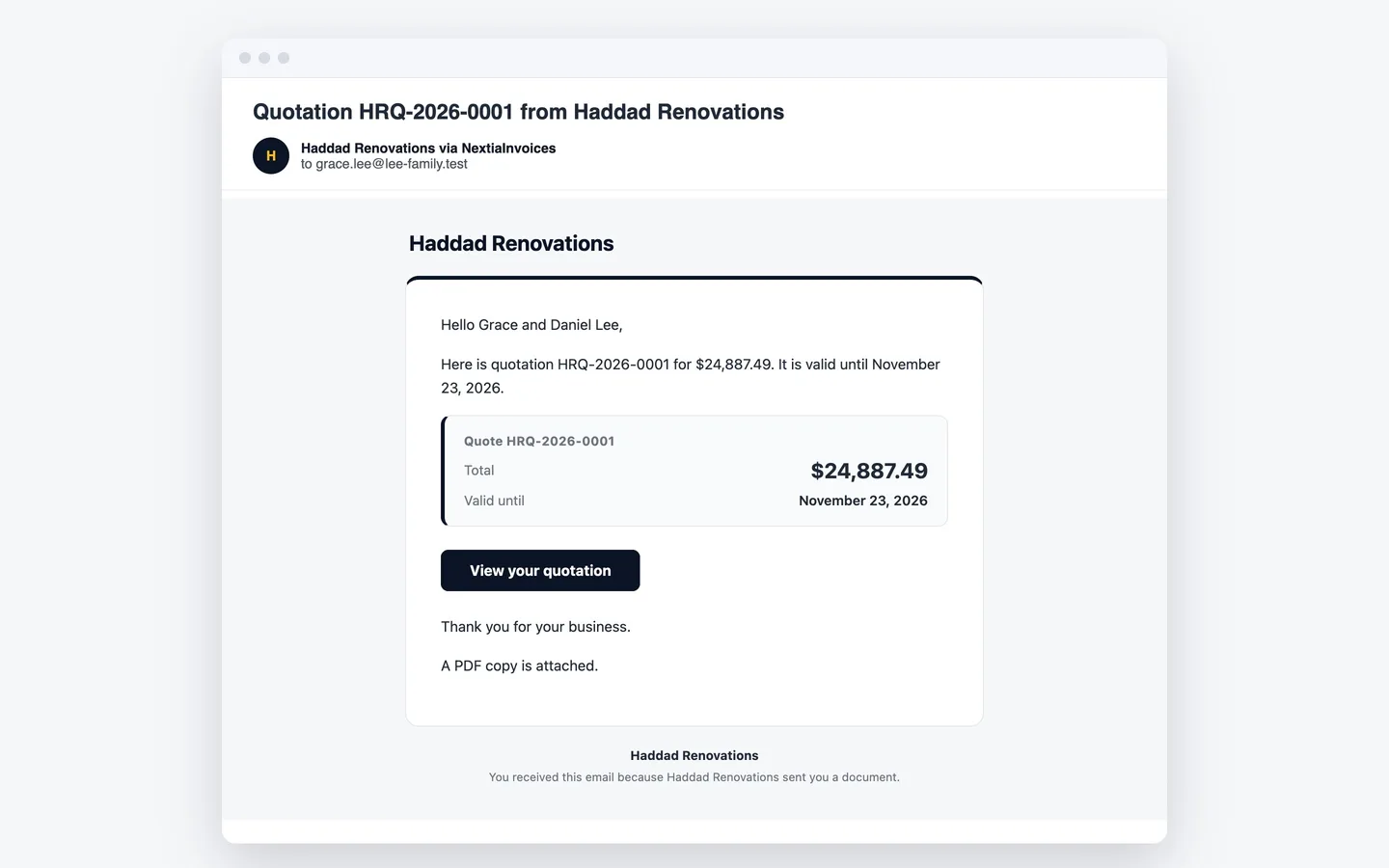
Your client gets the email.
It comes from your business, via NextiaInvoices.
- 6
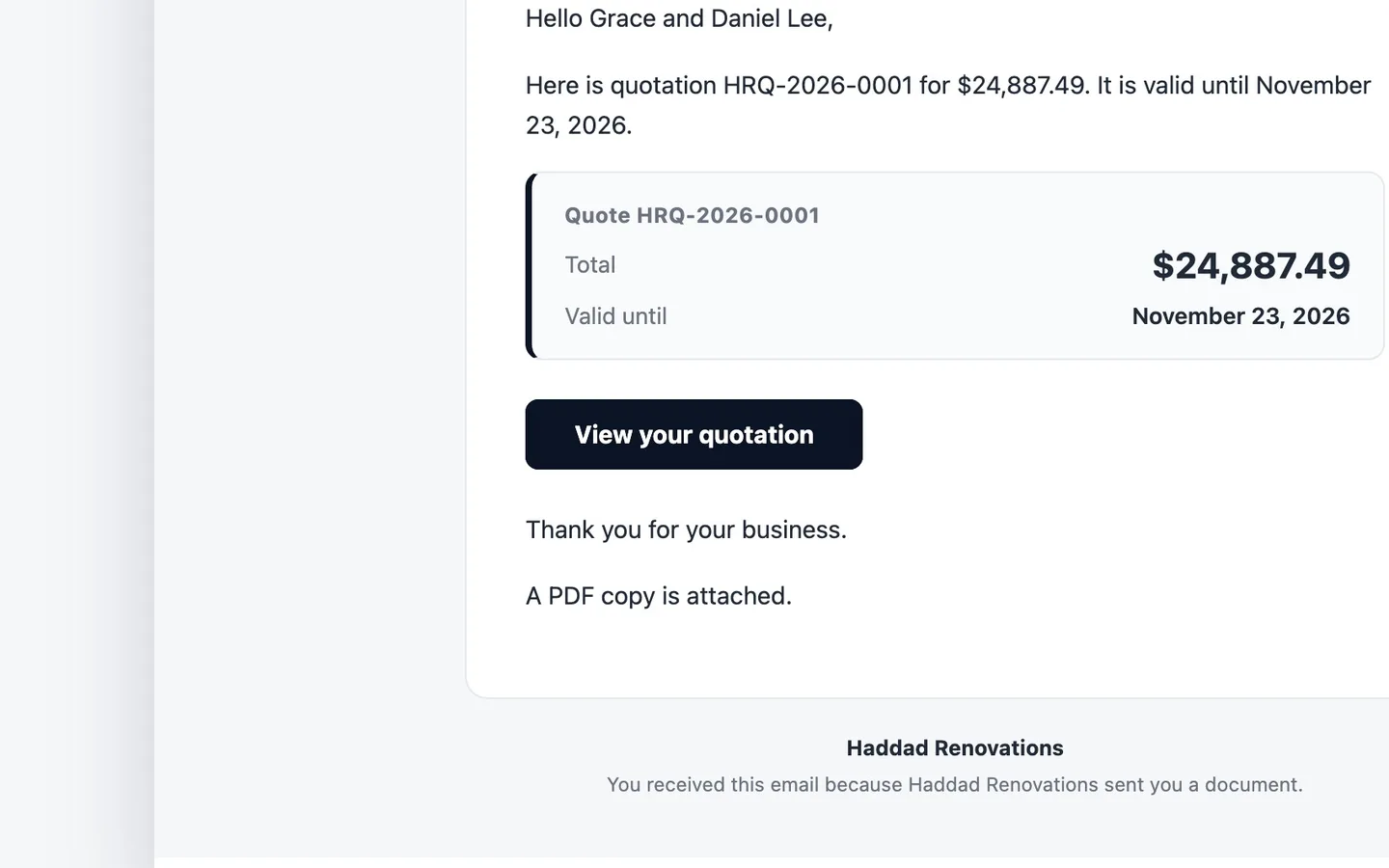
They select View your quotation.
- 7
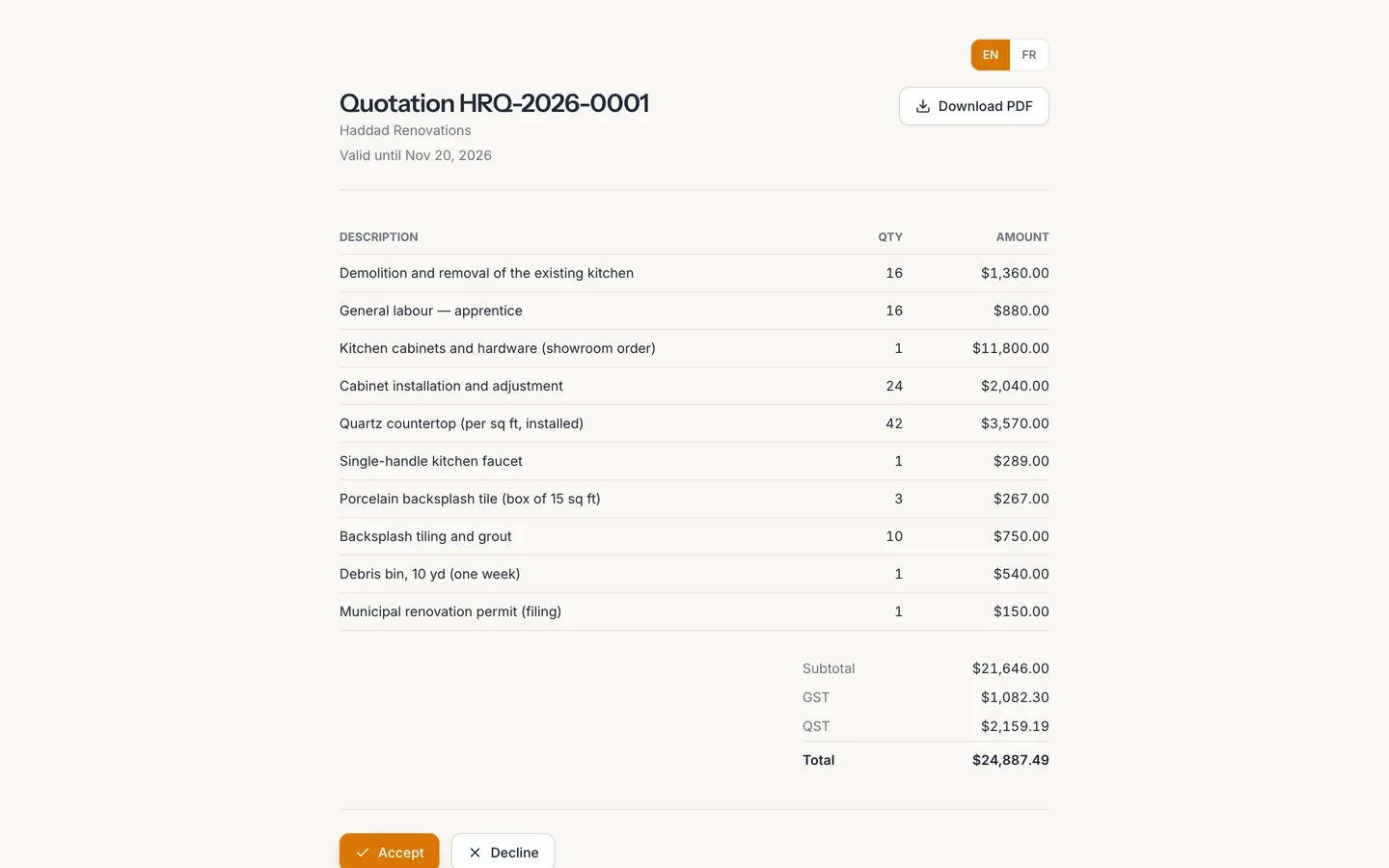
The quote opens in their browser.
No account or password needed.
- 8
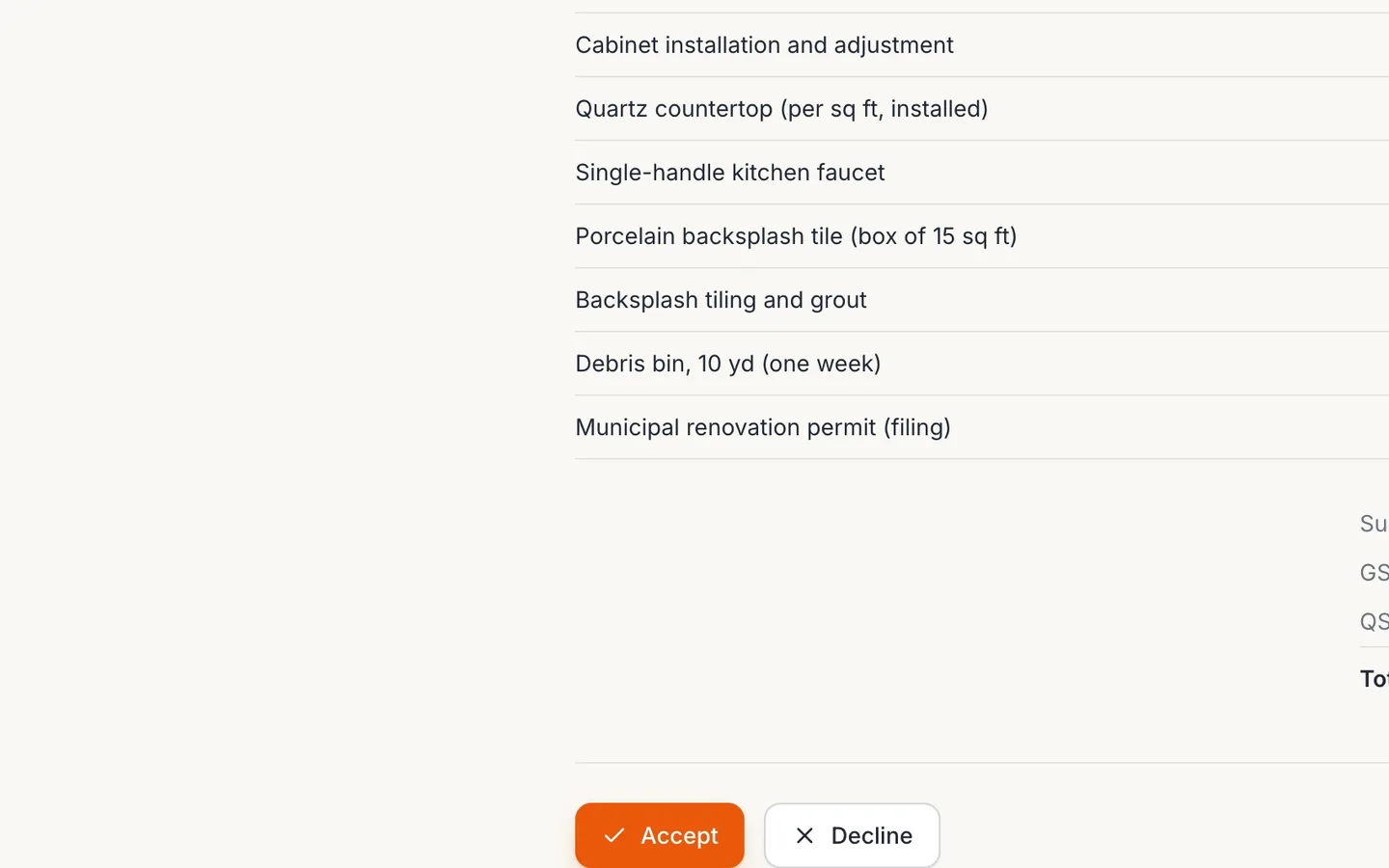
They select Accept.
The deposit is shown before they sign.
- 9
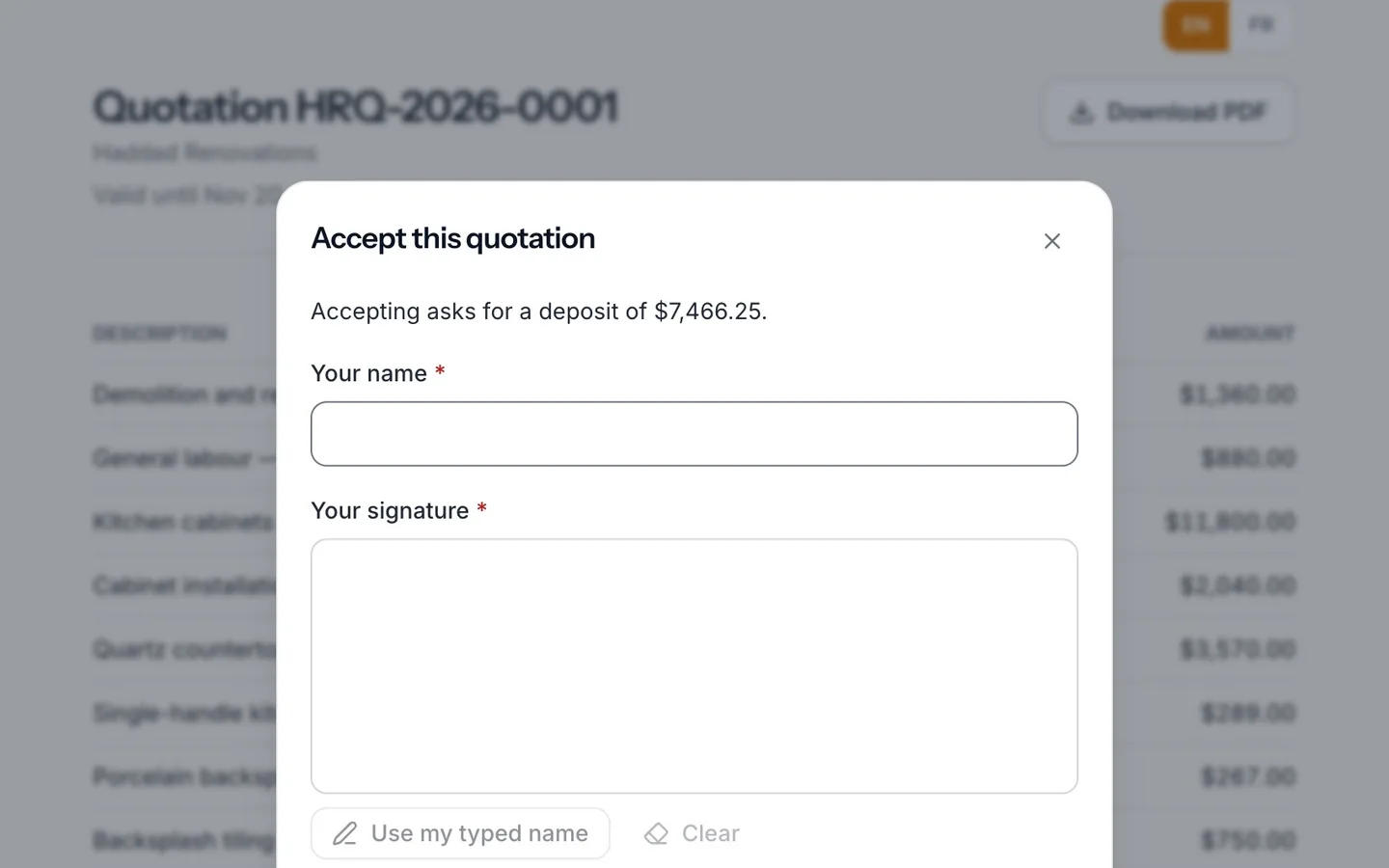
They type their name and draw their signature.
With a mouse, a finger or a stylus, or Use my typed name.
- 10
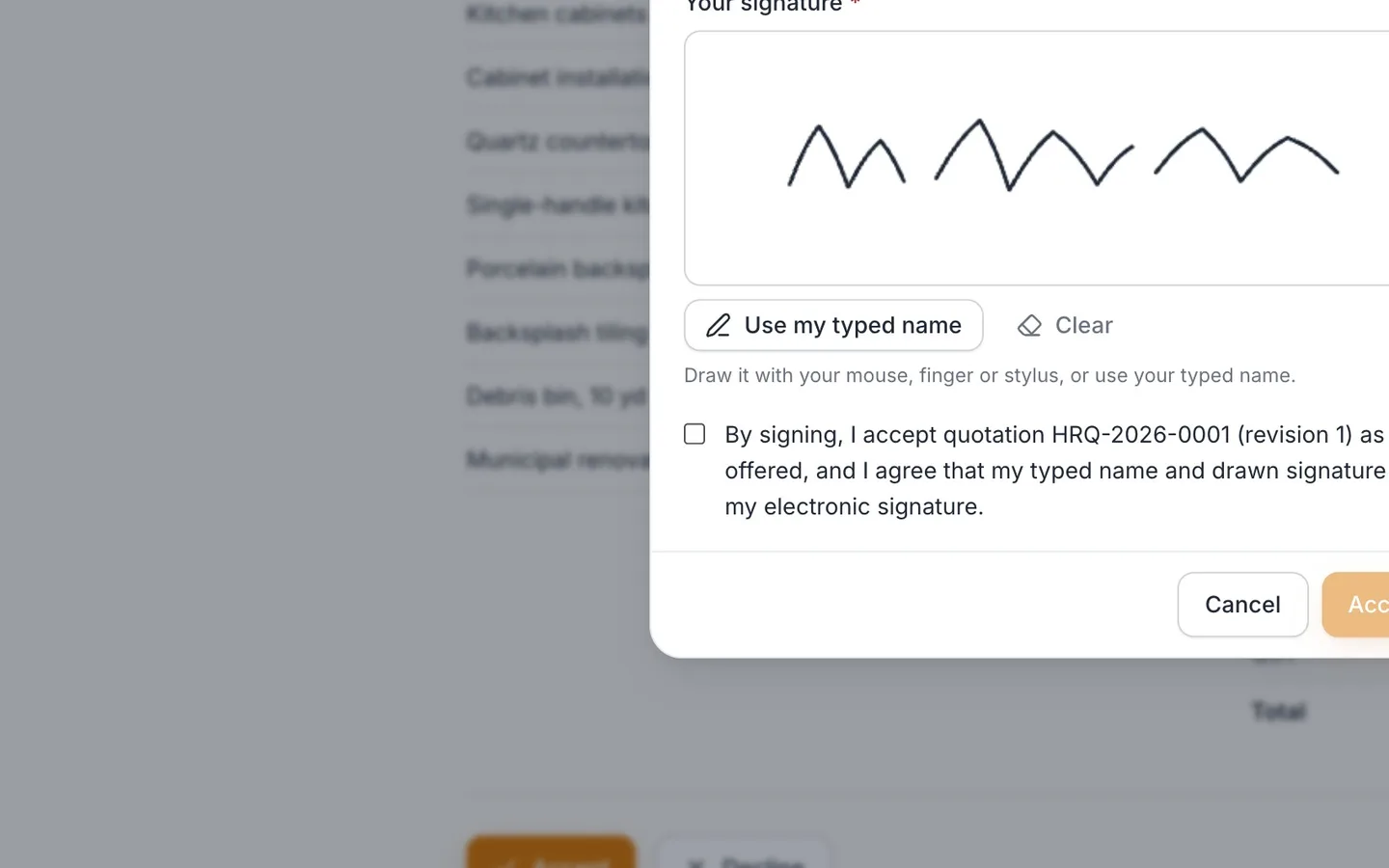
They tick the box to confirm it's their electronic signature.
- 11
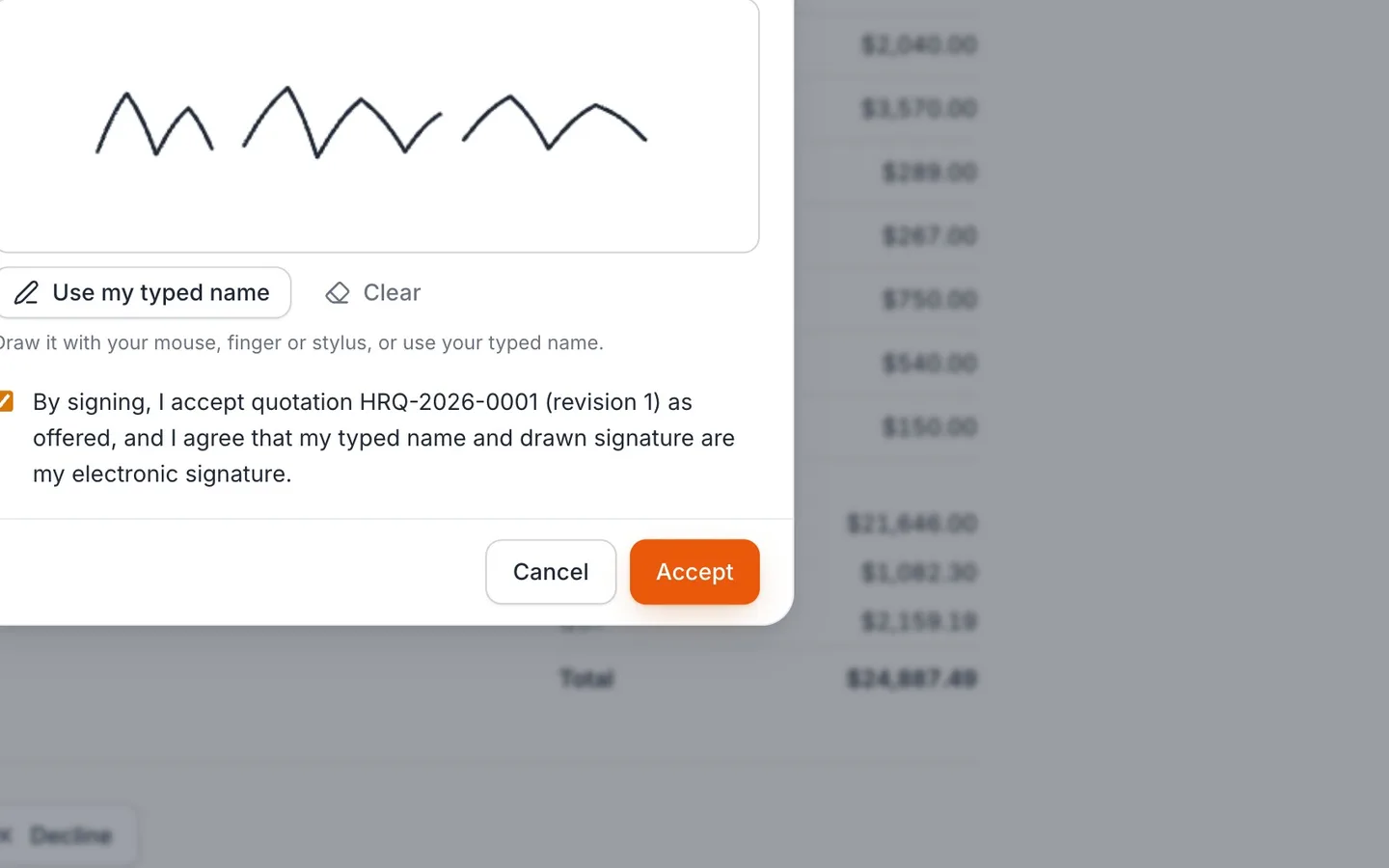
And select Accept.
- 12
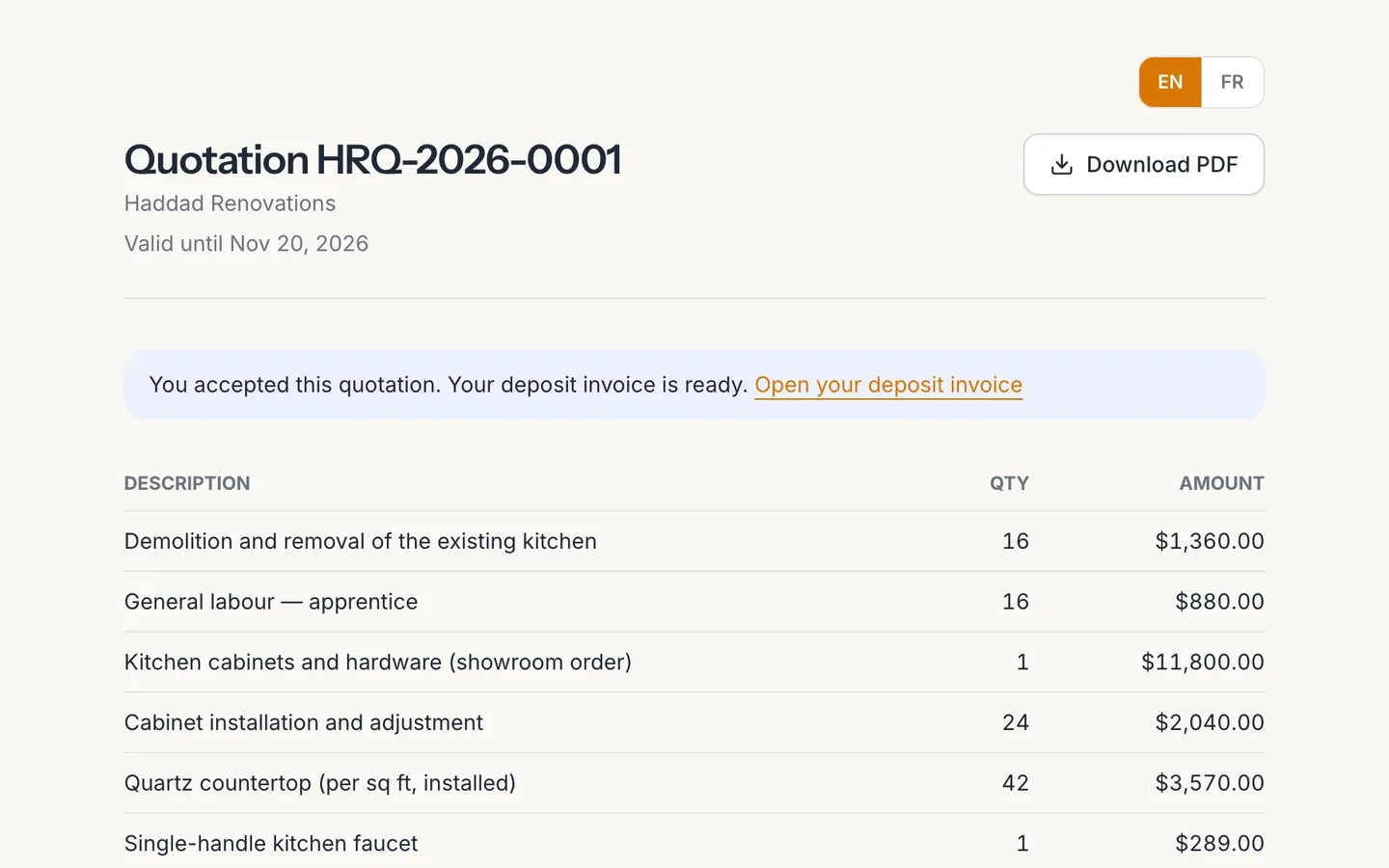
Accepted. Their deposit invoice is ready.
They can open it straight from the quote.
- 13
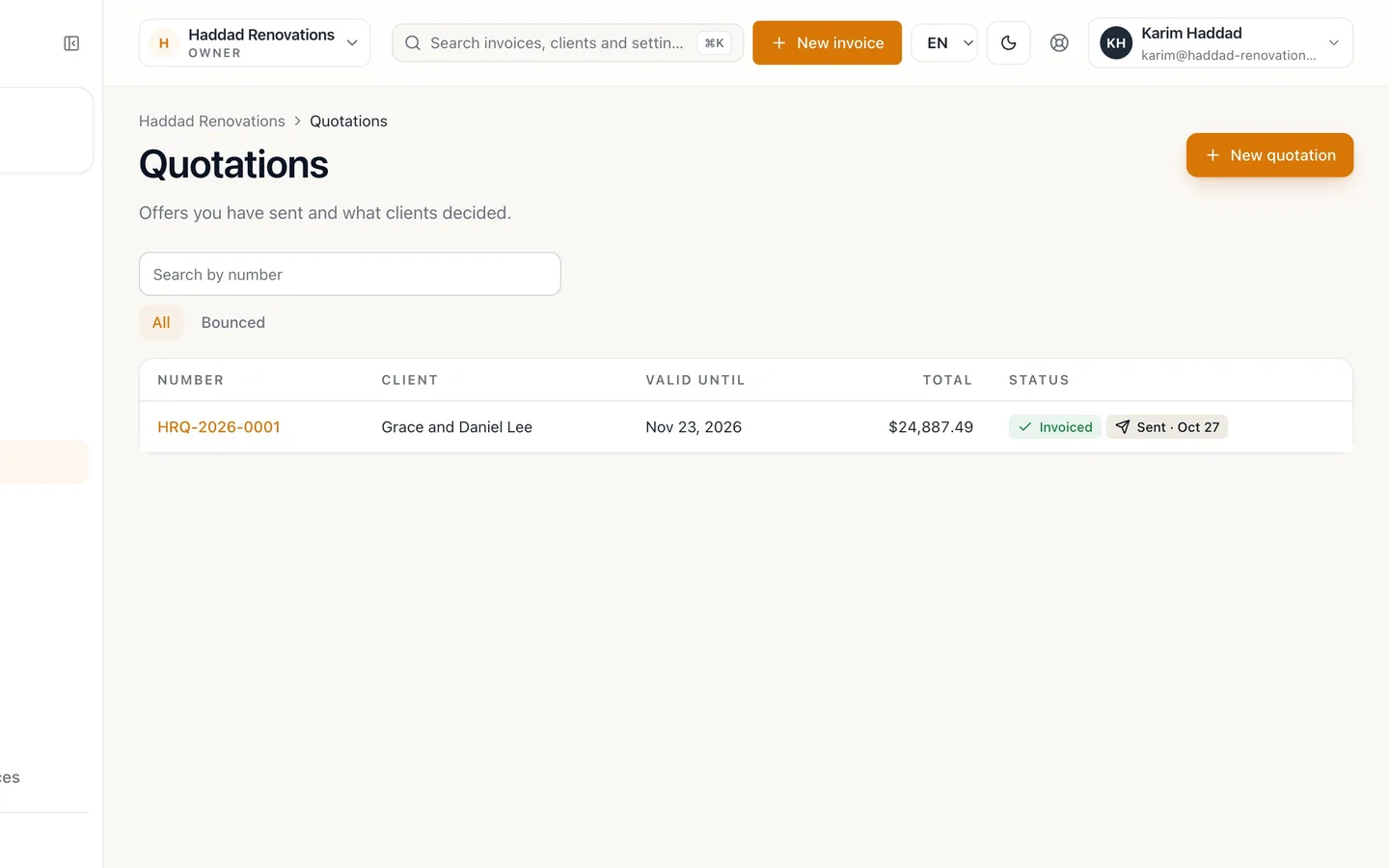
Back in Quotations, the quote reads Invoiced.
- 14
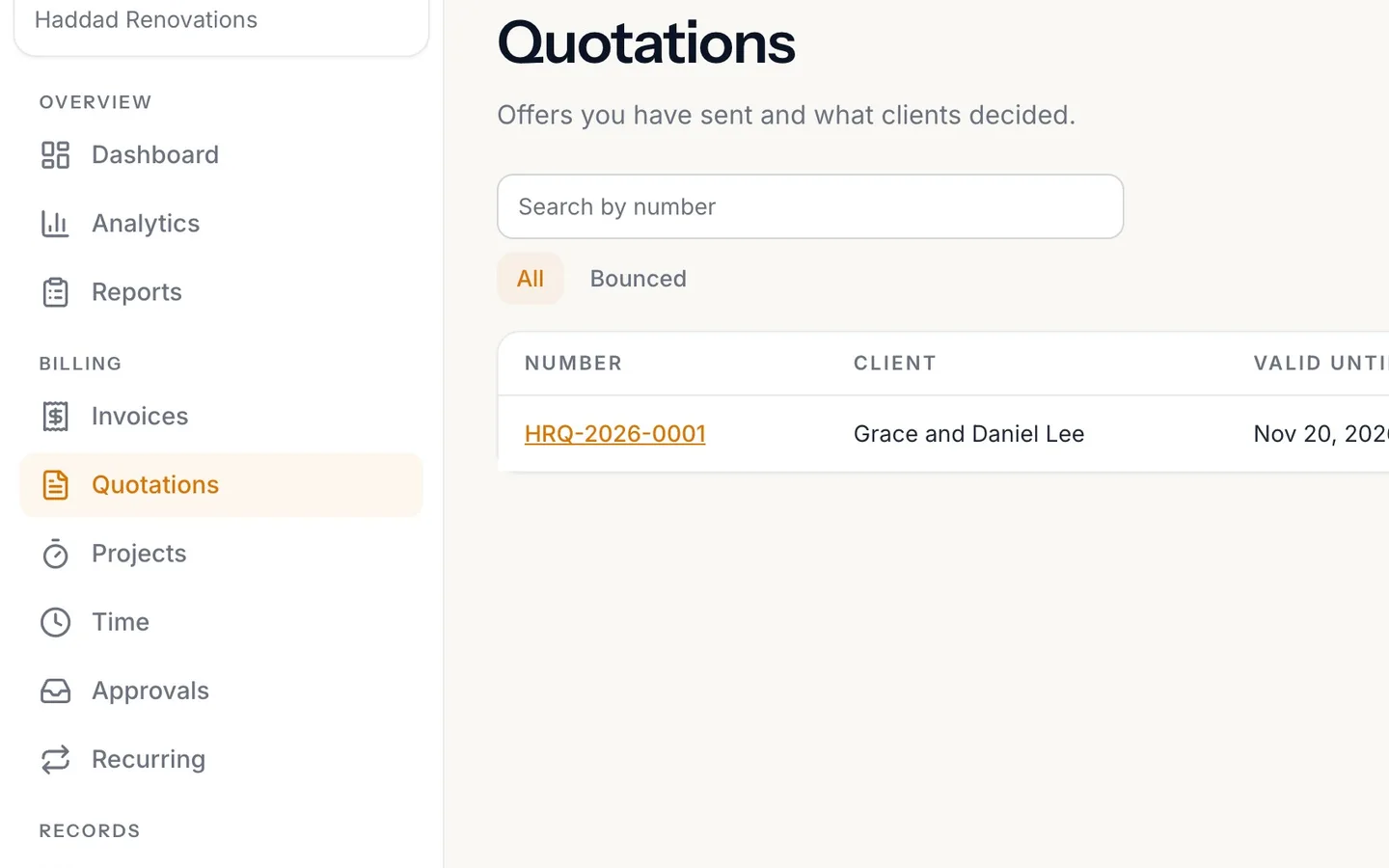
Open it to see the Signed acceptance.
Who signed, when, their signature and the exact words they agreed to.
- 15
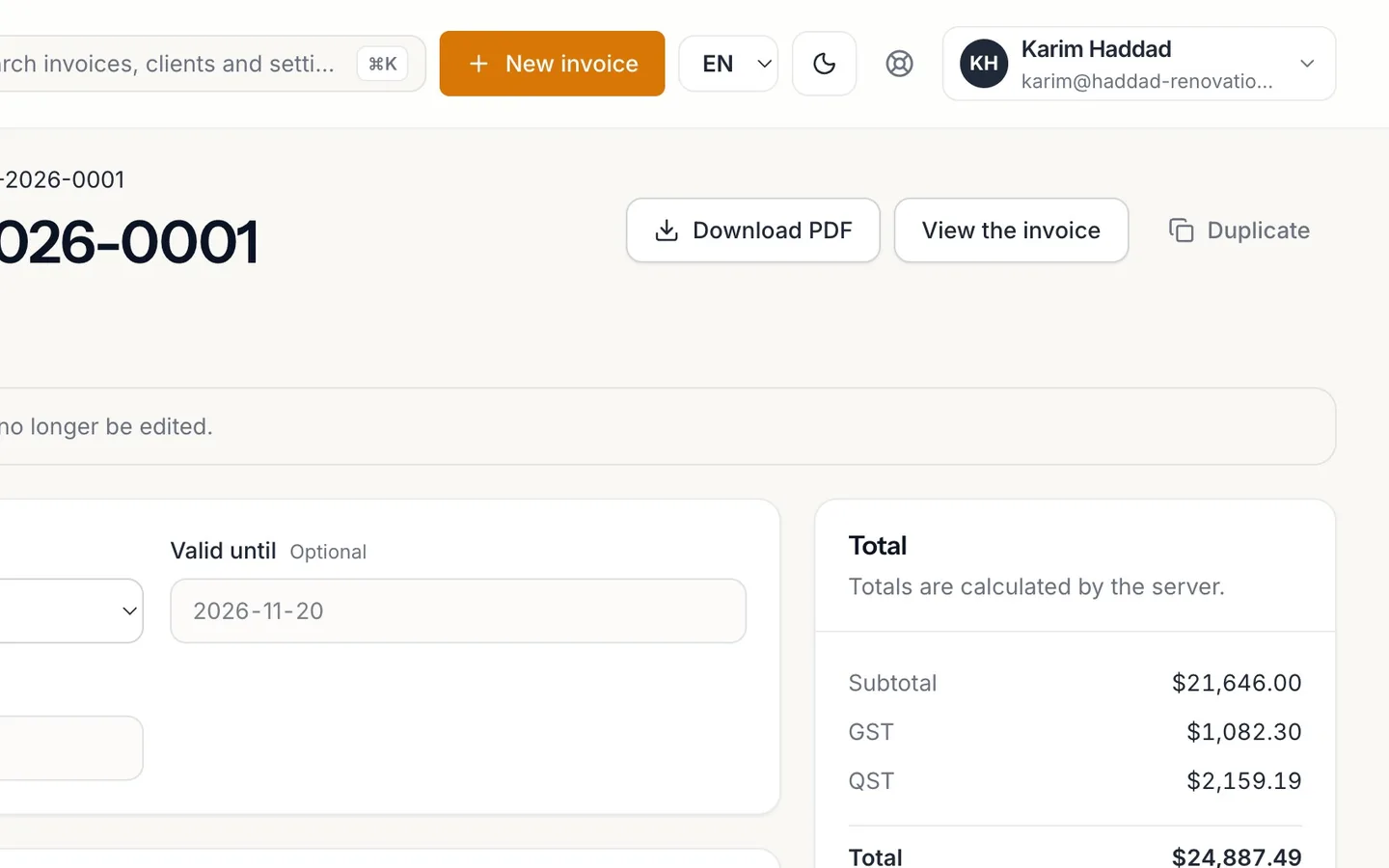
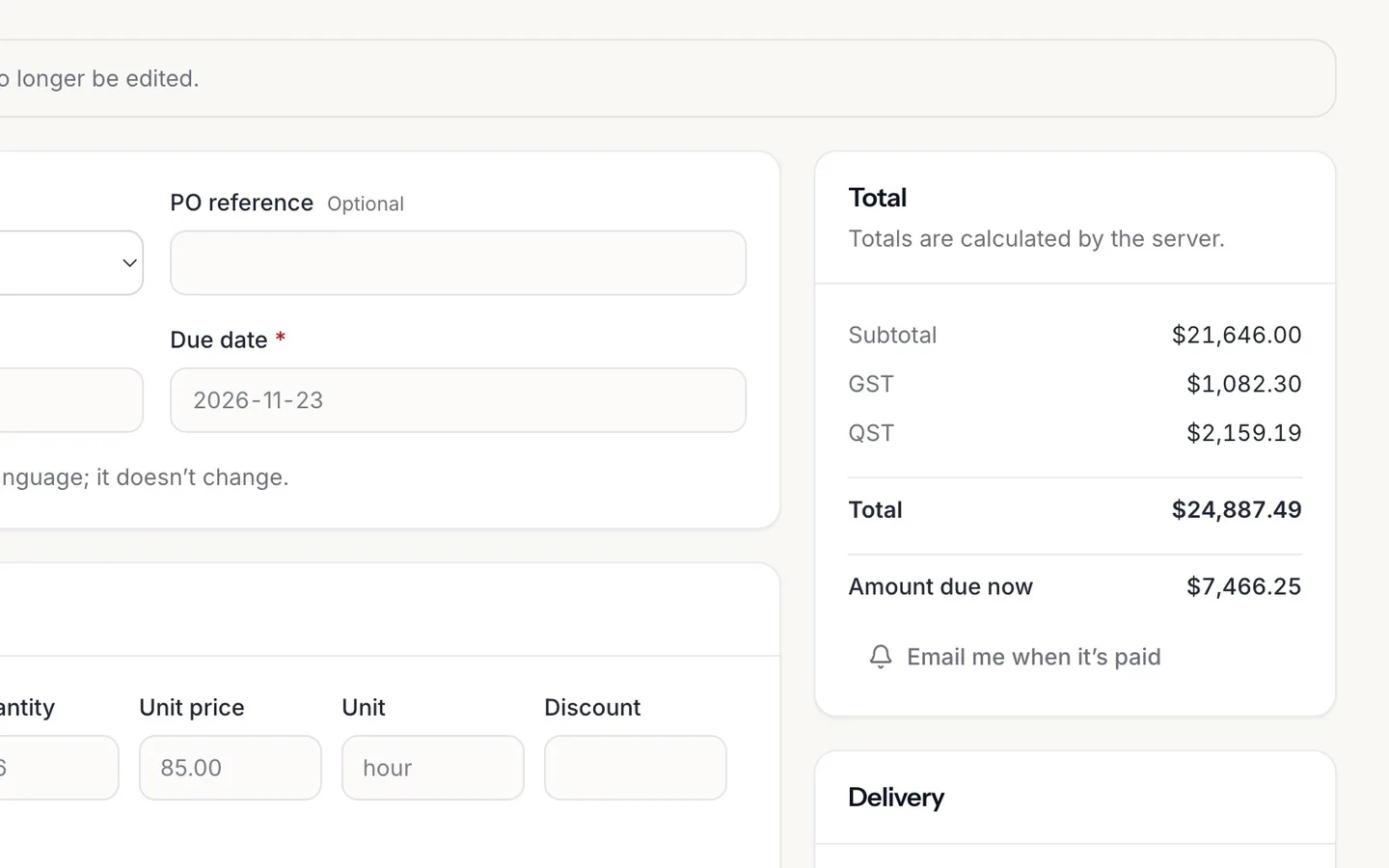
Select View the invoice.
- 16
The invoice is already issued, with the deposit as Amount due now.
Same lines and total as the quote.
- 17
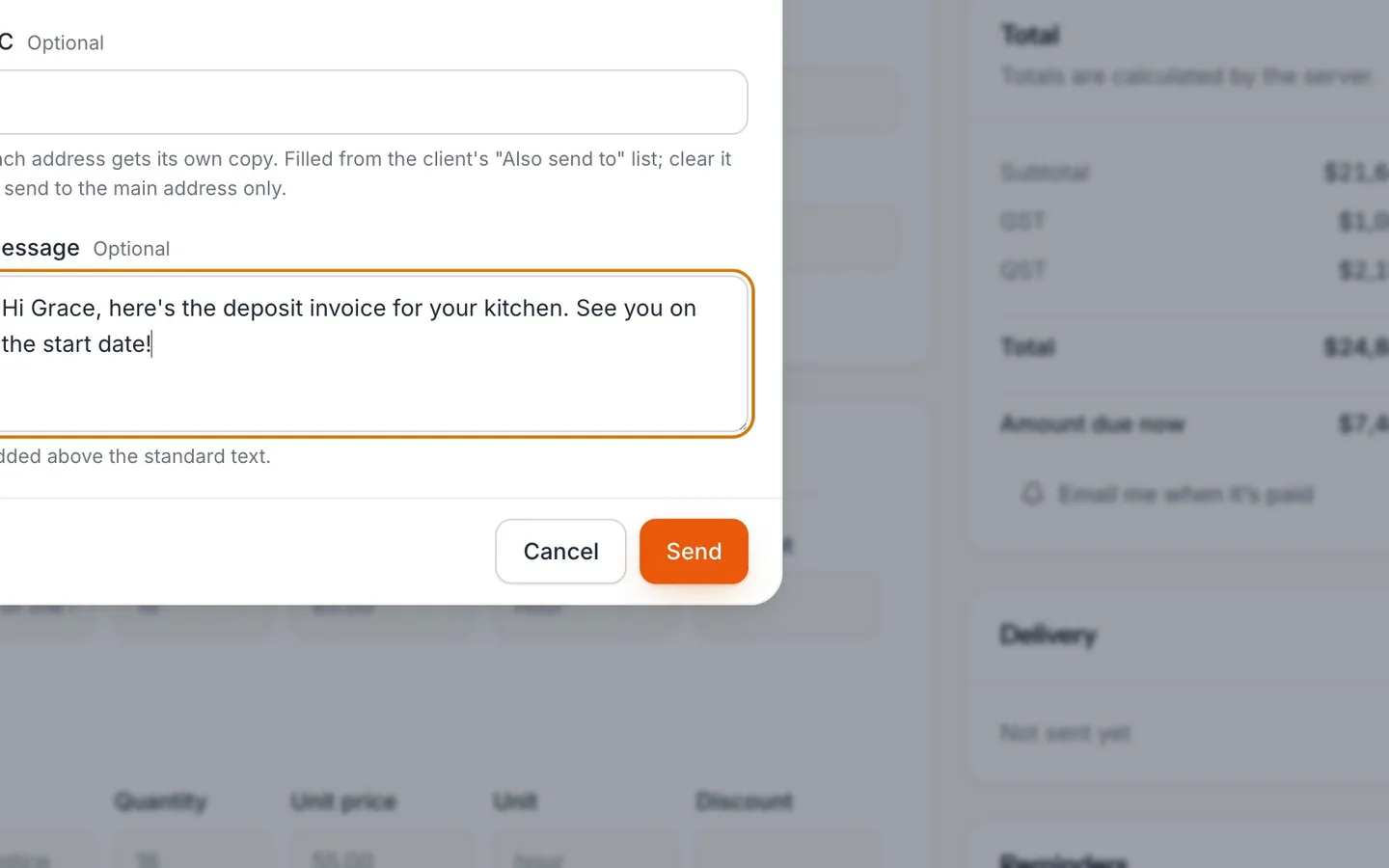
Select Send, add a message if you like, and Send.
Leave Send to blank to use the client's address.
Send a quote, get a signed yes online
Email a quote from NextiaInvoices. Your client opens it, signs and accepts it online, and with a deposit it becomes an issued invoice right away.
Before you start
This guide is for the moment a client has agreed to a price and you want that agreement in writing. You send the quote by email, your client opens it in their browser, types their name, signs and accepts it. NextiaInvoices keeps the signed acceptance with the quote. If the quote asks for a deposit, accepting it also turns the quote into an issued invoice, with the deposit due now.
What you need first:
- The quote written and issued. In Quotations, select New quotation, choose the client, add the lines as you would on an invoice, and select Issue. Issuing gives the quote its number and locks it, and only an issued quote can be sent. Quotes have their own number sequence, separate from your invoices.
- A deposit, if you want one, set on the quote before you issue it. Under Deposit to accept, choose A fixed amount or A percentage of the total, or leave No deposit.
- Valid until, if the offer has a deadline. Leave it blank and the quote doesn't expire.
- The client's email address on their record in Clients.
In the video, Karim of Haddad Renovations sends Grace and Daniel Lee the quote for their new kitchen, with a 30% deposit.
Step by step
-
Open Quotations
Select Quotations in the sidebar. The list shows each quote's number, client, Valid until date, total and status.
-
Open the quote
Select the quote's number to open it. Karim's is HRQ-2026-0001, for Grace and Daniel Lee.
-
Check the total and the deposit
The totals show the subtotal, GST, QST and the total, all worked out by NextiaInvoices. The Lee kitchen comes to $24,887.49. Below it, Deposit on acceptance shows what your client is asked for first when they accept: here 30%, $7,466.25. If the amount is wrong, it's too late to change this quote; see the troubleshooting section for Revise.
-
Send it
Select Send. NextiaInvoices emails the quote to the client with a PDF copy attached and a secure link to it. The quote now shows as Sent, and Viewed once your client opens it.
-
What your client receives
The email comes from your business, by way of NextiaInvoices, in the language of the quote. It has the PDF attached and a View your quotation button.
-
They open the link
Your client selects View your quotation.
-
The quote in their browser
The quote opens in their browser: no account or password needed. They see every line, the taxes, the total, the Valid until date and two buttons: Accept and Decline. If they decline, they can give a reason, and the quote reads Declined in your list.
-
They select Accept
Selecting Accept opens Accept this quotation. When the quote asks for a deposit, the window says so before they sign: "Accepting asks for a deposit of $7,466.25."
-
They type their name and sign
Your client types their name in Your name, then draws their signature in the signature box with a mouse, a finger or a stylus. Use my typed name fills the box with the name they typed instead, and Clear starts the signature again.
-
They confirm it's their signature
They tick the box under the signature. Its text is the agreement itself: "By signing, I accept this quotation as offered, and I agree that my typed name and drawn signature are my electronic signature."
-
They accept
They select Accept. NextiaInvoices checks the name, the signature and the consent again on the server before recording anything.
-
The deposit invoice is ready
The page now says "You accepted this quotation. Your deposit invoice is ready." with Open your deposit invoice, so your client can open it straight away. Without a deposit, the page says the business has been notified instead, and no invoice is created. Either way, the owners of your business get an email saying the client accepted and signed the quote.
-
Back in Quotations
In Quotations, the Lee quote now reads Invoiced: accepting it with a deposit converted it into an invoice. A quote accepted without a deposit reads Accepted until you bill it.
-
See the signed acceptance
Open the quote. The Signed acceptance card is kept with it: who signed, when, their signature, and the exact words they agreed to. A quote that has been accepted can no longer be revised.
-
Open the invoice
Select View the invoice on the quote.
-
The invoice, already issued
Accepting turned the quote into this invoice, already issued with its own invoice number. It has the same lines and the same total as the quote, $24,887.49, and Amount due now shows the deposit, $7,466.25. The rest stays on the invoice's balance, to be paid as the work goes on.
-
Send the invoice
Select Send. Leave Send to blank to use the client's address, add a short message if you like, and select Send. Your client gets the deposit invoice by email, with the PDF and a link, like any other invoice.
What happens next
The invoice behaves like any other: record the deposit when it arrives, and the rest when it's paid. If it goes unpaid past its due date, it appears in Who to chase. The quote stays linked to the invoice, with its signed acceptance, so you can always show what the client agreed to.
For bigger jobs billed in parts, Bill a stage on a quote invoices a percentage of it now (for example "on signature") and the rest later, and the quote reads Billed in stages.
If something goes wrong
My client says the quote can't be accepted
Check its status in Quotations. Only a quote that's Sent or Viewed can be accepted. If it has Expired, select Revise, update it, issue the new revision and send it: it keeps the number, and the client's link moves to the new revision. If you cancelled it, select Duplicate and send the copy.
I need to change a quote after sending it
An issued quote can't be edited. Select Revise to start the next revision as a draft. Nothing changes for your client until you issue it; then the old revision becomes read-only and reads Replaced.
The email didn't arrive
Check the client's email address on their record, then select Send again. You can also select Copy share link and send the link yourself.
Accepting didn't create an invoice
That's expected when the quote has no deposit. Accepting records the signed yes; when you're ready to bill, open the quote and select Convert to invoice. A quote can only be converted once.
The client agreed by phone or in person
If they're with you, Sign in person lets them sign on your device: their acceptance is recorded as signed in person, with you as the witness. If you don't need a signature, Record acceptance marks the quote accepted.
Questions
How does a client accept a quote online in NextiaInvoices?
They open the link in your email, select Accept, type their name, draw their signature (or use their typed name), tick the consent box and select Accept. No account is needed. The signed acceptance is kept with your quote.
Is the online signature kept as proof?
Yes. The quote's Signed acceptance shows who signed, when, the signature itself and the exact text they agreed to. It stays with the quote after it's converted to an invoice.
How do I ask for a deposit on a quote?
Before you issue the quote, set Deposit to accept to A fixed amount or A percentage of the total. When your client accepts, the quote becomes an issued invoice with the deposit as Amount due now.
Can a client decline a quote?
Yes. The quote page has Decline, with an optional reason. You can also select Record a decline yourself if they tell you some other way.
Do quotes expire?
Only if you set Valid until. After that date the quote reads Expired and can't be accepted; select Revise to send a new version.
What's the difference between Accepted and Invoiced?
Accepted means the client said yes and nothing has been billed yet. Invoiced means the quote has been converted into an invoice, either by accepting it with a deposit or by Convert to invoice.
Will I know when a client accepts?
Yes. When a client accepts on the quote page, the owners of your business get an email saying who accepted and signed which quote, with a link to it.